Better backlink data for site owners

Webmaster level: intermediate

In recent years, our free Webmaster Tools product has provided roughly 100,000 backlinks when you click the "Download more sample links" button. Until now, we've selected those links primarily by lexicographical order. That meant that for some sites, you didn't get as complete of a picture of the site's backlinks because the link data skewed toward the beginning of the alphabet.

Based on feedback from the webmaster community, we're improving how we select these backlinks to give sites a fuller picture of their backlink profile. The most significant improvement you'll see is that most of the links are now sampled uniformly from the full spectrum of backlinks rather than alphabetically. You're also more likely to get example links from different top-level domains (TLDs) as well as from different domain names. The new links you see will still be sorted alphabetically.

Starting soon, when you download your data, you'll notice a much broader, more diverse cross-section of links. Site owners looking for insights into who recommends their content will now have a better overview of those links, and those working on cleaning up any bad linking practices will find it easier to see where to spend their time and effort.

Thanks for the feedback, and we'll keep working to provide helpful data and resources in Webmaster Tools. As always, please ask in our forums if you have any questions.


View manual webspam actions in Webmaster Tools

Webmaster level: All

We strive to keep spam out of our users’ search results. This includes both improving our webspam algorithms as well as taking manual action for violations of our quality guidelines. Many webmasters want to see if their sites are affected by a manual webspam action, so today we’re introducing a new feature that should help. The manual action viewer in Webmaster Tools shows information about actions taken by the manual webspam team that directly affect that site’s ranking in Google’s web search results. To try it out, go to Webmaster Tools and click on the “Manual Actions” link under “Search Traffic."

You’ll probably see a message that says, “No manual webspam actions found.” A recent analysis of our index showed that well under 2% of domains we've seen are manually removed for webspam. If you see this message, then your site doesn't have a manual removal or direct demotion for webspam reasons.

If your site is in the very small fraction that do have a manual spam action, chances are we’ve already notified you in Webmaster Tools. We’ll keep sending those notifications, but now you can also do a live check against our internal webspam systems. Here’s what it would look like if Google had taken manual action on a specific section of a site for "User-generated spam":

Partial match. User-generated spam affects mattcutts.com/forum/


In this hypothetical example, there isn’t a site-wide match, but there is a “partial match." A partial match means the action applies only to a specific section of a site. In this case, the webmaster has a problem with other people leaving spam on mattcutts.com/forum/. By fixing this common issue, the webmaster can not only help restore his forum's rankings on Google, but also improve the experience for his users. Clicking the "Learn more" link will offer new resources for troubleshooting.

Once you’ve corrected any violations of Google’s quality guidelines, the next step is to request reconsideration. With this new feature, you'll find a simpler and more streamlined reconsideration request process. Now, when you visit the reconsideration request page, you’ll be able to check your site for manual actions, and then request reconsideration only if there’s a manual action applied to your site. If you do have a webspam issue to address, you can do so directly from the Manual Actions page by clicking "Request a review."

The manual action viewer delivers on a popular feature request. We hope it reassures the vast majority of webmasters who have nothing to worry about. For the small number of people who have real webspam issues to address, we hope this new information helps speed up the troubleshooting. If you have questions, come find us in the Webmaster Help Forum or stop by our Office Hours.

Update (12:50pm PT, August 9th): Unfortunately we've hit a snag during our feature deployment, so it will be another couple days before the feature is available to everyone. We will post another update once the feature is fully rolled out.

Update (10:30am PT, August 12th): The feature is now fully rolled out.

Easier navigation without GPS

Webmaster level: All

Today we’re unveiling a shiny new navigation in Webmaster Tools. The update will make the features you already use easier to find, as well as unveil some exciting additions.

Navigation reflects how search works

We’ve organized the Webmaster Tools features in groups that match the stages of search:
  • Crawl: see information about how we discover and crawl your content. Here you will find crawl stats, crawl errors, any URLs you’ve blocked from crawling, Sitemaps, URL parameters, and the Fetch as Google feature.
  • Google Index: keep track of how many of your pages are in Google’s index and how we understand their content: you can monitor the overall indexed counts for your site (Index Status), see what keywords we’ve found on your pages (Content Keywords), or request to remove URLs from the search results.
  • Search Traffic: check how your pages are doing in the search results — how people find your site (Search Queries), who’s recommended your site (Links to Your Site), and see a sample of pages from your site that have incoming links from other internal pages.
  • Search Appearance: mark up your pages to help Google understand your content better during indexing and potentially influence how your pages appear in our search results. This includes the Structured Data dashboard, Data Highlighter, Sitelinks, and HTML Improvements.

Account-level administrative tasks now accessible from the Settings menu

Account-level admin tasks such as setting User permissions, Site Settings, and Change of Address are now grouped under the gear icon in the top right corner so they’re always accessible to you:


This is the list of items as visible to site owners, “full” or “restricted” users will see a subset of these options. For example, if you're a “restricted” user for a site, the "Users & Site Owners" menu item will not appear.

New Search Appearance pop-up

Beginner webmasters will appreciate the new Search Appearance pop-up, which can be used to visualize how your site may appear in search and learn more about the content or structure changes that may help to influence each element:


To access the pop-up window, click on the question mark icon next to the Search Appearance menu in the side navigation.

It includes the essential search result elements like title, snippet and URL, as well as optional elements such as sitelinks, breadcrumbs, search within a site, event and product rich snippets, and authorship information.

We hope the new navigation makes it easier for you to make the most of Webmaster Tools. As always, if you have additional questions, feel free to post in the Webmaster Help Forum.


Verify your site in Webmaster Tools using Google Tag Manager

Webmaster level: Intermediate


If you use Google Tag Manager to add and update your site tags, now you can quickly and easily verify ownership of your site in Webmaster Tools using the container snippet code.

Here’s how it’s done:

1. On the Webmaster Tools home page, click Manage site for the site you’d like to verify, then select Verify this site. If you haven’t added the site yet, you can click the Add a site button in the top right corner.


To do this, you must have "View, Edit, and Manage" account level permissions in Google Tag Manager.

2. On the Verification page, select Google Tag Manager as the verification method and follow the steps on your screen.


3. Click Verify.

And you’re done!

If you’ve got any questions about this verification method, drop by the Webmaster Help Forum.


Easier management of website verifications

Webmaster level: All

To help webmasters manage the verified owners for their websites in Webmaster Tools, we’ve recently introduced three new features:

  • Verification details view: You can now see the methods used to verify an owner for your site. In the Manage owners page for your site, you can now find the new Verification details link. This screenshot shows the verification details of a user who is verified using both an HTML file uploaded to the site and a meta tag:

    Where appropriate, the Verification details will have links to the correct URL on your site where the verification can be found to help you find it faster.

  • Requiring the verification method be removed from the site before unverifying an owner: You now need to remove the verification method from your site before unverifying an owner from Webmaster Tools. Webmaster Tools now checks the method that the owner used to verify ownership of the site, and will show an error message if the verification is still found. For example, this is the error message shown when an unverification was attempted while the DNS CNAME verification method was still found on the DNS records of the domain:

  • Shorter CNAME verification string: We’ve slightly modified the CNAME verification string to make it shorter to support a larger number of DNS providers. Some systems limit the number of characters that can be used in DNS records, which meant that some users were not able to use the CNAME verification method. We’ve now made the CNAME verification method have a fewer number of characters. Existing CNAME verifications will continue to be valid.

We hope this changes make it easier for you to use Webmaster Tools. As always, please post in our Verification forum if you have any questions or feedback.

Make the most of Search Queries in Webmaster Tools

Level: Beginner to Intermediate

If you’re intrigued by the Search Queries feature in Webmaster Tools but aren’t sure how to make it actionable, we have a video that we hope will help!


Maile shares her approach to Search Queries in Webmaster Tools

This video explains the vocabulary of Search Queries, such as:
  • Impressions
  • Average position (only the top-ranking URL for the user’s query is factored in our calculation)
  • Click
  • CTR
The video also reviews an approach to investigating Top queries and Top pages:
  1. Prepare by understanding your website’s goals and your target audience (then using Search Queries “filters” to support your knowledge)
  2. Sort by clicks in Top queries to understand the top queries bringing searchers to your site (for the given time period)
  3. Sort by CTR to notice any missed opportunities
  4. Categorize queries into logical buckets that simplify tracking your progress and staying in touch with users’ needs
  5. Sort Top pages by clicks to find the URLs on your site most visited by searchers (for the given time period)
  6. Sort Top pages by impressions to find valuable pages that can be used to help feature your related, high-quality, but lower-ranking pages
After you’ve watched the video and applied the knowledge of your site with the findings from Search Queries, you’ll likely have several improvement ideas to help searchers find your site. If you’re up for it, let us know in the comments what Search Queries information you find useful (and why!), and of course, as always, feel free to share any tips or feedback.

Discover your links

Update on October 15, 2008: For more recent news on links, visit Links Week on our Webmaster Central Blog. We're discussing internal links, outbound links, and inbound links.

You asked, and we listened: We've extended our support for querying links to your site to much beyond the link: operator you might have used in the past. Now you can use webmaster tools to view a much larger sample of links to pages on your site that we found on the web. Unlike the link: operator, this data is much more comprehensive and can be classified, filtered, and downloaded. All you need to do is verify site ownership to see this information.


To make this data even more useful, we have divided the world of links into two types: external and internal. Let's understand what kind of links fall into which bucket.


What are external links?
External links to your site are the links that reside on pages that do not belong to your domain. For example, if you are viewing links for http://www.google.com/, all the links that do not originate from pages on any subdomain of google.com would appear as external links to your site.

What are internal links?

Internal links to your site are the links that reside on pages that belong to your domain. For example, if you are viewing links for http://www.google.com/, all the links that originate from pages on any subdomain of google.com, such as http://www.google.com/ or mobile.google.com, would appear as internal links to your site.

Viewing links to a page on your site

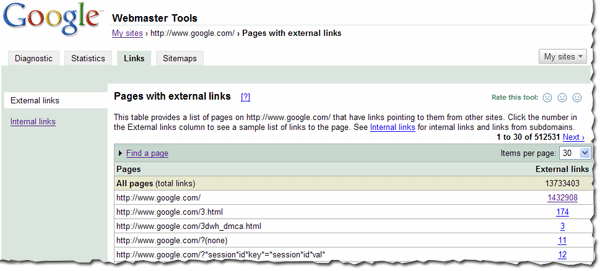
You can view the links to your site by selecting a verified site in your webmaster tools account and clicking on the new Links tab at the top. Once there, you will see the two options on the left: external links and internal links, with the external links view selected. You will also see a table that lists pages on your site, as shown below. The first column of the table lists pages of your site with links to them, and the second column shows the number of the external links to that page that we have available to show you. (Note that this may not be 100% of the external links to this page.)


This table also provides the total number of external links to your site that we have available to show you.
When in this summary view, click the linked number and go to the detailed list of links to that page.
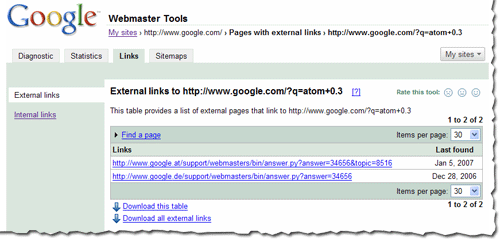
When in the detailed view, you'll see the list of all the pages that link to specific page on your site, and the time we last crawled that link. Since you are on the External Links tab on the left, this list is the external pages that point to the page.


Finding links to a specific page on your site
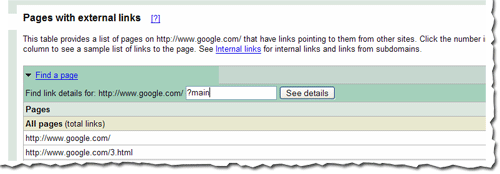
To find links to a specific page on your site, you first need to find that specific page in the summary view. You can do this by navigating through the table, or if you want to find that page quickly, you can use the handy Find a page link at the top of the table. Just fill in the URL and click See details. For example, if the page you are looking for has the URL http://www.google.com/?main, you can enter “?main” in the Find a page form. This will take you directly to the detailed view of the links to http://www.google.com/?main.


Viewing internal links

To view internal links to pages on your site, click on the Internal Links tab on the left side bar in the view. This takes you to a summary table that, just like external links view, displays information about pages on your site with internal links to them.

However, this view also provides you with a way to filter the data further: to see links from any of the subdomain on the domain, or links from just the specific subdomain you are currently viewing. For example, if you are currently viewing the internal links to http://www.google.com/, you can either see links from all the subdomains, such as links from http://mobile.google.com/ and http://www.google.com, or you can see links only from other pages on http://www.google.com.


Downloading links data
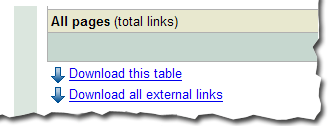
There are three different ways to download links data about your site. The first: download the current view of the table you see, which lets you navigate to any summary or details table, and download the data in the current view. Second, and probably the most useful data, is the list all external links to your site. This allows you to download a list of all the links that point to your site, along with the information about the page they point to and the last time we crawled that link. Thirdly, we provide a similar download for all internal links to your site.


We do limit the amount of data you can download for each type of link (for instance, you can currently download up to one million external links). Google knows about more links than the total we show, but the overall fraction of links we show is much, much larger than the link: command currently offers. Why not visit us at Webmaster Central and explore the links for your site?

About badware warnings

Some of you have asked about the warnings we show searchers when they click on search results leading to sites that distribute malicious software. As a webmaster, you may be concerned about the possibility of your site being flagged. We want to assure you that we take your concerns very seriously, and that we are very careful to avoid flagging sites incorrectly. It's our goal to avoid sending people to sites that would compromise their computers. These exploits often result in real people losing real money. Compromised bank accounts and stolen credit card numbers are just the tip of this identity theft iceberg.

If your site has been flagged for badware, we let you know this in webmaster tools. Often, we find that webmasters aren't aware that their sites have been compromised, and this warning in search results is a surprise. Fixing a compromised site can be quite hard. Simply cleaning up the HTML files is seldom sufficient. If a rootkit has been installed, for instance, nothing short of wiping the machine and starting over may work. Even then, if the underlying security hole isn't also fixed, they may be compromised again within minutes.

We are looking at ways to provide additional information to webmasters whose sites have been flagged, while balancing our need to keep malicious site owners from hiding from Google's badware protection. We aim to be responsive to any misidentified sites too. If your site has been flagged, you'll see information on the appeals process in webmaster tools. If you can't find anything malicious on your site and believe it was misidentified, go to http://stopbadware.org/home/review to request an evaluation. If you'd like to discuss this with us or have ideas for how we can better communicate with you about it, please post in our webmaster discussion forum.

Update: this post has been updated to provide a link to the new form for requesting a review.


Update: for more information, please see our Help Center article on malware and hacked sites.

The Year in Review

Welcome to 2007! The webmaster central team is very excited about our plans for this year, but we thought we'd take a moment to reflect on 2006. We had a great year building communication with you, the webmaster community, and creating tools based on your feedback. Many on the team were able to come out to conferences and met some of you in person, and we're looking forward to meeting many more of you in 2007. We've also had great conversations and gotten valuable feedback in our discussion forum, and we hope this blog has been helpful in providing information to you.

We said goodbye to the Sitemaps blog and launched this broader blog in August. And after doing so, our number of unique monthly visitors more than doubled. Thanks! We got much of our non-Google traffic from other webmaster community blogs and forums, such as the Search Engine Watch blog, Google Blogoscoped, and WebmasterWorld. In December, seomoz.org and the new Searchengineland.com were our biggest non-Google referrers. And social networking sites such as digg.com, reddit,com, del.icio.us, and slashdot.org sent webmaster tools many of our visitors, and a blog by somebody named Matt Cutts sent a lot of referrers our way as well. And these are the top Google queries that visitors clicked on:


Our most popular post was about the Googlebot activity reports and crawl rate control that we launched in October, followed by details about how to authenticate Googlebot. We have only slightly more Firefox users (46.28%) than Internet Explorer users (46.25%). 89% of you use Windows. After English, our readers most commonly speak French, German, Japanese, and Spanish. And after the United States, our readers primarily come from the UK, Canada, Germany, and France.

Here's some of what we did last year.

January
We expanded into Swedish, Danish, Norwegian, and Finnish.
You could hear Matt on webmaster radio.

February
We lauched several new features, including:
  • robots.txt analysis tool
  • page with the highest PageRank by month
  • common words in your site's content and in anchor text to your site
We met many of you at the Google Sitemaps lunch at SES NY.
You could hear me on webmaster radio.

March
We launched a few more features, including:
  • showing the top position of your site for your top queries
  • top mobile queries
  • download options for Sitemaps data, stats, and errors

April
We got a whole new look and added yet more features, such as:
  • meta tag verification
  • notification of violations to the webmaster guidelines
  • reinclusion request form and spam reporting form
  • indexing information (can we crawl your home page? is your site indexed?)
We also added a comprehensive webmaster help center and expanded the webmaster guidelines from 10 languages to 18.
We met more of you at the Google Sitemaps lunch at Boston Pubcon.
Matt talked about the new caching proxy.
We talked to many of you at SES Toronto.

May
Matt introduced you to our new search evangelist, Adam Lasnik.
We hung out with some of you in our hometown at Search Engine Watch Live Seattle and over at SES London.

June

We launched user surveys, to learn more about how you interact with webmaster tools.
We expanded some of our features, such as:
  • increased the number of crawl errors shown to 100% within the last two weeks
  • Increased the number of Sitemaps you can submit from 200 to 500
  • Expanded query stats so you can see them per property and per country and made them available for subdirectories
  • Increased the number of common words in your site and in links to your site from 20 to 75
  • Added Adsbot-Google to the robots.txt analysis tool
Yahoo! Stores incorporated Sitemaps for their merchants.

July
We expanded into Polish.
We began supporting the <meta name="robots" content="noodpt"> tag to allow you to opt out of using Open Directory titles and descriptions for your site in the search results.
We had a great time talking to many of you about international issues at SES Latino in Miami.

August
August was an exciting month for us, as we launched webmaster central! As part of that, we renamed Google Sitemaps to webmaster tools, expanded our Google Group to include all types of webmaster topics, and expanded the help content in our webmaster help center. We also launched some new features, including:
  • Preferred domain control
  • Site verification management
  • Downloads of query stats for all subfolders
In addition, I took over the GoodKarma podcast on webmasterradio for two shows (one all about Buffy the Vampire Slayer!) and we met even more of you at the Google Webmaster Central lunch at SES San Jose.

September
We improved reporting of the cache date in search results.
We provided a way for you to authenticate Googlebot.
And we started updating query stats more often and for a shorter timeframe.

October
We launched several new features, such as:
  • Crawl rate control
  • Googlebot activity reports
  • Opting in to enhanced image search
  • Display of the number of URLs submitted via a Sitemap
And you could hear Matt being interviewed in a podcast.

November
We launched sitemaps.org, for joint support of the Sitemaps protocol between us, Yahoo!, and Microsoft.
We also started notifying you if we flagged your site for badware and if you're an English news publisher included in Google News, we made News Sitemaps available to you.
Partied with lots of you at "Safe Bets with Google" at Pubcon Las Vegas.
We introduced you to our new Sitemaps support engineer, Maile Ohye, and our first webmaster trends analyst, Jonathan Simon.

Dec
We met even more of you at the webmaster central lunch at SES Chicago.

Thanks for spending the year with us. We look forward to even more collaboration and communication in the coming year.

Better understanding of your site

SES Chicago was wonderful. Meeting so many of you made the trip absolutely perfect. It was as special as if (Chicago local) Oprah had joined us!

While hanging out at the Google booth, I was often asked about how to take advantage of our webmaster tools. For example, here's one tip on Common Words.

Common Words: Our prioritized listing of your site's content
The common words feature lists in order of priority (from highest to lowest) the prevalent words we've found in your site, and in links to your site. (This information isn't available for subdirectories or subdomains.) Here are the steps to leveraging common words:

1. Determine your website's key concepts. If it offers getaways to a cattle ranch in Wyoming, the key concepts may be "cattle ranch," "horseback riding," and "Wyoming."

2. Verify that Google detected the same phrases you believe are of high importance. Login to webmaster tools, select your verified site, and choose Page analysis from the Statistics tab. Here, under "Common words in your site's content," we list the phrases detected from your site's content in order of prevalence. Do the common words lack any concepts you believe are important? Are they listing phrases that have little direct relevance to your site?

2a. If you're missing important phrases, you should first review your content. Do you have solid, textual information that explains and relates to the key concepts of your site? If in the cattle-ranch example, "horseback riding" was absent from common words, you may then want to review the "activities" page of the site. Does it include mostly images, or only list a schedule of riding lessons, rather than conceptually relevant information?

It may sound obvious, but if you want to rank for a certain set of keywords, but we don't even see those keyword phrases on your website, then ranking for those phrases will be difficult.

2b. When you see general, non-illustrative common words that don't relate helpfully to your site's content (e.g. a top listing of "driving directions" or "contact us"), then it may be beneficial to increase the ratio of relevant content on your site. (Although don't be too worried if you see a few of these common words, as long as you also see words that are relevant to your main topics.) In the cattle ranch example, you would give visitors "driving directions" and "contact us" information. However, if these general, non-illustrative terms surface as the highest-rated common words, or the entire list of common words is only these types of terms, then Google (and likely other search engines) could not find enough "meaty" content.

2c. If you find that many of the common words still don't relate to your site, check out our blog post on unexpected common words.

3. Here are a few of our favorite posts on improving your site's content:
Target visitors or search engines?

Improving your site's indexing and ranking

NEW! SES Chicago - Using Images

4. Should you decide to update your content, please keep in mind that we will need to recrawl your site in order to recognize changes, and that this may take time. Of course, you can notify us of modifications by submitting a Sitemap.

Happy holidays from all of us on the Webmaster Central team!

SES Chicago: Googlers Trevor Foucher, Adam Lasnik and Jonathan Simon

Badware alerts for your sites

As part of our efforts to protect users, we have been warning people using Google search before they visit sites that have been determined to distribute badware under the guidelines published by StopBadware. Warning users is only part of the solution, though; the real win comes from helping webmasters protect their own users by alerting them when their sites have been flagged for badware -- and working with them to remove the threats.

It's my pleasure to introduce badware alerts in Google webmaster tools. You can see on the Diagnostic Summary tab if your site has been determined to distribute badware and can access information to help you correct this.

If your site has been flagged and you believe you've since removed the threats, go to http://stopbadware.org/home/review to request a review. If that's successful, your site will no longer be flagged -- and your users will be safer as a result of your diligence.

This version is only the beginning: we plan to continue to provide more data to help webmasters diagnose issues on their sites. We realize that in many cases, badware distribution is unintentional and the result of being hacked or running ads which lead directly to pages with browser exploits. Stay tuned for improvements to this feature and others on webmaster tools.

Update: this post has been updated to provide a link to the new form for requesting a review.


Update: More information is available in our Help Center article on malware and hacked sites.

The number of pages Googlebot crawls

The Googlebot activity reports in webmaster tools show you the number of pages of your site Googlebot has crawled over the last 90 days. We've seen some of you asking why this number might be higher than the total number of pages on your sites.


Googlebot crawls pages of your site based on a number of things including:
  • pages it already knows about
  • links from other web pages (within your site and on other sites)
  • pages listed in your Sitemap file
More specifically, Googlebot doesn't access pages, it accesses URLs. And the same page can often be accessed via several URLs. Consider the home page of a site that can be accessed from the following four URLs:
  • http://www.example.com/
  • http://www.example.com/index.html
  • http://example.com
  • http://example.com/index.html
Although all URLs lead to the same page, all four URLs may be used in links to the page. When Googlebot follows these links, a count of four is added to the activity report.

Many other scenarios can lead to multiple URLs for the same page. For instance, a page may have several named anchors, such as:
  • http://www.example.com/mypage.html#heading1
  • http://www.example.com/mypage.html#heading2
  • http://www.example.com/mypage.html#heading3
And dynamically generated pages often can be reached by multiple URLs, such as:
  • http://www.example.com/furniture?type=chair&brand=123
  • http://www.example.com/hotbuys?type=chair&brand=123
As you can see, when you consider that each page on your site might have multiple URLs that lead to it, the number of URLs that Googlebot crawls can be considerably higher than the number of total pages for your site.

Of course, you (and we) only want one version of the URL to be returned in the search results. Not to worry -- this is exactly what happens. Our algorithms selects a version to include, and you can provide input on this selection process.

Redirect to the preferred version of the URL
You can do this using 301 (permanent) redirect. In the first example that shows four URLs that point to a site's home page, you may want to redirect index.html to www.example.com/. And you may want to redirect example.com to www.example.com so that any URLs that begin with one version are redirected to the other version. Note that you can do this latter redirect with the Preferred Domain feature in webmaster tools. (If you also use a 301 redirect, make sure that this redirect matches what you set for the preferred domain.)

Block the non-preferred versions of a URL with a robots.txt file
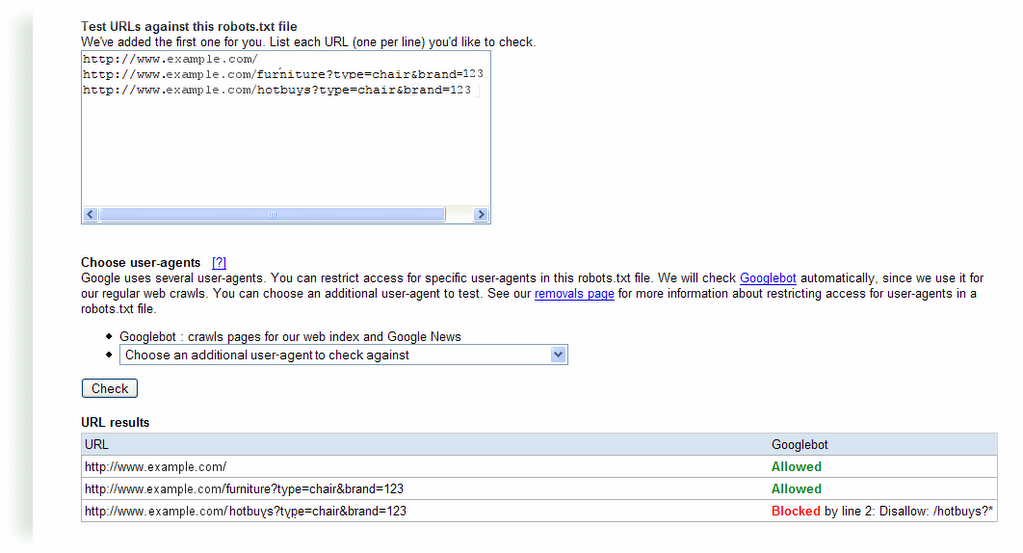
For dynamically generated pages, you may want to block the non-preferred version using pattern matching in your robots.txt file. (Note that not all search engines support pattern matching, so check the guidelines for each search engine bot you're interested in.) For instance, in the third example that shows two URLs that point to a page about the chairs available from brand 123, the "hotbuys" section rotates periodically and the content is always available from a primary and permanent location. If that case, you may want to index the first version, and block the "hotbuys" version. To do this, add the following to your robots.txt file:

User-agent: Googlebot
Disallow: /hotbuys?*

To ensure that this directive will actually block and allow what you intend, use the robots.txt analysis tool in webmaster tools. Just add this directive to the robots.txt section on that page, list the URLs you want to check in the "Test URLs" section and click the Check button. For this example, you'd see a result like this:

Don't worry about links to anchors, because while Googlebot will crawl each link, our algorithms will index the URL without the anchor.

And if you don't provide input such as that described above, our algorithms do a really good job of picking a version to show in the search results.

Googlebot activity reports

The webmaster tools team has a very exciting mission: we dig into our logs, find as much useful information as possible, and pass it on to you, the webmasters. Our reward is that you more easily understand what Google sees, and why some pages don't make it to the index.

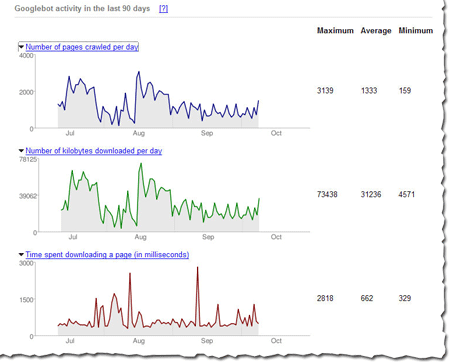
The latest batch of information that we've put together for you is the amount of traffic between Google and a given site. We show you the number of requests, number of kilobytes (yes, yes, I know that tech-savvy webmasters can usually dig this out, but our new charts make it really easy to see at a glance), and the average document download time. You can see this information in chart form, as well as in hard numbers (the maximum, minimum, and average).

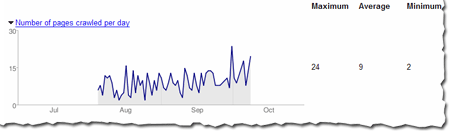
For instance, here's the number of pages Googlebot has crawled in the Webmaster Central blog over the last 90 days. The maximum number of pages Googlebot has crawled in one day is 24 and the minimum is 2. That makes sense, because the blog was launched less than 90 days ago, and the chart shows that the number of pages crawled per day has increased over time. The number of pages crawled is sometimes more than the total number of pages in the site -- especially if the same page can be accessed via several URLs. So http://googlewebmastercentral.blogspot.com/2006/10/learn-more-about-googlebots-crawl-of.html and http://googlewebmastercentral.blogspot.com/2006/10/learn-more-about-googlebots-crawl-of.html#links are different, but point to the same page (the second points to an anchor within the page).


And here's the average number of kilobytes downloaded from this blog each day. As you can see, as the site has grown over the last two and a half months, the number of average kilobytes downloaded has increased as well.


The first two reports can help you diagnose the impact that changes in your site may have on its coverage. If you overhaul your site and dramatically reduce the number of pages, you'll likely notice a drop in the number of pages that Googlebot accesses.

The average document download time can help pinpoint subtle networking problems. If the average time spikes, you might have network slowdowns or bottlenecks that you should investigate. Here's the report for this blog that shows that we did have a short spike in early September (the maximum time was 1057 ms), but it quickly went back to a normal level, so things now look OK.

In general, the load time of a page doesn't affect its ranking, but we wanted to give this info because it can help you spot problems. We hope you will find this data as useful as we do!

Learn more about Googlebot's crawl of your site and more!

We've added a few new features to webmaster tools and invite you to check them out.

Googlebot activity reports
Check out these cool charts! We show you the number of pages Googlebot's crawled from your site per day, the number of kilobytes of data Googlebot's downloaded per day, and the average time it took Googlebot to download pages. Webmaster tools show each of these for the last 90 days. Stay tuned for more information about this data and how you can use it to pinpoint issues with your site.

Crawl rate control
Googlebot uses sophisticated algorithms that determine how much to crawl each site. Our goal is to crawl as many pages from your site as we can on each visit without overwhelming your server's bandwidth.

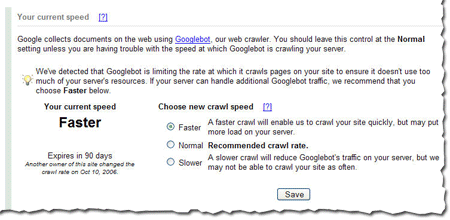
We've been conducting a limited test of a new feature that enables you to provide us information about how we crawl your site. Today, we're making this tool available to everyone. You can access this tool from the Diagnostic tab. If you'd like Googlebot to slow down the crawl of your site, simply choose the Slower option.

If we feel your server could handle the additional bandwidth, and we can crawl your site more, we'll let you know and offer the option for a faster crawl.

If you request a changed crawl rate, this change will last for 90 days. If you liked the changed rate, you can simply return to webmaster tools and make the change again.


Enhanced image search
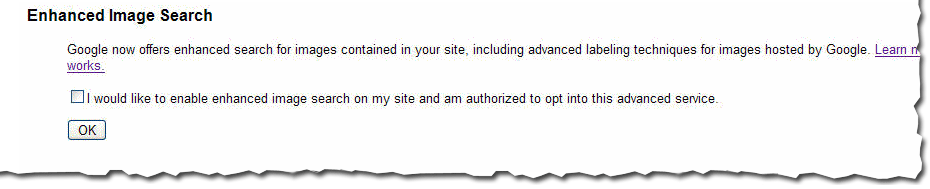
You can now opt into enhanced image search for the images on your site, which enables our tools such as Google Image Labeler to associate the images included in your site with labels that will improve indexing and search quality of those images. After you've opted in, you can opt out at any time.

Number of URLs submitted
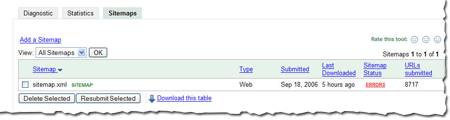
Recently at SES San Jose, a webmaster asked me if we could show the number of URLs we find in a Sitemap. He said that he generates his Sitemaps automatically and he'd like confirmation that the number he thinks he generated is the same number we received. We thought this was a great idea. Simply access the Sitemaps tab to see the number of URLs we found in each Sitemap you've submitted.

As always, we hope you find these updates useful and look forward to hearing what you think.

Useful information you may have missed

Fresher query stats

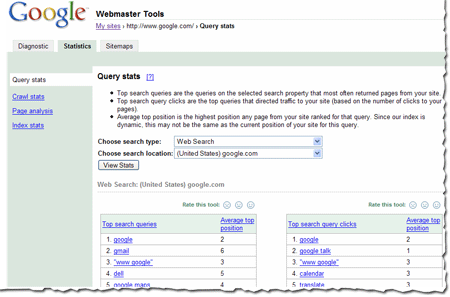
Query stats in webmaster tools provide information about the search queries that most often return your site in the results. You can view this information by a variety of search types (such as web search, mobile search, or image search) and countries. We show you the top search types and locations for your site. You can access these stats by selecting a verified site in your account and then choosing Query stats from the Statistics tab.


If you've checked your site's query stats lately, you may have noticed that they're changing more often than they used to. This is because we recently changed how frequently we calculate them. Previously, we showed data that was averaged over a period of three weeks. Now, we show data that is averaged over a period of one week. This results in fresher stats for you, as well as stats that more accurately reflect the current queries that return your site in the results. We update these stats every week, so if you'd like to keep a history of the top queries for your site week by week, you can simply download the data each week. We generally update this data each Monday.

How we calculate query stats
Some of you have asked how we calculate query stats.

These results are based on results that searchers see. For instance, say a search for [Britney Spears] brings up your site as position 21, which is on the third page of the results. And say 1000 people searched for [Britney Spears] during the course of a week (in reality, a few more people than that search for her name, but just go with me for this example). 600 of those people only looked at the first page of results and the other 400 browsed to at least the third page. That means that your site was seen by 400 searchers. Even though your site was at position 21 for all 1000 searchers, only 400 are counted for purposes of this calculation.

Both top search queries and top search query clicks are based on the total number of searches for each query. The stats we show are based on the queries that most often return your site in the results. For instance, going back to that familiar [Britney Spears] query -- 400 searchers saw your site in the results. Now, maybe your site isn't really about Britney Spears -- it's more about Buffy the Vampire Slayer. And say Google received 50 queries for [Buffy the Vampire Slayer] in the same week, and your site was returned in the results at position 2. So, all 50 searchers saw your site in the results. In this example, Britney Spears would show as a top search query above Buffy the Vampire Slayer (because your site was seen by 400 searchers for Britney but 50 searchers for Buffy).

The same is true of top search query clicks. If 100 of the Britney-seekers clicked on your site in the search results and all 50 of the Buffy-searchers click on your site in the search results, Britney would show as a top search query above Buffy.

At times, this may cause some of the query stats we show you to seem unusual. If your site is returned for a very high-traffic query, then even if a low percentage of searchers click on your site for that query, the total number of searchers who click on your site may still be higher for the query than for queries for which a much higher percentage of searchers click on your site in the results.

The average top position for top search queries is the position of the page on your site that ranks most highly for the query. The average top position for top search query clicks is the position of the page on your site that searchers clicked on (even if a different page ranked more highly for the query). We show you the average position for this top page across all data centers over the course of the week.

A variety of download options are available. You can:
  • download individual tables of data by clicking the Download this table link.
  • download stats for all subfolders on your site (for all search types and locations) by clicking the Download all query stats for this site (including subfolders) link.
  • download all stats (including query stats) for all verified sites in your account by choosing Tools from the My Sites page, then choosing Download data for all sites and then Download statistics for all sites.

Debugging blocked URLs

Vanessa's been posting a lot lately, and I'm starting to feel left out. So here my tidbit of wisdom for you: I've noticed a couple of webmasters confused by "blocked by robots.txt" errors, and I wanted to share the steps I take when debugging robots.txt problems:

A handy checklist for debugging a blocked URL

Let's assume you are looking at crawl errors for your website and notice a URL restricted by robots.txt that you weren't intending to block:
http://www.example.com/amanda.html URL restricted by robots.txt Sep 3, 2006

Check the robots.txt analysis tool
The first thing you should do is go to the robots.txt analysis tool for that site. Make sure you are looking at the correct site for that URL, paying attention that you are looking at the right protocol and subdomain. (Subdomains and protocols may have their own robots.txt file, so https://www.example.com/robots.txt may be different from http://example.com/robots.txt and may be different from http://amanda.example.com/robots.txt.) Paste the blocked URL into the "Test URLs against this robots.txt file" box. If the tool reports that it is blocked, you've found your problem. If the tool reports that it's allowed, we need to investigate further.

At the top of the robots.txt analysis tool, take a look at the HTTP status code. If we are reporting anything other than a 200 (Success) or a 404 (Not found) then we may not be able to reach your robots.txt file, which stops our crawling process. (Note that you can see the last time we downloaded your robots.txt file at the top of this tool. If you make changes to your file, check this date and time to see if your changes were made after our last download.)

Check for changes in your robots.txt file
If these look fine, you may want to check and see if your robots.txt file has changed since the error occurred by checking the date to see when your robots.txt file was last modified. If it was modified after the date given for the error in the crawl errors, it might be that someone has changed the file so that the new version no longer blocks this URL.

Check for redirects of the URL
If you can be certain that this URL isn't blocked, check to see if the URL redirects to another page. When Googlebot fetches a URL, it checks the robots.txt file to make sure it is allowed to access the URL. If the robots.txt file allows access to the URL, but the URL returns a redirect, Googlebot checks the robots.txt file again to see if the destination URL is accessible. If at any point Googlebot is redirected to a blocked URL, it reports that it could not get the content of the original URL because it was blocked by robots.txt.

Sometimes this behavior is easy to spot because a particular URL always redirects to another one. But sometimes this can be tricky to figure out. For instance:
  • Your site may not have a robots.txt file at all (and therefore, allows access to all pages), but a URL on the site may redirect to a different site, which does have a robots.txt file. In this case, you may see URLs blocked by robots.txt for your site (even though you don't have a robots.txt file).
  • Your site may prompt for registration after a certain number of page views. You may have the registration page blocked by a robots.txt file. In this case, the URL itself may not redirect, but if Googlebot triggers the registration prompt when accessing the URL, it will be redirected to the blocked registration page, and the original URL will be listed in the crawl errors page as blocked by robots.txt.

Ask for help
Finally, if you still can't pinpoint the problem, you might want to post on our forum for help. Be sure to include the URL that is blocked in your message. Sometimes its easier for other people to notice oversights you may have missed.

Good luck debugging! And by the way -- unrelated to robots.txt -- make sure that you don't have "noindex" meta tags at the top of your web pages; those also result in Google not showing a web site in our index.

Setting the preferred domain

Based on your input, we've recently made a few changes to the preferred domain feature of webmaster tools. And since you've had some questions about this feature, we'd like to answer them.

The preferred domain feature enables you to tell us if you'd like URLs from your site crawled and indexed using the www version of the domain (http://www.example.com) or the non-www version of the domain (http://example.com). When we initially launched this, we added the non-preferred version to your account when you specified a preference so that you could see any information associated with the non-preferred version. But many of you found that confusing, so we've made the following changes:
  • When you set the preferred domain, we no longer will add the non-preferred version to your account.
  • If you had previously added the non-preferred version to your account, you'll still see it listed there, but you won't be able to add a Sitemap for the non-preferred version.
  • If you have already set the preferred domain and we had added the non-preferred version to your account, we'll be removing that non-preferred version from your account over the next few days.
Note that if you would like to see any information we have about the non-preferred version, you can always add it to your account.

Here are some questions we've had about this preferred domain feature, and our replies.

Once I've set my preferred domain, how long will it take before I see changes?
The time frame depends on many factors (such as how often your site is crawled and how many pages are indexed with the non-preferred version). You should start to see changes in the few weeks after you set your preferred domain.

Is the preferred domain feature a filter or a redirect? Does it simply cause the search results to display on the URLs that are in the version I prefer?
The preferred domain feature is not a filter. When you set a preference, we:
  • Consider all links that point to the site (whether those links use the www version or the non-www version) to be pointing at the version you prefer. This helps us more accurately determine PageRank for your pages.
  • Once we know that both versions of a URL point to the same page, we try to select the preferred version for future crawls.
  • Index pages of your site using the version you prefer. If some pages of your site are indexed using the www version and other pages are indexed using the non-www version, then over time, you should see a shift to the preference you've set.
If I use a 301 redirect on my site to point the www and non-www versions to the same version, do I still need to use this feature?
You don't have to use it, as we can follow the redirects. However, you still can benefit from using this feature in two ways: we can more easily consolidate links to your site and over time, we'll direct our crawl to the preferred version of your pages.

If I use this feature, should I still use a 301 redirect on my site?
You don't need to use it for Googlebot, but you should still use the 301 redirect, if it's available. This will help visitors and other search engines. Of course, make sure that you point to the same URL with the preferred domain feature and the 301 redirect.

You can find more about this in our webmaster help center.

System maintenance

We're currently doing routine system maintenance, and some data may not be available in your webmaster tools account today. We're working as quickly as possible, and all information should be available again by Thursday, 8/24. Thank you for your patience in the meantime.

Update: We're still finishing some things up, so thanks for bearing with us. Note that the preferred domain feature is currently unavailable, but will available as soon as our maintenance is complete.

Back from SES San Jose

Thanks to everyone who stopped by to say hi at the Search Engine Strategies conference in San Jose last week!

I had a great time meeting people and talking about our new webmaster tools. I got to hear a lot of feedback about what webmasters liked, didn't like, and wanted to see in our Webmaster Central site. For those of you who couldn't make it or didn't find me at the conference, please feel free to post your comments and suggestions in our discussion group. I do want to hear about what you don't understand or what you want changed so I can make our webmaster tools as useful as possible.

Some of the highlights from the week:

This year, Danny Sullivan invited some of us from the team to "chat and chew" during a lunch hour panel discussion. Anyone interested in hearing about Google's webmaster tools was welcome to come and many did -- thanks for joining us! I loved showing off our product, answering questions, and getting feedback about what to work on next. Many people had already tried Sitemaps, but hadn't seen the new features like Preferred domain and full crawling errors.

One of the questions I heard more than once at the lunch was about how big a Sitemap can be, and how to use Sitemaps with very large websites. Since Google can handle all of your URLs, the goal of Sitemaps is to tell us about all of them. A Sitemap file can contain up to 50,000 URLs and should be no larger than 10MB when uncompressed. But if you have more URLs than this, simply break them up into several smaller Sitemaps and tell us about them all. You can create a Sitemap Index file, which is just a list of all your Sitemaps, to make managing several Sitemaps a little easier.

While hanging out at the Google booth I got another interesting question: One site owner told me that his site is listed in Google, but its description in the search results wasn't exactly what he wanted. (We were using the description of his site listed in the Open Directory Project.) He asked how to remove this description from Google's search results. Vanessa Fox knew the answer! To specifically prevent Google from using the Open Directory for a page's title and description, use the following meta tag:
<meta name="GOOGLEBOT" content="NOODP">

My favorite panel of the week was definitely Pimp My Site. The whole group was dressed to match the theme as they gave some great advice to webmasters. Dax Herrera, the coolest "pimp" up there (and a fantastic piano player), mentioned that a lot of sites don't explain their product clearly on each page. For instance, when pimping Flutter Fetti, there were many instances when all the site had to do was add the word "confetti" to the product description to make it clear to search engines and to users reaching the page exactly what a Flutter Fetti stick is.

Another site pimped was a Yahoo! Stores web site. Someone from the audience asked if the webmaster could set up a Google Sitemap for their store. As Rob Snell pointed out, it's very simple: Yahoo! Stores will create a Google Sitemap for your website automatically, and even verify your ownership of the site in our webmaster tools.

Finally, if you didn't attend the Google dance, you missed out! There were Googlers dancing, eating, and having a great time with all the conference attendees. Vanessa Fox represented my team at the Meet the Google Engineers hour that we held during the dance, and I heard Matt Cutts even starred in a music video! While demo-ing Webmaster Central over in the labs area, someone asked me about the ability to share site information across multiple accounts. We associate your site verification with your Google Account, and allow multiple accounts to verify ownership of a site independently. Each account has its own verification file or meta tag, and you can remove them at any time and re-verify your site to revoke verification of a user. This means that your marketing person, your techie, and your SEO consultant can each verify the same site with their own Google Account. And if you start managing a site that someone else used to manage, all you have to do is add that site to your account and verify site ownership. You don't need to transfer the account information from the person who previously managed it.

Thanks to everyone who visited and gave us feedback. It was great to meet you!

Ads