Video: Expanding your site to more languages

Webmaster Level: Intermediate to Advanced

We filmed a video providing more details about expanding your site to more languages or country-based language variations. The video covers details about rel=”alternate” hreflang and potential implementation on your multilingual and/or multinational site.


Video and slides on expanding your site to more languages

You can watch the entire video or skip to the relevant sections: Additional resources on hreflang include: Good luck as you expand your site to more languages!

5 common mistakes with rel=canonical

Webmaster Level: Intermediate to Advanced

Including a rel=canonical link in your webpage is a strong hint to search engines your about preferred version to index among duplicate pages on the web. It’s supported by several search engines, including Yahoo!, Bing, and Google. The rel=canonical link consolidates indexing properties from the duplicates, like their inbound links, as well as specifies which URL you’d like displayed in search results. However, rel=canonical can be a bit tricky because it’s not very obvious when there’s a misconfiguration.


While the webmaster sees the “red velvet” page on the left in their browser, search engines notice on the webmaster’s unintended “blue velvet” rel=canonical on the right.

We recommend the following best practices for using rel=canonical:
  • A large portion of the duplicate page’s content should be present on the canonical version.
  • One test is to imagine you don’t understand the language of the content—if you placed the duplicate side-by-side with the canonical, does a very large percentage of the words of the duplicate page appear on the canonical page? If you need to speak the language to understand that the pages are similar; for example, if they’re only topically similar but not extremely close in exact words, the canonical designation might be disregarded by search engines.
  • Double-check that your rel=canonical target exists (it’s not an error or “soft 404”)
  • Verify the rel=canonical target doesn’t contain a noindex robots meta tag
  • Make sure you’d prefer the rel=canonical URL to be displayed in search results (rather than the duplicate URL)
  • Include the rel=canonical link in either the <head> of the page or the HTTP header
  • Specify no more than one rel=canonical for a page. When more than one is specified, all rel=canonicals will be ignored.
Mistake 1: rel=canonical to the first page of a paginated series

Imagine that you have an article that spans several pages:
  • example.com/article?story=cupcake-news&page=1
  • example.com/article?story=cupcake-news&page=2
  • and so on
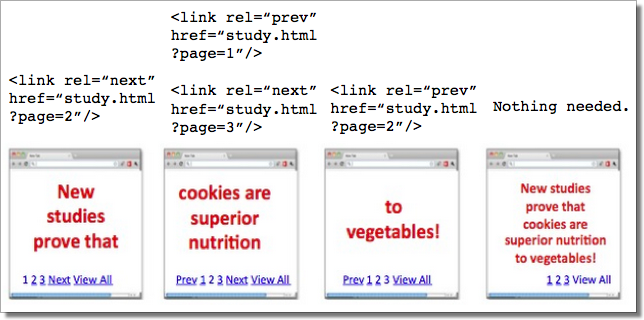
Specifying a rel=canonical from page 2 (or any later page) to page 1 is not correct use of rel=canonical, as these are not duplicate pages. Using rel=canonical in this instance would result in the content on pages 2 and beyond not being indexed at all.


Good content (e.g., “cookies are superior nutrition” and “to vegetables”) is lost when specifying rel=canonical from component pages to the first page of a series.

In cases of paginated content, we recommend either a rel=canonical from component pages to a single-page version of the article, or to use rel=”prev” and rel=”next” pagination markup.


rel=canonical from component pages to the view-all page


If rel=canonical to a view-all page isn’t designated, paginated content can use rel=”prev” and rel=”next” markup.

Mistake 2: Absolute URLs mistakenly written as relative URLs


The <link> tag, like many HTML tags, accepts both relative and absolute URLs. Relative URLs include a path “relative” to the current page. For example, “images/cupcake.png” means “from the current directory go to the “images” subdirectory, then to cupcake.png.” Absolute URLs specify the full path—including the scheme like http://.

Specifying <link rel=canonical href=“example.com/cupcake.html” /> (a relative URL since there’s no “http://”) implies that the desired canonical URL is http://example.com/example.com/cupcake.html even though that is almost certainly not what was intended. In these cases, our algorithms may ignore the specified rel=canonical. Ultimately this means that whatever you had hoped to accomplish with this rel=canonical will not come to fruition.

Mistake 3: Unintended or multiple declarations of rel=canonical

Occasionally, we see rel=canonical designations that we believe are unintentional. In very rare circumstances we see simple typos, but more commonly a busy webmaster copies a page template without thinking to change the target of the rel=canonical. Now the site owner’s pages specify a rel=canonical to the template author’s site.


If you use a template, check that you didn’t also copy the rel=canonical specification.

Another issue is when pages include multiple rel=canonical links to different URLs. This happens frequently in conjunction with SEO plugins that often insert a default rel=canonical link, possibly unbeknownst to the webmaster who installed the plugin. In cases of multiple declarations of rel=canonical, Google will likely ignore all the rel=canonical hints. Any benefit that a legitimate rel=canonical might have offered will be lost.

In both these types of cases, double-checking the page’s source code will help correct the issue. Be sure to check the entire <head> section as the rel=canonical links may be spread apart.


Check the behavior of plugins by looking at the page’s source code.

Mistake 4: Category or landing page specifies rel=canonical to a featured article

Let’s say you run a site about desserts. Your dessert site has useful category pages like “pastry” and “gelato.” Each day the category pages feature a unique article. For instance, your pastry landing page might feature “red velvet cupcakes.” Because the “pastry” category page has nearly all the same content as the “red velvet cupcake” page, you add a rel=canonical from the category page to the featured individual article.

If we were to accept this rel=canonical, then your pastry category page would not appear in search results. That’s because the rel=canonical signals that you would prefer search engines display the canonical URL in place of the duplicate. However, if you want users to be able to find both the category page and featured article, it’s best to only have a self-referential rel=canonical on the category page, or none at all.


Remember that the canonical designation also implies the preferred display URL. Avoid adding a rel=canonical from a category or landing page to a featured article.

Mistake 5: rel=canonical in the <body>

The rel=canonical link tag should only appear in the <head> of an HTML document. Additionally, to avoid HTML parsing issues, it’s good to include the rel=canonical as early as possible in the <head>. When we encounter a rel=canonical designation in the <body>, it’s disregarded.

This is an easy mistake to correct. Simply double-check that your rel=canonical links are always in the <head> of your page, and as early as possible if you can.


rel=canonical designations in the <head> are processed, not the <body>.

Conclusion

To create valuable rel=canonical designations:
  • Verify that most of the main text content of a duplicate page also appears in the canonical page.
  • Check that rel=canonical is only specified once (if at all) and in the <head> of the page.
  • Check that rel=canonical points to an existent URL with good content (i.e., not a 404, or worse, a soft 404).
  • Avoid specifying rel=canonical from landing or category pages to featured articles as that will make the featured article the preferred URL in search results.
And, as always, please ask any questions in our Webmaster Help forum.

A new opt-out tool

Webmasters have several ways to keep their sites' content out of Google's search results. Today, as promised, we're providing a way for websites to opt out of having their content that Google has crawled appear on Google Shopping, Advisor, Flights, Hotels, and Google+ Local search.

Webmasters can now choose this option through our Webmaster Tools, and crawled content currently being displayed on Shopping, Advisor, Flights, Hotels, or Google+ Local search pages will be removed within 30 days.

We created a first steps cheat sheet for friends & family


Webmaster level: beginner
Everyone knows someone who just set up their first blog on Blogger, installed WordPress for the first time or maybe who had a web site for some time but never gave search much thought. We came up with a first steps cheat sheet for just these folks. It’s a short how-to list with basic tips on search engine-friendly design, that can help Google and others better understand the content and increase your site’s visibility. We made sure it’s available in thirteen languages. Please feel free to read it, print it, share it, copy and distribute it!

We hope this content will help those who are just about to start their webmaster adventure or have so far not paid too much attention to search engine-friendly design. Over time as you gain experience you may want to have a look at our more advanced Google SEO Starter Guide. As always we welcome all webmasters and site owners, new and experienced to join discussions on our Google Webmaster Help Forum.


Come see us at SES London and hear tips on successful site architecture

If you're planning to be at Search Engine Strategies London February 13-15, stop by and say hi to one of the many Googlers who will be there. I'll be speaking on Wednesday at the Successful Site Architecture panel and thought I'd offer up some tips for building crawlable sites for those who can't attend.

Make sure visitors and search engines can access the content
  • Check the Crawl errors section of webmaster tools for any pages Googlebot couldn't access due to server or other errors. If Googlebot can't access the pages, they won't be indexed and visitors likely can't access them either.
  • Make sure your robots.txt file doesn't accidentally block search engines from content you want indexed. You can see a list of the files Googlebot was blocked from crawling in webmaster tools. You can also use our robots.txt analysis tool to make sure you're blocking and allowing the files you intend.
  • Check the Googlebot activity reports to see how long it takes to download a page of your site to make sure you don't have any network slowness issues.
  • If pages of your site require a login and you want the content from those pages indexed, ensure you include a substantial amount of indexable content on pages that aren't behind the login. For instance, you can put several content-rich paragraphs of an article outside the login area, with a login link that leads to the rest of the article.
  • How accessible is your site? How does it look in mobile browsers and screen readers? It's well worth testing your site under these conditions and ensuring that visitors can access the content of the site using any of these mechanisms.

Make sure your content is viewable

  • Check out your site in a text-only browser or view it in a browser with images and Javascript turned off. Can you still see all of the text and navigation?
  • Ensure the important text and navigation in your site is in HTML, not in images, and make sure all images have ALT text that describe them.
  • If you use Flash, use it only when needed. Particularly, don't put all of the text from your site in Flash. An ideal Flash-based site has pages with HTML text and Flash accents. If you use Flash for your home page, make sure that the navigation into the site is in HTML.

Be descriptive

  • Make sure each page has a unique title tag and meta description tag that aptly describe the page.
  • Make sure the important elements of your pages (for instance, your company name and the main topic of the page) are in HTML text.
  • Make sure the words that searchers will use to look for you are on the page.

Keep the site crawlable


  • If possible, avoid frames. Frame-based sites don't allow for unique URLs for each page, which makes indexing each page separately problematic.
  • Ensure the server returns a 404 status code for pages that aren't found. Some servers are configured to return a 200 status code, particularly with custom error messages and this can result in search engines spending time crawling and indexing non-existent pages rather than the valid pages of the site.
  • Avoid infinite crawls. For instance, if your site has an infinite calendar, add a nofollow attribute to links to dynamically-created future calendar pages. Each search engine may interpret the nofollow attribute differently, so check with the help documentation for each. Alternatively, you could use the nofollow meta tag to ensure that search engine spiders don't crawl any outgoing links on a page, or use robots.txt to prevent search engines from crawling URLs that can lead to infinite loops.
  • If your site uses session IDs or cookies, ensure those are not required for crawling.
  • If your site is dynamic, avoid using excessive parameters and use friendly URLs when you can. Some content management systems enable you to rewrite URLs to friendly versions.
See our tips for creating a Google-friendly site and webmaster guidelines for more information on designing your site for maximum crawlability and usability.

If you will be at SES London, I'd love for you to come by and hear more. And check out the other Googlers' sessions too:

Tuesday, February 13th

Auditing Paid Listings & Clickfraud Issues 10:45 - 12:00
Shuman Ghosemajumder, Business Product Manager for Trust & Safety

Wednesday, February 14th

A Keynote Conversation 9:00 - 9:45
Matt Cutts, Software Engineer

Successful Site Architecture 10:30 - 11:45
Vanessa Fox, Product Manager, Webmaster Central

Google University 12:45 - 1:45

Converting Visitors into Buyers 2:45 - 4:00
Brian Clifton, Head of Web Analytics, Google Europe

Search Advertising Forum 4:30 - 5:45
David Thacker, Senior Product Manager

Thursday, February 15th

Meet the Crawlers 9:00 - 10:15
Dan Crow, Product Manager

Web Analytics and Measuring Successful Overview 1:15 - 2:30
Brian Clifton, Head of Web Analytics, Google Europe

Search Advertising Clinic 1:15 - 2:30
Will Ashton, Retail Account Strategist

Site Clinic 3:00 - 4:15
Sandeepan Banerjee, Sr. Product Manager, Indexing

      Discover your links

      Update on October 15, 2008: For more recent news on links, visit Links Week on our Webmaster Central Blog. We're discussing internal links, outbound links, and inbound links.

      You asked, and we listened: We've extended our support for querying links to your site to much beyond the link: operator you might have used in the past. Now you can use webmaster tools to view a much larger sample of links to pages on your site that we found on the web. Unlike the link: operator, this data is much more comprehensive and can be classified, filtered, and downloaded. All you need to do is verify site ownership to see this information.


      To make this data even more useful, we have divided the world of links into two types: external and internal. Let's understand what kind of links fall into which bucket.


      What are external links?
      External links to your site are the links that reside on pages that do not belong to your domain. For example, if you are viewing links for http://www.google.com/, all the links that do not originate from pages on any subdomain of google.com would appear as external links to your site.

      What are internal links?

      Internal links to your site are the links that reside on pages that belong to your domain. For example, if you are viewing links for http://www.google.com/, all the links that originate from pages on any subdomain of google.com, such as http://www.google.com/ or mobile.google.com, would appear as internal links to your site.

      Viewing links to a page on your site

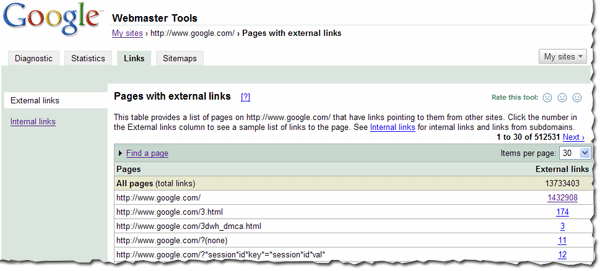
      You can view the links to your site by selecting a verified site in your webmaster tools account and clicking on the new Links tab at the top. Once there, you will see the two options on the left: external links and internal links, with the external links view selected. You will also see a table that lists pages on your site, as shown below. The first column of the table lists pages of your site with links to them, and the second column shows the number of the external links to that page that we have available to show you. (Note that this may not be 100% of the external links to this page.)


      This table also provides the total number of external links to your site that we have available to show you.
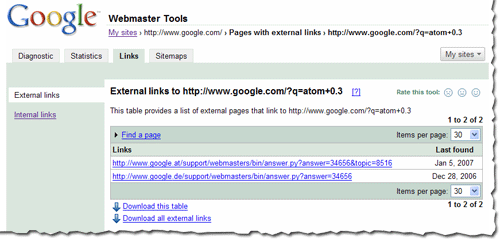
      When in this summary view, click the linked number and go to the detailed list of links to that page.
      When in the detailed view, you'll see the list of all the pages that link to specific page on your site, and the time we last crawled that link. Since you are on the External Links tab on the left, this list is the external pages that point to the page.


      Finding links to a specific page on your site
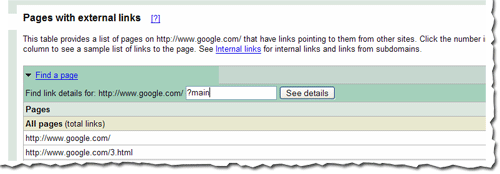
      To find links to a specific page on your site, you first need to find that specific page in the summary view. You can do this by navigating through the table, or if you want to find that page quickly, you can use the handy Find a page link at the top of the table. Just fill in the URL and click See details. For example, if the page you are looking for has the URL http://www.google.com/?main, you can enter “?main” in the Find a page form. This will take you directly to the detailed view of the links to http://www.google.com/?main.


      Viewing internal links

      To view internal links to pages on your site, click on the Internal Links tab on the left side bar in the view. This takes you to a summary table that, just like external links view, displays information about pages on your site with internal links to them.

      However, this view also provides you with a way to filter the data further: to see links from any of the subdomain on the domain, or links from just the specific subdomain you are currently viewing. For example, if you are currently viewing the internal links to http://www.google.com/, you can either see links from all the subdomains, such as links from http://mobile.google.com/ and http://www.google.com, or you can see links only from other pages on http://www.google.com.


      Downloading links data
      There are three different ways to download links data about your site. The first: download the current view of the table you see, which lets you navigate to any summary or details table, and download the data in the current view. Second, and probably the most useful data, is the list all external links to your site. This allows you to download a list of all the links that point to your site, along with the information about the page they point to and the last time we crawled that link. Thirdly, we provide a similar download for all internal links to your site.


      We do limit the amount of data you can download for each type of link (for instance, you can currently download up to one million external links). Google knows about more links than the total we show, but the overall fraction of links we show is much, much larger than the link: command currently offers. Why not visit us at Webmaster Central and explore the links for your site?

      Better understanding of your site

      SES Chicago was wonderful. Meeting so many of you made the trip absolutely perfect. It was as special as if (Chicago local) Oprah had joined us!

      While hanging out at the Google booth, I was often asked about how to take advantage of our webmaster tools. For example, here's one tip on Common Words.

      Common Words: Our prioritized listing of your site's content
      The common words feature lists in order of priority (from highest to lowest) the prevalent words we've found in your site, and in links to your site. (This information isn't available for subdirectories or subdomains.) Here are the steps to leveraging common words:

      1. Determine your website's key concepts. If it offers getaways to a cattle ranch in Wyoming, the key concepts may be "cattle ranch," "horseback riding," and "Wyoming."

      2. Verify that Google detected the same phrases you believe are of high importance. Login to webmaster tools, select your verified site, and choose Page analysis from the Statistics tab. Here, under "Common words in your site's content," we list the phrases detected from your site's content in order of prevalence. Do the common words lack any concepts you believe are important? Are they listing phrases that have little direct relevance to your site?

      2a. If you're missing important phrases, you should first review your content. Do you have solid, textual information that explains and relates to the key concepts of your site? If in the cattle-ranch example, "horseback riding" was absent from common words, you may then want to review the "activities" page of the site. Does it include mostly images, or only list a schedule of riding lessons, rather than conceptually relevant information?

      It may sound obvious, but if you want to rank for a certain set of keywords, but we don't even see those keyword phrases on your website, then ranking for those phrases will be difficult.

      2b. When you see general, non-illustrative common words that don't relate helpfully to your site's content (e.g. a top listing of "driving directions" or "contact us"), then it may be beneficial to increase the ratio of relevant content on your site. (Although don't be too worried if you see a few of these common words, as long as you also see words that are relevant to your main topics.) In the cattle ranch example, you would give visitors "driving directions" and "contact us" information. However, if these general, non-illustrative terms surface as the highest-rated common words, or the entire list of common words is only these types of terms, then Google (and likely other search engines) could not find enough "meaty" content.

      2c. If you find that many of the common words still don't relate to your site, check out our blog post on unexpected common words.

      3. Here are a few of our favorite posts on improving your site's content:
      Target visitors or search engines?

      Improving your site's indexing and ranking

      NEW! SES Chicago - Using Images

      4. Should you decide to update your content, please keep in mind that we will need to recrawl your site in order to recognize changes, and that this may take time. Of course, you can notify us of modifications by submitting a Sitemap.

      Happy holidays from all of us on the Webmaster Central team!

      SES Chicago: Googlers Trevor Foucher, Adam Lasnik and Jonathan Simon

      Deftly dealing with duplicate content

      At the recent Search Engine Strategies conference in freezing Chicago, many of us Googlers were asked questions about duplicate content. We recognize that there are many nuances and a bit of confusion on the topic, so we'd like to help set the record straight.

      What is duplicate content?
      Duplicate content generally refers to substantive blocks of content within or across domains that either completely match other content or are appreciably similar. Most of the time when we see this, it's unintentional or at least not malicious in origin: forums that generate both regular and stripped-down mobile-targeted pages, store items shown (and -- worse yet -- linked) via multiple distinct URLs, and so on. In some cases, content is duplicated across domains in an attempt to manipulate search engine rankings or garner more traffic via popular or long-tail queries.

      What isn't duplicate content?
      Though we do offer a handy translation utility, our algorithms won't view the same article written in English and Spanish as duplicate content. Similarly, you shouldn't worry about occasional snippets (quotes and otherwise) being flagged as duplicate content.

      Why does Google care about duplicate content?
      Our users typically want to see a diverse cross-section of unique content when they do searches. In contrast, they're understandably annoyed when they see substantially the same content within a set of search results. Also, webmasters become sad when we show a complex URL (example.com/contentredir?value=shorty-george〈=en) instead of the pretty URL they prefer (example.com/en/shorty-george.htm).

      What does Google do about it?
      During our crawling and when serving search results, we try hard to index and show pages with distinct information. This filtering means, for instance, that if your site has articles in "regular" and "printer" versions and neither set is blocked in robots.txt or via a noindex meta tag, we'll choose one version to list. In the rare cases in which we perceive that duplicate content may be shown with intent to manipulate our rankings and deceive our users, we'll also make appropriate adjustments in the indexing and ranking of the sites involved. However, we prefer to focus on filtering rather than ranking adjustments ... so in the vast majority of cases, the worst thing that'll befall webmasters is to see the "less desired" version of a page shown in our index.

      How can Webmasters proactively address duplicate content issues?
      • Block appropriately: Rather than letting our algorithms determine the "best" version of a document, you may wish to help guide us to your preferred version. For instance, if you don't want us to index the printer versions of your site's articles, disallow those directories or make use of regular expressions in your robots.txt file.
      • Use 301s: If you have restructured your site, use 301 redirects ("RedirectPermanent") in your .htaccess file to smartly redirect users, the Googlebot, and other spiders.
      • Be consistent: Endeavor to keep your internal linking consistent; don't link to /page/ and /page and /page/index.htm.
      • Use TLDs: To help us serve the most appropriate version of a document, use top level domains whenever possible to handle country-specific content. We're more likely to know that .de indicates Germany-focused content, for instance, than /de or de.example.com.
      • Syndicate carefully: If you syndicate your content on other sites, make sure they include a link back to the original article on each syndicated article. Even with that, note that we'll always show the (unblocked) version we think is most appropriate for users in each given search, which may or may not be the version you'd prefer.
      • Use the preferred domain feature of webmaster tools: If other sites link to yours using both the www and non-www version of your URLs, you can let us know which way you prefer your site to be indexed.
      • Minimize boilerplate repetition: For instance, instead of including lengthy copyright text on the bottom of every page, include a very brief summary and then link to a page with more details.
      • Avoid publishing stubs: Users don't like seeing "empty" pages, so avoid placeholders where possible. This means not publishing (or at least blocking) pages with zero reviews, no real estate listings, etc., so users (and bots) aren't subjected to a zillion instances of "Below you'll find a superb list of all the great rental opportunities in [insert cityname]..." with no actual listings.
      • Understand your CMS: Make sure you're familiar with how content is displayed on your Web site, particularly if it includes a blog, a forum, or related system that often shows the same content in multiple formats.
      • Don't worry be happy: Don't fret too much about sites that scrape (misappropriate and republish) your content. Though annoying, it's highly unlikely that such sites can negatively impact your site's presence in Google. If you do spot a case that's particularly frustrating, you are welcome to file a DMCA request to claim ownership of the content and have us deal with the rogue site.

      In short, a general awareness of duplicate content issues and a few minutes of thoughtful preventative maintenance should help you to help us provide users with unique and relevant content.

      SES Chicago - Using Images

      We all had a great time at SES Chicago last week, answering questions and getting feedback.

      One of the sessions I participated in was Images and Search Engines, and the panelists had great information about using images on your site, as well as on optimizing for Google Image search.

      Ensuring visitors and search engines know what your content is about
      Images on a site are great -- but search engines can't read them, and not all visitors can. Make sure your site is accessible and can be understood by visitors viewing your site with images turned off in their browsers, on mobile devices, and with screen readers. If you do that, search engines won't have any trouble. Some things that you can do to ensure this:

      • Don't put the bulk of your text in images. It may sound simple, but the best thing you can do is to put your text into well, text. Reserve images for graphical elements. If all of the text on your page is in an image, it becomes inaccessible.
      • Take advantage of alt tags for all of your images. Make sure the alt text is descriptive and unique. For instance, alt text such as "picture1" or "logo" doesn't provide much information about the image. "Charting the path of stock x" and "Company Y" give more details.
      • Don't overload your alt text. Be descriptive, but don't stuff it with extra keywords.
      • It's important to use alt text for any image on your pages, but if your company name, navigation, or other major elements of your pages are in images, alt text becomes especially important. Consider moving vital details to text to ensure all visitors can view them.
      • Look at the image-to-text ratio on your page. How much text do you have? One way of looking at this is to look at your site with images turned off in your browser. What content can you see? Is the intent of your site obvious? Do the pages convey your message effectively?

      Taking advantage of Image search
      The panelists pointed out that shoppers often use Image search to see the things they want to buy. If you have a retail site, make sure that you have images of your products (and that they can be easily identified with alt text, headings, and textual descriptions). Searchers can then find your images and get to your site.

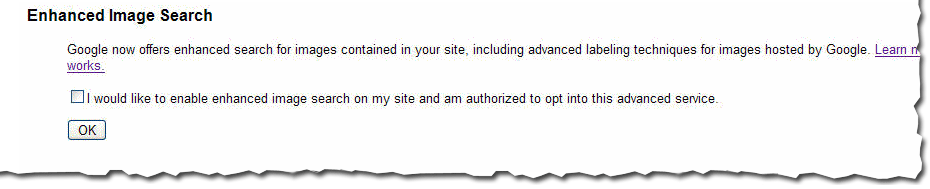
      One thing that can help your images be returned for results in Google Image search is opting in to enhanced image search in webmaster tools. This enables us to use your images in the Google Image Labeler, which harnesses the power of the community for adding metadata to your images.

      Someone asked if we have a maximum number of images per site that we accept for the Image Labeler. We don't. You can opt in no matter how many, or how few, images your site has.

      Update: More information on using images can be found in our Help Center. 

      The number of pages Googlebot crawls

      The Googlebot activity reports in webmaster tools show you the number of pages of your site Googlebot has crawled over the last 90 days. We've seen some of you asking why this number might be higher than the total number of pages on your sites.


      Googlebot crawls pages of your site based on a number of things including:
      • pages it already knows about
      • links from other web pages (within your site and on other sites)
      • pages listed in your Sitemap file
      More specifically, Googlebot doesn't access pages, it accesses URLs. And the same page can often be accessed via several URLs. Consider the home page of a site that can be accessed from the following four URLs:
      • http://www.example.com/
      • http://www.example.com/index.html
      • http://example.com
      • http://example.com/index.html
      Although all URLs lead to the same page, all four URLs may be used in links to the page. When Googlebot follows these links, a count of four is added to the activity report.

      Many other scenarios can lead to multiple URLs for the same page. For instance, a page may have several named anchors, such as:
      • http://www.example.com/mypage.html#heading1
      • http://www.example.com/mypage.html#heading2
      • http://www.example.com/mypage.html#heading3
      And dynamically generated pages often can be reached by multiple URLs, such as:
      • http://www.example.com/furniture?type=chair&brand=123
      • http://www.example.com/hotbuys?type=chair&brand=123
      As you can see, when you consider that each page on your site might have multiple URLs that lead to it, the number of URLs that Googlebot crawls can be considerably higher than the number of total pages for your site.

      Of course, you (and we) only want one version of the URL to be returned in the search results. Not to worry -- this is exactly what happens. Our algorithms selects a version to include, and you can provide input on this selection process.

      Redirect to the preferred version of the URL
      You can do this using 301 (permanent) redirect. In the first example that shows four URLs that point to a site's home page, you may want to redirect index.html to www.example.com/. And you may want to redirect example.com to www.example.com so that any URLs that begin with one version are redirected to the other version. Note that you can do this latter redirect with the Preferred Domain feature in webmaster tools. (If you also use a 301 redirect, make sure that this redirect matches what you set for the preferred domain.)

      Block the non-preferred versions of a URL with a robots.txt file
      For dynamically generated pages, you may want to block the non-preferred version using pattern matching in your robots.txt file. (Note that not all search engines support pattern matching, so check the guidelines for each search engine bot you're interested in.) For instance, in the third example that shows two URLs that point to a page about the chairs available from brand 123, the "hotbuys" section rotates periodically and the content is always available from a primary and permanent location. If that case, you may want to index the first version, and block the "hotbuys" version. To do this, add the following to your robots.txt file:

      User-agent: Googlebot
      Disallow: /hotbuys?*

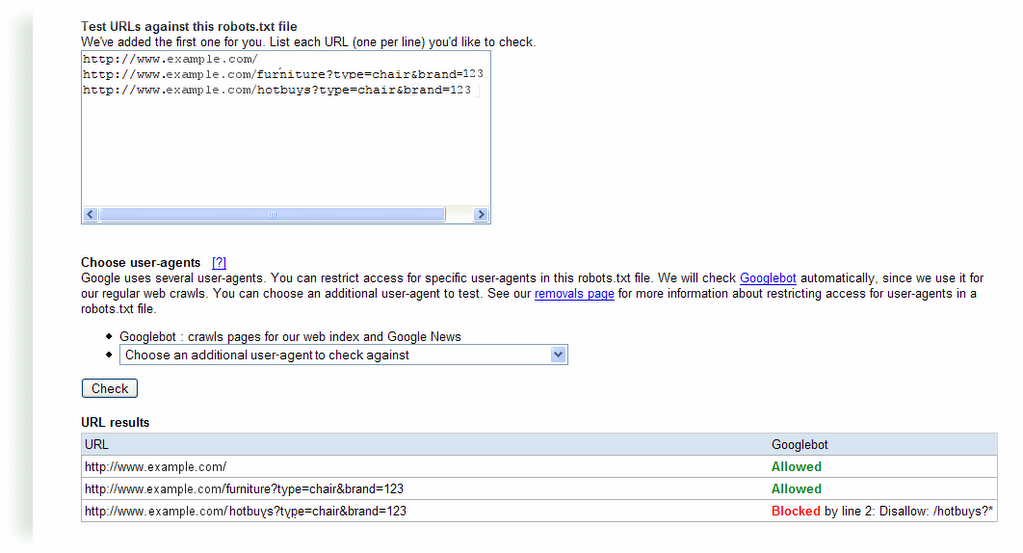
      To ensure that this directive will actually block and allow what you intend, use the robots.txt analysis tool in webmaster tools. Just add this directive to the robots.txt section on that page, list the URLs you want to check in the "Test URLs" section and click the Check button. For this example, you'd see a result like this:

      Don't worry about links to anchors, because while Googlebot will crawl each link, our algorithms will index the URL without the anchor.

      And if you don't provide input such as that described above, our algorithms do a really good job of picking a version to show in the search results.

      Target visitors or search engines?

      Last Friday afternoon, I was able to catch the end of the Blog Business Summit in Seattle. At the session called "Blogging and SEO Strategies," John Battelle brought up a good point. He said that as a writer, he doesn't want to have to think about all of this search engine optimization stuff. Dave Taylor had just been talking about order of words in title tags and keyword density and using hyphens rather than underscores in URLs.

      We agree, which is why you'll find that the main point in our webmaster guidelines is to make sites for visitors, not for search engines. Visitor-friendly design makes for search engine friendly design as well. The team at Google webmaster central talks a lot with site owners who care a lot about the details of how Google crawls and indexes sites (hyphens and underscores included), but many site owners out there are just concerned with building great sites. The good news is that the guidelines and tips about how Google crawls and indexes sites come down to wanting great content for our search results.

      In the spirit of John Battelle's point, here's a recap of some quick tips for ensuring your site is friendly for visitors.

      Make good use of page titles
      This is true of the main heading on the page itself, but is also true of the title that appears in the browser's title bar.


      Whenever possible, ensure each page has a unique title that describes the page well. For instance, if your site is for your store "Buffy's House of Sofas", a visitor may want to bookmark your home page and the order page for your red, fluffy sofa. If all of your pages have the same title: "Wecome to my site!", then a visitor will have trouble finding your site again in the bookmarks. However, if your home page has the title "Buffy's House of Sofas" and your red sofa page has the title "Buffy's red fluffy sofa", then visitors can glance at the title to see what it's about and can easily find it in the bookmarks later. And if your visitors are anything like me, they may have several browser tabs open and appreciate descriptive titles for easier navigation.

      This simple tip for visitors helps search engines too. Search engines index pages based on the words contained in them, and including descriptive titles helps search engines know what the pages are about. And search engines often use a page's title in the search results. "Welcome to my site" may not entice searchers to click on your site in the results quite so much as "Buffy's House of Sofas".
      Write with words
      Images, flash, and other multimedia make for pretty web pages, but make sure your core messages are in text or use ALT text to provide textual descriptions of your multimedia. This is great for search engines, which are based on text: searchers enter search queries as word, after all. But it's also great for visitors, who may have images or Flash turned off in their browsers or might be using screen readers or mobile devices. You can also provide HTML versions of your multimedia-based pages (if you do that, be sure to block the multimedia versions from being indexed using a robots.txt file).

      Make sure the text you're talking about is in your content
      Visitors may not read your web site linearly like they would a newspaper article or book. Visitors may follow links from elsewhere on the web to any of your pages. Make sure that they have context for any page they're on. On your order page, don't just write "order now!" Write something like "Order your fluffy red sofa now!" But write it for people who will be reading your site. Don't try to cram as many words in as possible, thinking search engines can index more words that way. Think of your visitors. What are they going to be searching for? Is your site full of industry jargon when they'll be searching for you with more informal words?

      As I wrote in that guest post on Matt Cutts' blog when I talked about hyphens and underscores:

      You know what your site’s about, so it may seem completely obvious to you when you look at your home page. But ask someone else to take a look and don’t tell them anything about the site. What do they think your site is about?

      Consider this text:

      “We have hundreds of workshops and classes available. You can choose the workshop that is right for you. Spend an hour or a week in our relaxing facility.”

      Will this site show up for searches for [cooking classes] or [wine tasting workshops] or even [classes in Seattle]? It may not be as obvious to visitors (and search engine bots) what your page is about as you think.

      Along those same lines, does your content use words that people are searching for? Does your site text say “check out our homes for sale” when people are searching for [real estate in Boston]?

      Make sure your pages are accessible
      I know -- this post was supposed to be about writing content, not technical details. But visitors can't read your site if they can't access it. If the network is down or your server returns errors when someone tries to access the pages of your site, it's not just search engines who will have trouble. Fortunately, webmaster tools makes it easy. We'll let you know if we've had any trouble accessing any of the pages. We tell you the specific page we couldn't access and the exact error we got. These problems aren't always easy to fix, but we try to make them easy to find.

      Googlebot activity reports

      The webmaster tools team has a very exciting mission: we dig into our logs, find as much useful information as possible, and pass it on to you, the webmasters. Our reward is that you more easily understand what Google sees, and why some pages don't make it to the index.

      The latest batch of information that we've put together for you is the amount of traffic between Google and a given site. We show you the number of requests, number of kilobytes (yes, yes, I know that tech-savvy webmasters can usually dig this out, but our new charts make it really easy to see at a glance), and the average document download time. You can see this information in chart form, as well as in hard numbers (the maximum, minimum, and average).

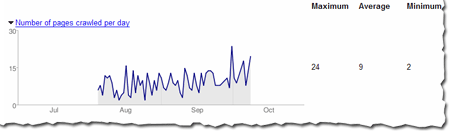
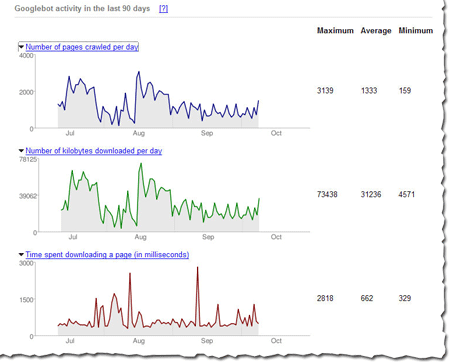
      For instance, here's the number of pages Googlebot has crawled in the Webmaster Central blog over the last 90 days. The maximum number of pages Googlebot has crawled in one day is 24 and the minimum is 2. That makes sense, because the blog was launched less than 90 days ago, and the chart shows that the number of pages crawled per day has increased over time. The number of pages crawled is sometimes more than the total number of pages in the site -- especially if the same page can be accessed via several URLs. So http://googlewebmastercentral.blogspot.com/2006/10/learn-more-about-googlebots-crawl-of.html and http://googlewebmastercentral.blogspot.com/2006/10/learn-more-about-googlebots-crawl-of.html#links are different, but point to the same page (the second points to an anchor within the page).


      And here's the average number of kilobytes downloaded from this blog each day. As you can see, as the site has grown over the last two and a half months, the number of average kilobytes downloaded has increased as well.


      The first two reports can help you diagnose the impact that changes in your site may have on its coverage. If you overhaul your site and dramatically reduce the number of pages, you'll likely notice a drop in the number of pages that Googlebot accesses.

      The average document download time can help pinpoint subtle networking problems. If the average time spikes, you might have network slowdowns or bottlenecks that you should investigate. Here's the report for this blog that shows that we did have a short spike in early September (the maximum time was 1057 ms), but it quickly went back to a normal level, so things now look OK.

      In general, the load time of a page doesn't affect its ranking, but we wanted to give this info because it can help you spot problems. We hope you will find this data as useful as we do!

      Learn more about Googlebot's crawl of your site and more!

      We've added a few new features to webmaster tools and invite you to check them out.

      Googlebot activity reports
      Check out these cool charts! We show you the number of pages Googlebot's crawled from your site per day, the number of kilobytes of data Googlebot's downloaded per day, and the average time it took Googlebot to download pages. Webmaster tools show each of these for the last 90 days. Stay tuned for more information about this data and how you can use it to pinpoint issues with your site.

      Crawl rate control
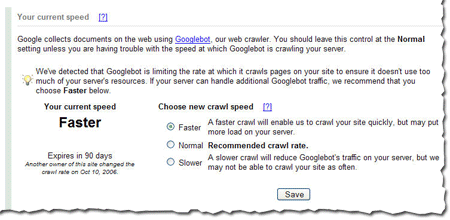
      Googlebot uses sophisticated algorithms that determine how much to crawl each site. Our goal is to crawl as many pages from your site as we can on each visit without overwhelming your server's bandwidth.

      We've been conducting a limited test of a new feature that enables you to provide us information about how we crawl your site. Today, we're making this tool available to everyone. You can access this tool from the Diagnostic tab. If you'd like Googlebot to slow down the crawl of your site, simply choose the Slower option.

      If we feel your server could handle the additional bandwidth, and we can crawl your site more, we'll let you know and offer the option for a faster crawl.

      If you request a changed crawl rate, this change will last for 90 days. If you liked the changed rate, you can simply return to webmaster tools and make the change again.


      Enhanced image search
      You can now opt into enhanced image search for the images on your site, which enables our tools such as Google Image Labeler to associate the images included in your site with labels that will improve indexing and search quality of those images. After you've opted in, you can opt out at any time.

      Number of URLs submitted
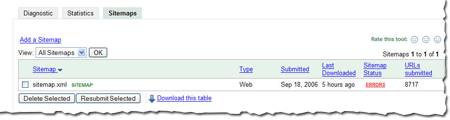
      Recently at SES San Jose, a webmaster asked me if we could show the number of URLs we find in a Sitemap. He said that he generates his Sitemaps automatically and he'd like confirmation that the number he thinks he generated is the same number we received. We thought this was a great idea. Simply access the Sitemaps tab to see the number of URLs we found in each Sitemap you've submitted.

      As always, we hope you find these updates useful and look forward to hearing what you think.

      Useful information you may have missed

      How to verify Googlebot

      Lately I've heard a couple smart people ask that search engines provide a way know that a bot is authentic. After all, any spammer could name their bot "Googlebot" and claim to be Google, so which bots do you trust and which do you block?

      The common request we hear is to post a list of Googlebot IP addresses in some public place. The problem with that is that if/when the IP ranges of our crawlers change, not everyone will know to check. In fact, the crawl team migrated Googlebot IPs a couple years ago and it was a real hassle alerting webmasters who had hard-coded an IP range. So the crawl folks have provided another way to authenticate Googlebot. Here's an answer from one of the crawl people (quoted with their permission):


      Telling webmasters to use DNS to verify on a case-by-case basis seems like the best way to go. I think the recommended technique would be to do a reverse DNS lookup, verify that the name is in the googlebot.com domain, and then do a corresponding forward DNS->IP lookup using that googlebot.com name; eg:

      > host 66.249.66.1
      1.66.249.66.in-addr.arpa domain name pointer crawl-66-249-66-1.googlebot.com.

      > host crawl-66-249-66-1.googlebot.com
      crawl-66-249-66-1.googlebot.com has address 66.249.66.1

      I don't think just doing a reverse DNS lookup is sufficient, because a spoofer could set up reverse DNS to point to crawl-a-b-c-d.googlebot.com.


      This answer has also been provided to our help-desk, so I'd consider it an official way to authenticate Googlebot. In order to fetch from the "official" Googlebot IP range, the bot has to respect robots.txt and our internal hostload conventions so that Google doesn't crawl you too hard.

      (Thanks to N. and J. for help on this answer from the crawl side of things.)

      Debugging blocked URLs

      Vanessa's been posting a lot lately, and I'm starting to feel left out. So here my tidbit of wisdom for you: I've noticed a couple of webmasters confused by "blocked by robots.txt" errors, and I wanted to share the steps I take when debugging robots.txt problems:

      A handy checklist for debugging a blocked URL

      Let's assume you are looking at crawl errors for your website and notice a URL restricted by robots.txt that you weren't intending to block:
      http://www.example.com/amanda.html URL restricted by robots.txt Sep 3, 2006

      Check the robots.txt analysis tool
      The first thing you should do is go to the robots.txt analysis tool for that site. Make sure you are looking at the correct site for that URL, paying attention that you are looking at the right protocol and subdomain. (Subdomains and protocols may have their own robots.txt file, so https://www.example.com/robots.txt may be different from http://example.com/robots.txt and may be different from http://amanda.example.com/robots.txt.) Paste the blocked URL into the "Test URLs against this robots.txt file" box. If the tool reports that it is blocked, you've found your problem. If the tool reports that it's allowed, we need to investigate further.

      At the top of the robots.txt analysis tool, take a look at the HTTP status code. If we are reporting anything other than a 200 (Success) or a 404 (Not found) then we may not be able to reach your robots.txt file, which stops our crawling process. (Note that you can see the last time we downloaded your robots.txt file at the top of this tool. If you make changes to your file, check this date and time to see if your changes were made after our last download.)

      Check for changes in your robots.txt file
      If these look fine, you may want to check and see if your robots.txt file has changed since the error occurred by checking the date to see when your robots.txt file was last modified. If it was modified after the date given for the error in the crawl errors, it might be that someone has changed the file so that the new version no longer blocks this URL.

      Check for redirects of the URL
      If you can be certain that this URL isn't blocked, check to see if the URL redirects to another page. When Googlebot fetches a URL, it checks the robots.txt file to make sure it is allowed to access the URL. If the robots.txt file allows access to the URL, but the URL returns a redirect, Googlebot checks the robots.txt file again to see if the destination URL is accessible. If at any point Googlebot is redirected to a blocked URL, it reports that it could not get the content of the original URL because it was blocked by robots.txt.

      Sometimes this behavior is easy to spot because a particular URL always redirects to another one. But sometimes this can be tricky to figure out. For instance:
      • Your site may not have a robots.txt file at all (and therefore, allows access to all pages), but a URL on the site may redirect to a different site, which does have a robots.txt file. In this case, you may see URLs blocked by robots.txt for your site (even though you don't have a robots.txt file).
      • Your site may prompt for registration after a certain number of page views. You may have the registration page blocked by a robots.txt file. In this case, the URL itself may not redirect, but if Googlebot triggers the registration prompt when accessing the URL, it will be redirected to the blocked registration page, and the original URL will be listed in the crawl errors page as blocked by robots.txt.

      Ask for help
      Finally, if you still can't pinpoint the problem, you might want to post on our forum for help. Be sure to include the URL that is blocked in your message. Sometimes its easier for other people to notice oversights you may have missed.

      Good luck debugging! And by the way -- unrelated to robots.txt -- make sure that you don't have "noindex" meta tags at the top of your web pages; those also result in Google not showing a web site in our index.

      Setting the preferred domain

      Based on your input, we've recently made a few changes to the preferred domain feature of webmaster tools. And since you've had some questions about this feature, we'd like to answer them.

      The preferred domain feature enables you to tell us if you'd like URLs from your site crawled and indexed using the www version of the domain (http://www.example.com) or the non-www version of the domain (http://example.com). When we initially launched this, we added the non-preferred version to your account when you specified a preference so that you could see any information associated with the non-preferred version. But many of you found that confusing, so we've made the following changes:
      • When you set the preferred domain, we no longer will add the non-preferred version to your account.
      • If you had previously added the non-preferred version to your account, you'll still see it listed there, but you won't be able to add a Sitemap for the non-preferred version.
      • If you have already set the preferred domain and we had added the non-preferred version to your account, we'll be removing that non-preferred version from your account over the next few days.
      Note that if you would like to see any information we have about the non-preferred version, you can always add it to your account.

      Here are some questions we've had about this preferred domain feature, and our replies.

      Once I've set my preferred domain, how long will it take before I see changes?
      The time frame depends on many factors (such as how often your site is crawled and how many pages are indexed with the non-preferred version). You should start to see changes in the few weeks after you set your preferred domain.

      Is the preferred domain feature a filter or a redirect? Does it simply cause the search results to display on the URLs that are in the version I prefer?
      The preferred domain feature is not a filter. When you set a preference, we:
      • Consider all links that point to the site (whether those links use the www version or the non-www version) to be pointing at the version you prefer. This helps us more accurately determine PageRank for your pages.
      • Once we know that both versions of a URL point to the same page, we try to select the preferred version for future crawls.
      • Index pages of your site using the version you prefer. If some pages of your site are indexed using the www version and other pages are indexed using the non-www version, then over time, you should see a shift to the preference you've set.
      If I use a 301 redirect on my site to point the www and non-www versions to the same version, do I still need to use this feature?
      You don't have to use it, as we can follow the redirects. However, you still can benefit from using this feature in two ways: we can more easily consolidate links to your site and over time, we'll direct our crawl to the preferred version of your pages.

      If I use this feature, should I still use a 301 redirect on my site?
      You don't need to use it for Googlebot, but you should still use the 301 redirect, if it's available. This will help visitors and other search engines. Of course, make sure that you point to the same URL with the preferred domain feature and the 301 redirect.

      You can find more about this in our webmaster help center.

      Better details about when Googlebot last visited a page

      Most people know that Googlebot downloads pages from web servers to crawl the web. Not as many people know that if Googlebot accesses a page and gets a 304 (Not-Modified) response to a If-Modified-Since qualified request, Googlebot doesn't download the contents of that page. This reduces the bandwidth consumed on your web server.

      When you look at Google's cache of a page (for instance, by using the cache: operator or clicking the Cached link under a URL in the search results), you can see the date that Googlebot retrieved that page. Previously, the date we listed for the page's cache was the date that we last successfully fetched the content of the page. This meant that even if we visited a page very recently, the cache date might be quite a bit older if the page hadn't changed since the previous visit. This made it difficult for webmasters to use the cache date we display to determine Googlebot's most recent visit. Consider the following example:
      1. Googlebot crawls a page on April 12, 2006.
      2. Our cached version of that page notes that "This is G o o g l e's cache of http://www.example.com/ as retrieved on April 12, 2006 20:02:06 GMT."
      3. Periodically, Googlebot checks to see if that page has changed, and each time, receives a Not-Modified response. For instance, on August 27, 2006, Googlebot checks the page, receives a Not-Modified response, and therefore, doesn't download the contents of the page.
      4. On August 28, 2006, our cached version of the page still shows the April 12, 2006 date -- the date we last downloaded the page's contents, even though Googlebot last visited the day before.
      We've recently changed the date we show for the cached page to reflect when Googlebot last accessed it (whether the page had changed or not). This should make it easier for you to determine the most recent date Googlebot visited the page. For instance, in the above example, the cached version of the page would now say "This is G o o g l e's cache of http://www.example.com/ as retrieved on August 27, 2006 13:13:37 GMT."

      Note that this change will be reflected for individual pages as we update those pages in our index.

      All About Googlebot

      I've seen a lot of questions lately about robots.txt files and Googlebot's behavior. Last week at SES, I spoke on a new panel called the Bot Obedience course. And a few days ago, some other Googlers and I fielded questions on the WebmasterWorld forums. Here are some of the questions we got:

      If my site is down for maintenance, how can I tell Googlebot to come back later rather than to index the "down for maintenance" page?
      You should configure your server to return a status of 503 (network unavailable) rather than 200 (successful). That lets Googlebot know to try the pages again later.

      What should I do if Googlebot is crawling my site too much?
      You can contact us -- we'll work with you to make sure we don't overwhelm your server's bandwidth. We're experimenting with a feature in our webmaster tools for you to provide input on your crawl rate, and have gotten great feedback so far, so we hope to offer it to everyone soon.

      Is it better to use the meta robots tag or a robots.txt file?
      Googlebot obeys either, but meta tags apply to single pages only. If you have a number of pages you want to exclude from crawling, you can structure your site in such a way that you can easily use a robots.txt file to block those pages (for instance, put the pages into a single directory).

      If my robots.txt file contains a directive for all bots as well as a specific directive for Googlebot, how does Googlebot interpret the line addressed to all bots?
      If your robots.txt file contains a generic or weak directive plus a directive specifically for Googlebot, Googlebot obeys the lines specifically directed at it.

      For instance, for this robots.txt file:
      User-agent: *
      Disallow: /

      User-agent: Googlebot
      Disallow: /cgi-bin/
      Googlebot will crawl everything in the site other than pages in the cgi-bin directory.

      For this robots.txt file:
      User-agent: *
      Disallow: /
      Googlebot won't crawl any pages of the site.

      If you're not sure how Googlebot will interpret your robots.txt file, you can use our robots.txt analysis tool to test it. You can also test how Googlebot will interpret changes to the file.

      For complete information on how Googlebot and Google's other user agents treat robots.txt files, see our webmaster help center.

      Back from SES San Jose

      Thanks to everyone who stopped by to say hi at the Search Engine Strategies conference in San Jose last week!

      I had a great time meeting people and talking about our new webmaster tools. I got to hear a lot of feedback about what webmasters liked, didn't like, and wanted to see in our Webmaster Central site. For those of you who couldn't make it or didn't find me at the conference, please feel free to post your comments and suggestions in our discussion group. I do want to hear about what you don't understand or what you want changed so I can make our webmaster tools as useful as possible.

      Some of the highlights from the week:

      This year, Danny Sullivan invited some of us from the team to "chat and chew" during a lunch hour panel discussion. Anyone interested in hearing about Google's webmaster tools was welcome to come and many did -- thanks for joining us! I loved showing off our product, answering questions, and getting feedback about what to work on next. Many people had already tried Sitemaps, but hadn't seen the new features like Preferred domain and full crawling errors.

      One of the questions I heard more than once at the lunch was about how big a Sitemap can be, and how to use Sitemaps with very large websites. Since Google can handle all of your URLs, the goal of Sitemaps is to tell us about all of them. A Sitemap file can contain up to 50,000 URLs and should be no larger than 10MB when uncompressed. But if you have more URLs than this, simply break them up into several smaller Sitemaps and tell us about them all. You can create a Sitemap Index file, which is just a list of all your Sitemaps, to make managing several Sitemaps a little easier.

      While hanging out at the Google booth I got another interesting question: One site owner told me that his site is listed in Google, but its description in the search results wasn't exactly what he wanted. (We were using the description of his site listed in the Open Directory Project.) He asked how to remove this description from Google's search results. Vanessa Fox knew the answer! To specifically prevent Google from using the Open Directory for a page's title and description, use the following meta tag:
      <meta name="GOOGLEBOT" content="NOODP">

      My favorite panel of the week was definitely Pimp My Site. The whole group was dressed to match the theme as they gave some great advice to webmasters. Dax Herrera, the coolest "pimp" up there (and a fantastic piano player), mentioned that a lot of sites don't explain their product clearly on each page. For instance, when pimping Flutter Fetti, there were many instances when all the site had to do was add the word "confetti" to the product description to make it clear to search engines and to users reaching the page exactly what a Flutter Fetti stick is.

      Another site pimped was a Yahoo! Stores web site. Someone from the audience asked if the webmaster could set up a Google Sitemap for their store. As Rob Snell pointed out, it's very simple: Yahoo! Stores will create a Google Sitemap for your website automatically, and even verify your ownership of the site in our webmaster tools.

      Finally, if you didn't attend the Google dance, you missed out! There were Googlers dancing, eating, and having a great time with all the conference attendees. Vanessa Fox represented my team at the Meet the Google Engineers hour that we held during the dance, and I heard Matt Cutts even starred in a music video! While demo-ing Webmaster Central over in the labs area, someone asked me about the ability to share site information across multiple accounts. We associate your site verification with your Google Account, and allow multiple accounts to verify ownership of a site independently. Each account has its own verification file or meta tag, and you can remove them at any time and re-verify your site to revoke verification of a user. This means that your marketing person, your techie, and your SEO consultant can each verify the same site with their own Google Account. And if you start managing a site that someone else used to manage, all you have to do is add that site to your account and verify site ownership. You don't need to transfer the account information from the person who previously managed it.

      Thanks to everyone who visited and gave us feedback. It was great to meet you!

      Ads