Enhanced Campaigns for Display: Powerful Bidding Tools for a Multi-Device World

Last month we announced enhanced campaigns to help advertisers more simply and scalably reach their customers in a multi-screen world.  Today, we’ll look more closely at how enhanced campaigns work with your display campaigns.

Why Enhanced Campaigns For Display
In this constantly connected world, our customers are accessing information across multiple devices, and might look at 10 different sources - online reviews, newspaper and magazine articles, recommendations from friends and more - before making a purchase. Display advertising captures these signals and is an important part of connecting with consumers in this multi-screen world.  But determining the best way to reach the right person with the right ad is more complex than ever. Enhanced campaigns for display help you reach people with the right ads, based on people’s context like their location, time of day and device type -- all from a single campaign.

Key Features
Search and display use very different signals. In search, we use keywords to capture users’ intent. For instance, a travel booking website knows that a user searching for ‘Rome Vacation Packages’ is looking for a vacation in Rome. In Display campaigns, advertisers use a variety of other signals to reach their target customers with the right ad. In this example, a travel website may use:
  • Interest Categories: to reach customers interested in “Rome”
  • Demographics: to reach people 35-44, who have historically spent 3x the average
  • Topic Targeting: to reach people browsing travel websites
  • Remarketing: to reach customers who booked a vacation with them last year
In today’s constantly connected world, someone's intent and the actions they're looking to take may differ depending on their context, signals such as time of day, location and device:
  • Time of day: Travelers typically book between 9am and 6pm
  • Location: “People in the US” who may convert more often than people in Italy
  • Device: Mobile users tend to browse on their smartphones, then book on their desktop
With enhanced campaigns, instead of having to create multiple campaigns, this travel website can easily manage all of this in one place. In a single campaign they can adjust bids across these various signals to reach the right people with the right ads.

Learn More
More tips on how to use enhanced campaigns for display are available in the AdWords Help Center. To learn more on how you can take advantage of Enhanced Campaigns for Display, register for our upcoming webinar this Thursday March 21st, at 10am PST.

Posted by Christian Oestlien, Product Management Director for the Google Display Network

Enhanced campaigns: Improving online and offline results with location bid adjustments and offer extensions

April 11 update: Offer extensions are now available and can be shown in the UK.

With AdWords, you’ve been able to run campaigns in targeted geographic locations and attach your local business address to your search ads using location extensions. Now, new location-oriented features in enhanced campaigns are rolling out globally to help you achieve even better results with AdWords – online and offline. Read on to learn how to:
  • Improve campaign results using location bid adjustments, whether your customers buy online or offline.
  • More easily reach customers that are near your business locations. 
  • Drive more offline purchases and measurable in-store traffic with search ads using offer extensions.
For a guided walkthrough, tips and Q&A on using these new location-based features and offer extensions, please register and join us at this week’s Learn with Google webinar on enhanced campaigns this Thursday, March 7, at 10am PST.

Geotarget broadly with selective bid adjustments for improved results

Whether your business is online-only, offline-only, or multi-channel, you can improve your overall results by using a broad location target to cover your entire potential market while refining your bids in select areas. With legacy campaigns, you’d need to set up a new campaign for every location you wanted to bid differently on. Now, with enhanced campaigns, it’s simple to increase or lower your bids by a certain percent for any location target in your campaign.

In the AdWords interface, click Locations on the Settings tab, and then click on the bid adjustment column to the right of a location target to increase or decrease your bid. You can also make location bid adjustments with the latest version of AdWords Editor.

Adjusting a bid for a location target
Setting a location bid adjustment (click to expand)

To optimize with selective bid adjustments using the AdWords interface:
  1. Click on the “Location details” button and select “What triggered your ad.” 
  2. Toggle the View button to slice your campaign performance data, including conversion data, by different geographic levels (example screen).
  3. Sort or filter to focus on the locations you want to optimize. 
  4.  Select one or more locations. 
  5. Click the “Add targets and set bid adjustment” button.
For more advanced optimization, you might pair your AdWords reporting with your company’s data on customer value by geography to adjust bids for different locations.
Example 1: A commercial maintenance company targets a 20 mile radius around downtown Denver. The marketing director might know that it costs 20% less to sell to and service customers who are within 10 miles of downtown. He can improve his results by increasing his bids by 20% for customers within 10 miles of downtown Denver, since these leads are more profitable. 
Example 2: An online-only financial services company has modeled its average customer lifetime value by zip code. The company’s search specialist has been asked to achieve an average 8:1 return on ad spend (ROAS), which they define as average lifetime value divided by average cost per lead. The specialist downloads data from AdWords with cost per lead by zip code and pairs it with lifetime value for each matching zip code (example data). She looks for opportunities to improve her results by lowering bids in zip codes where ROAS is below the target and increasing bids in zip codes where ROAS is above the target. She makes her bid adjustment decisions in the spreadsheet and implements them in her enhanced campaign, re-checking the ROAS and volume impact for a few weeks and making changes as necessary. With legacy campaigns, she would have to set up a new campaign for every zip code with different bids, increasing the level of campaign management complexity and effort required.
Experienced search marketers know that bids are an important contributor to campaign results, along with ads, extensions, keywords, and landing pages, so they’re sure to measure periodically and make adjustments. Remember, targeting too narrowly can limit your reach, clicks and conversions, so consider using selective location bid adjustments while targeting broadly. More tips on optimizing your campaigns using location are available in the AdWords Help Center.

Reach customers near your offline business locations more easily

If you operate an offline or multi-channel business, you can use the new location extensions targeting to reach potential customers or increase your bids when they're near your locations with just a few clicks. It uses the location extensions you’ve already created and a radius that you specify to create targets around your businesses.

Setting a location extension target
Setting a location extension target (click to expand)

You can then assign a bid adjustment to your location extension target to increase your ad’s visibility when customers are near your business, and potentially more likely to shop and buy from you (step-by-step directions).
Example 3: A national multi-channel retail business has been running AdWords campaigns to sell directly online and to drive people to its 400 local stores. The account has already set up location extensions, but it wants to improve its ad visibility even more when customers are searching within a short distance from its stores. With just a few clicks, its search agency adds a single “2.0 mile around each location extension” target and sets a +25% bid adjustment.
Setting a bid adjustment for a location extension target
 Setting a bid adjustment for a location extension target (click to expand)

Drive measurable offline purchases and in-store traffic with offer extensions

Showing a potential customer the right offer at the right time can be the difference that brings them into a local business to buy from you. Offer extensions help you drive offline purchases and in-store traffic with a redeemable offer shown with your search ads across devices. You can use them whether you’re a retailer, manufacturer, or other type of business (currently shown to users in the U.S. only).

desktop offer extension example
Desktop offer extension example
mobile offer extension example
Mobile offer extension example

When customers click your offer, they'll see your offer details, business logo, and nearby stores (see example below). They can print your offer or save it to their Google Offers account for in-store redemption. At the point of sale, customers redeem the offer using either a text code or a bar code.

Offer details example on desktop
Offer details example on desktop (click to expand)

You pay for clicks on an offer just like a click on your ad headline – there are no fees for each redemption. We’ll also remind customers about unused offers through email to improve the redemption rate. Offer extensions are available at the campaign or ad group level. Check out more details and tips on offer extensions usage and reporting in the Help Center.

Please stay tuned for more details on the availability of offer extensions in other countries and improvements with offer redemption reporting. We welcome your feedback on these features and others in enhanced campaigns using this form.

Posted by Smita Hashim, Group Product Manager

Enhancing AdWords for a constantly connected world

Today we’re upgrading AdWords, by rolling out enhanced campaigns. This is a first step to help you more simply and smartly manage your ad campaigns in today’s multi-device world.

Why enhanced campaigns?
People are constantly connected and moving from one device to another to communicate, shop and stay entertained. In fact, a recent study of multi-device consumers found that 90% move sequentially between several screens to accomplish a task. There’s also a proliferation of new devices — PCs, laptops, tablets, smartphones, hybrid devices, mini-tablets, televisions, and more. And there are many more digital screens and devices to come, with the lines between them continuing to blur. For example, as devices converge, consumer behaviors on tablets and desktops are becoming very similar.

This creates great opportunities for businesses, but can also make marketing more complex and time-consuming. For example, a pizza restaurant probably wants to show one ad to someone searching for “pizza” at 1pm on their PC at work (perhaps a link to an online order form or menu), and a different ad to someone searching for “pizza” at 8pm on a smartphone a half-mile from the restaurant (perhaps a click-to-call phone number and restaurant locator). Signals like location, time of day, and the capabilities of the device people are using have become increasingly important in showing them the right ad.

With enhanced campaigns, instead of having to cobble together and compare several separate campaigns, reports and ad extensions to do this, the pizza restaurant can easily manage all of this in one single place. Enhanced campaigns help you reach people with the right ads, based on their context like location, time of day and device type, across all devices without having to set up and manage several separate campaigns.


Key features
Here’s an overview of some key features.
  1. Powerful marketing tools for the multi-device world
    People want search results that are relevant for the context they are in — their device, location and the time of day. Enhanced campaigns help you better manage your campaigns and budgets for this multi-device world. With bid adjustments, you can manage bids for your ads across devices, locations, time of day and more — all from a single campaign.

    Example: A breakfast cafe wants to reach people nearby searching for "coffee" or "breakfast" on a smartphone. Using bid adjustments, with three simple entries, they can bid 25% higher for people searching a half-mile away, 20% lower for searches after 11am, and 50% higher for searches on smartphones. These bid adjustments can apply to all ads and all keywords in one single campaign.

  2. Smarter ads optimized for varying user contexts
    People on the go or near your store may be looking for different things than someone sitting at their desk. With enhanced campaigns, you’ll show ads across devices with the right ad text, sitelink, app or extension, without having to edit each campaign for every possible combination of devices, location and time of day.

    Example: A national retailer with both physical locations and a website can show ads with click-to-call and location extensions for people searching on their smartphones, while showing an ad for their e-commerce website to people searching on a PC — all within a single campaign.

  3. Advanced reports to measure new conversion types
    Technology is enabling people to take action on your ads in new ways. Potential customers may see your ad and download your app, or they may call you. It’s been hard for marketers to easily measure and compare these interactions. To help you measure the full value of your campaigns, enhanced campaigns enables you to easily count calls and app downloads as conversions in your AdWords reports.

    Example: You can count phone calls of 60 seconds or longer that result from a click-to-call ad as a conversion in your AdWords reports, and compare them to other conversions like leads, sales and downloads.
Upgrading to enhanced campaigns
Enhanced campaigns will roll out to advertisers as an option over the next few weeks, and we plan to upgrade all campaigns in mid-2013.

Enhanced campaigns are designed to help you succeed in a multi-screen world, but we know that transitioning may involve some initial changes. Here are some resources to help you:
Over the coming weeks we’ll dive into the new features with tips and best practices on the Inside AdWords blog and on our Google+ page. We’d love your feedback.

Turning your phone and tablet into the best remote control for YouTube

We bet you a billion views you can find your way around YouTube faster on your mobile device than on your TV. That’s why we launched a feature making it easy to send videos from your mobile to your TV with just one button.

This year at the Consumer Electronics Show (CES), we’re bringing that mobile/TV pairing feature to devices from our friends including Bang & Olufsen, LG, Panasonic and Sony. In 2013, you’ll see this feature come to even more devices like those from Philips, Samsung, Sharp, Toshiba, Vizio, Western Digital and others.


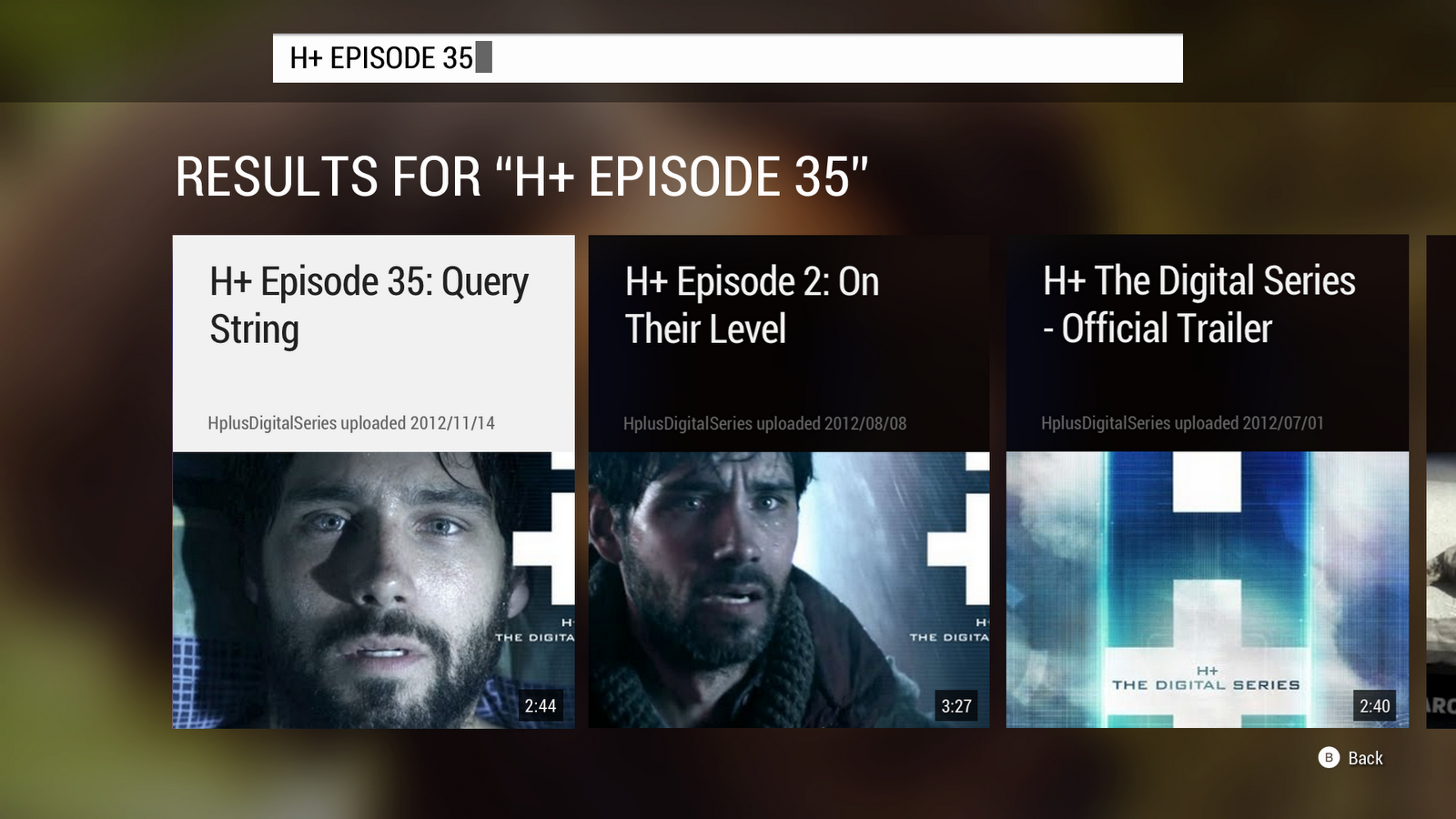
These new devices will also have the latest look and feel for YouTube on TV, letting you watch HD videos and channels on the big screen with everyone at home. Catch the latest videos from your subscriptions, watch playlists full of 1080p videos and find the next great video faster with search suggestions.


Whether you’re at CES or at home, you can now watch YouTube on 400 million devices: from tablets to TVs, smartphones to streaming boxes, and consoles to cable providers. When you sign in and subscribe on any of these devices, you’ll always have something great to watch next.

Francisco Varela, global director, platform partnerships, recently watched “Battlestar Galactica: Blood and Chrome : "Episode 1".”

Film and share videos instantly with YouTube Capture for iPhone and iPod touch

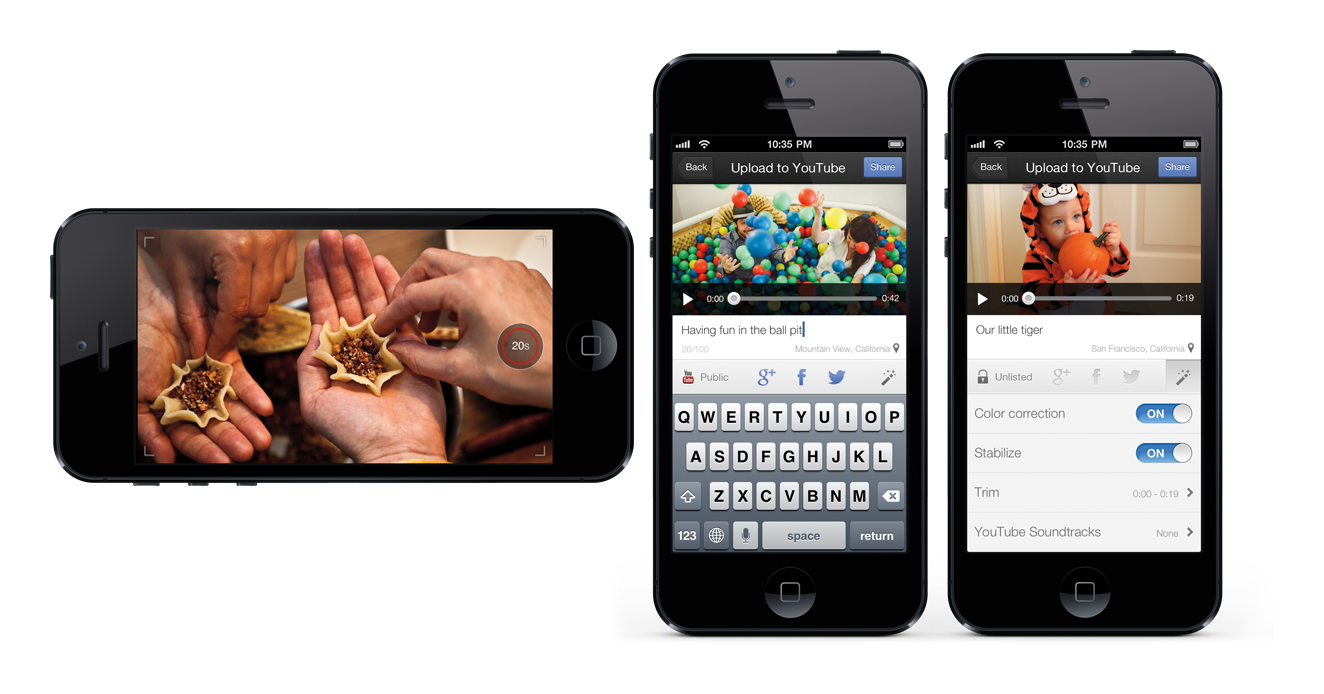
Life moves fast. To speed up recording, enhancing and sharing videos with your friends or the whole world, you can now use the YouTube Capture app on your iPhone or iPod touch.
Making sharing fast and easy
YouTube Capture is ready to record as soon as you open it. When you’re done filming, write a caption, select which networks you want to share to, and hit Share. Even if you minimize the app, the video will keep uploading in the background. You can control who sees your video by setting it to private (only you can view it), unlisted (only people with a link to the video can view it), or public (to let it shine to the world).

More than a point-and-shoot
Have a shaky hand or bad lighting when recording your video? Touch it up easily with YouTube enhancements like color correction and stabilization, or trim the length and add free background music from YouTube. These enhancements are also available on existing videos on your device, and you can always undo enhancements later on YouTube.com. YouTube Capture will remind you to rotate your phone to a horizontal position for filming, so your videos look high-quality and free of “Vertical Video Syndrome.”

YouTube Capture will be available today on the App Store. We’re also working to bring this to Android in the future, and learn more at youtube.com/capture.


Reed Morse, Software Engineer, recently watched “Ronald Jenkees - Red Lemonade Remixed.”

YouTube on iPad, and sweet updates for iPhone 5 and iPod touch

You love watching YouTube on the go—in fact—more than 25 percent of all YouTube watching happens on mobile. This past September you got the YouTube app for iPhone and iPod touch to make it easier to find and share the videos and channels you love on YouTube, and you made us the #1 free app in the App Store for two months. Since then, we’ve been hard at work to improve the app based on your feedback.

Just in time for the holidays, now you can download or update the YouTube app with a look designed for the iPad and iPhone 5, enhanced AirPlay support, videos that start faster and play more smoothly, and improved accessibility with VoiceOver. Enjoy Tastemade on iPad in full screen glory, or hours of flipping through Ryan Higa videos on your iPhone 5 or iPod touch.


Please keep giving us feedback on features you’d like to see so we can keep making it better. In the meantime, we’ll be kicking back with some egg nog and a holiday favorite on our iPad.


Horia Ciurdar, Software Engineer, recently watched “GoPro: Matthias Giraud - Double Back Flip Drop.”

YouTube automatic captions now in six European languages

Captions are important to make sure everyone—including deaf, hard-of-hearing, and viewers who speak other languages—can enjoy videos on YouTube.

In 2009, you first saw a feature that automatically creates captions on YouTube videos in English, and since then we’ve added Japanese, Korean, and Spanish. Today, hundreds of millions of people speaking six more languages—German, Italian, French, Portuguese, Russian, and Dutch—will have automatic caption support for YouTube videos in those languages. Just click the closed caption button on any of these videos to see how it works:


Now in 10 languages, automatic captions are an important first step in the path toward high-quality captions for the 72 hours of video people upload per minute. As automatic captions will have some errors, creators also have several tools to improve the quality of their captions. Automatic captions can be a starting point, where creators can then download them for editing, or edit them in-line on YouTube. Creators can also upload plain-text transcripts in these languages, and the same technology will generate automatically-synchronized captions.

You now have around 200 million videos with automatic and human-created captions on YouTube, and we continue to add more each day to make YouTube accessible for all.

Hoang Nguyen, software engineer, recently watched “Completo, ilha das flores.”

Just for U: YouTube arrives on Wii U

The new YouTube app for Nintendo Wii U brings the YouTube videos and channels you love to your living room, and with the Wii U GamePad you can quickly search for great videos to watch. From the new Super Mario Bros to music videos, there’s endless HD entertainment available to you on the YouTube app.

Nintendo's GamePad makes it fast and easy to find YouTube videos, with the GamePad touchscreen keyboard.


Take advantage of your big screen TV and enjoy YouTube HD videos in up to 1080p. When you're watching a video, you can also see all the video details on your GamePad.


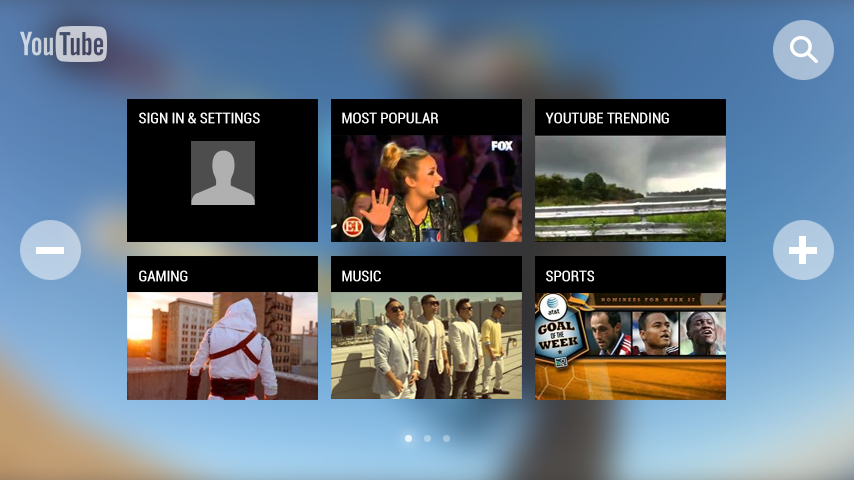
Looking for something new to watch? Flip through your subscribed channels and categories like Gaming and Music.


The YouTube app for Nintendo Wii U is now available for free download from the Nintendo Wii U main menu.

Sarah Ali, product manager, recently watched “Portlandia : Did You Read? - Portlandia on IFC.”

YouTube app now on Nintendo Wii in the U.S.

Designed for the big screen and Wii Remote, the new YouTube app for Nintendo Wii brings the YouTube videos and channels you love to your TV. Wii owners in the U.S. can download the app today from the Nintendo Wii Shop Channel, and we’re bringing the app to more countries in the coming months. Here’s what to expect with the new app:

Start your YouTube journey on Wii by signing in to find the channels you’re subscribed to. You can also flip through categories like Gaming, Music, trending videos and more.


Watch the shows and channels you love on YouTube, like The Book Club from YOMYOMF Network or the official Nintendo Wii YouTube channel.


Wii Yoga have you hungry for more exercises? Try the new search features to find fun yoga videos.


Check out these features and more on the new YouTube app for Nintendo Wii, giving you another way to enjoy YouTube on the big screen.

Matt Darby, product manager, recently watched “Dragon Baby.”

Making it easier to watch YouTube videos on TV

What if you could send YouTube videos from your phone to your TV with a click of a button? It’s an idea we’ve been working on since 2010, and today we’re taking the next step.

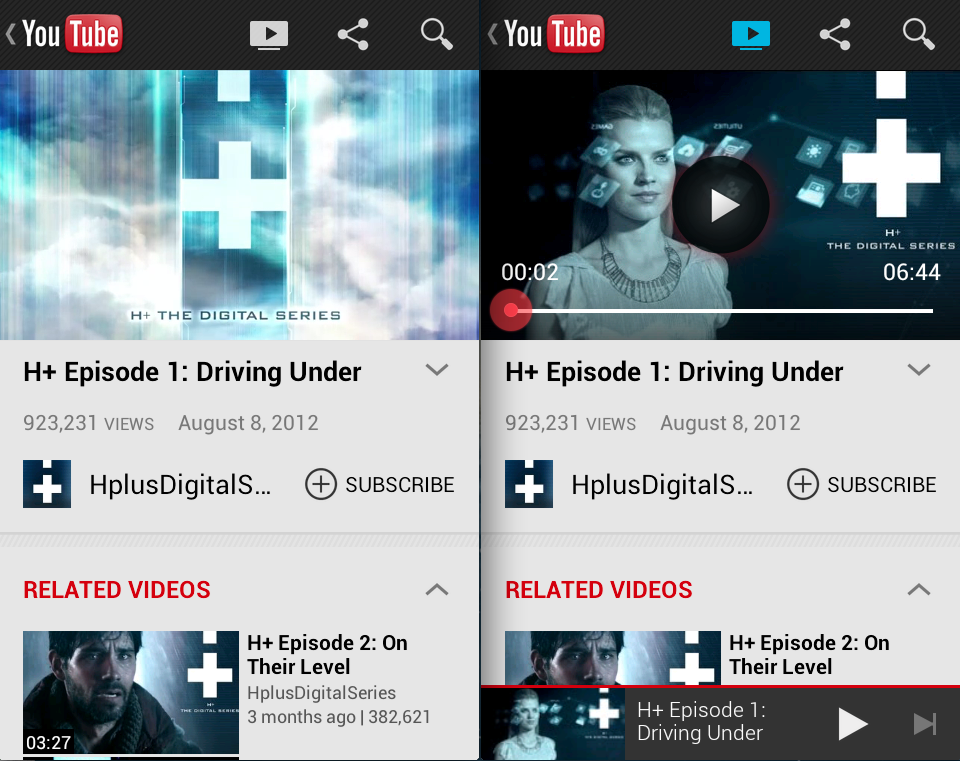
We’re making it even easier to play videos from your phone or tablet on your TV, with a YouTube app update for Android and Google TV that automatically pairs your devices on the same WiFi. Just find a video on your YouTube app for Androidlike the latest video from GoPro or H+ The Digital Series — click the TV icon that appears, and the video will play instantly on your Google TV.


Like a remote control, you can pause, scroll or skip to the next video with your mobile device as it plays on your TV. Since your devices are connected in the cloud, you can also do things like find the next video to watch from your tablet or browse around the web on your phone, all while the video plays on TV. You can even connect multiple devices to the TV to have your friends add to the playlist.

Stay tuned to see this feature coming to more devices and screens in the future. The next evolution of TV is in your hands.

Timbo Drayson, Product Manager, recently watched all of H+ The Digital Series on his TV.

Boost your results with Dynamic Search Ads, now available to all

Last October we introduced Dynamic Search Ads, an efficient new way to target relevant searches with ads generated directly from your website. Now, after a year of refinements and successful beta testing, we’re making Dynamic Search Ads available to all advertisers in the next few days.

Boosting Results, Efficiently
Dynamic Search Ads (DSA) generate incremental leads and sales by promoting your business on more commercial queries than you’re reaching today. After all, even well-managed AdWords campaigns containing thousands and thousands of keywords can miss relevant searches, experience delays getting ads written for new products, and get out of sync with what's actually available on your website.


If you’re not already familiar with how Dynamic Search Ads work, you may want to read about the targeting controls available, reporting and optimization features, and support for third-party PPC tracking.

Successful Beta Test
Many of our beta testers set up DSA to run alongside their existing large-scale search campaigns. And DSA delivered.
  • Incremental and efficient results. On average, Dynamic Search Ads boosted beta testers’ traffic and conversion volume from AdWords by 10% and outperformed their non-exact keywords by 10% on clickthrough rate (CTR), cost per click (CPC) and cost per action (CPA).
  • Success. A few examples of successful DSA beta testers include:
    • Jonathan Meager, Marketing Manager at Gear4music (.pdf case study)
    • Matt Wilkinson, Director of Search and Media at Rosetta and Steve Baruch, VP of eCommerce at MSC Industrial Supply (.pdf case study)
    • Larry Cotter, GM at Apartment Home Living (video case study).
We also made numerous product improvements during the beta test including:
  • Bid auto-optimization. Since one of our chief goals for DSA was more results with less work, we devised a system to automatically ratchet bids downward whenever specific queries for an advertiser produce lower conversion rates or user engagement levels. As a result, your ROI for Dynamic Search Ads can improve over time automatically. 
  • Website crawl frequency. Any indexed page with a matched DSA impression will be crawled at least once daily (update: please see clarification below). Pages with more impressions and clicks may be crawled more frequently. So DSA will now better reflect the latest products and inventory conditions on your web site. That means more clicks, higher conversion rates and better ROI.
  • Mobile and tablet support. Given the growing importance of mobile campaigns, we developed full support for DSA on mobile and tablet platforms.
  • Extension support. Dynamic Search Ads support the same ad extensions as other search ads.  
  • Conversion Optimizer compatibility. Once enabled, many beta test participants reported success using the combination of DSA and Conversion Optimizer to simultaneously expand their campaign reach while automatically optimizing bids to meet their average CPA goal.
Get Started
Now any business interested in boosting their AdWords results can try DSA. You can find starting points on creating a DSA campaign and setting up dynamic targets in the AdWords help center.

If you’re interested in learning even more about Dynamic Search Ads, please stay tuned to our blog. More information and an invitation to join us for a Hangout on Air will be coming soon.


Update (10/29/12):
Because of our own prioritization to crawl pages with more impressions and clicks more frequently, as well as other potential limitations on crawl frequency determined by your web host or internet service provider, there may be some indexed pages with a matched DSA impression that are not crawled each day. We’re sorry for any mixup this may have caused.

YouTube Campaigns: A digital thermometer for nonprofit videos

Ever pasted together 108 sheets of paper and drawn a giant thermometer to track your nonprofit’s campaign goal? Did you go through 27 red markers and then feel faint from their scent after trying to color it in?

Well, chuck those markers and recycle that paper, because through the YouTube Nonprofit Program there is a new thermometer in town. Check out the latest tool for nonprofits: Campaigns.

This new feature allows nonprofits to create campaigns with goals like increasing views or subscribers, track their progress, and let people to contribute to their goals.
A campaign consists of one or more videos. You can find instructions on starting a campaign here. Once a campaign is created, videos in that campaign will show an overlay on them, encouraging viewers to contribute to the campaign.


Additionally, a Campaign tab will show up on your channel, with a bar showing the progress toward your goal.
With more than 18,000 organizations in the YouTube Nonprofit Program we are always looking for ways to help nonprofits turn video views into greater awareness, petitions signed, laws changed, dollars raised, and lives saved. This year we released other tools you should check out like live streaming, a playbook with of best practices when using video, and other improved features like a more prominent donate button. We hope you enjoy our latest feature.

David D, Software Engineer, recently watched "Follow the Frog."

Make better decisions in AdWords with your Google Analytics data

If you’re already using Google Analytics, you know how useful it can be to help you make better decisions and improve your online marketing. Now, we’re making it possible to use your Google Analytics data right in AdWords. After setting up AdWords to import your Google Analytics data, you’ll have access to Bounce Rate, Pages Per Visit, and Average Visit Duration columns directly in the AdWords interface. With more performance data available right where you’re managing your campaigns, you can make better informed decisions and improve your AdWords ROI.

Using your Google Analytics data
With Google Analytics you can find insights that matter, including how visitors arrive at your website, how they use it, and how you can keep them coming back. Here are some ways you can take advantage of the new Google Analytics data available in AdWords to improve your results.
  • Attract more engaged users. If highly engaged users are an important goal, sort your ad groups to find the ones that deliver visitors who stay on your site the longest (“Average Visit Duration” or “Pages Per Visit”), and bid more for these.
  • Discover opportunities to convert more engaged visitors. You might find certain keywords or ads that have relatively low conversion rates, but great engagement metrics. You could lower your bids by a little and move on. Or you could see this as a great opportunity to convert clearly engaged visitors into buyers. By adjusting your offer, adding an incentive (like a coupon or discount code), or making your call to action more obvious and accessible, you might be able to improve your ROI and your conversion volume. To look for these types of opportunities, create a filter based on conversion rate and sort by Average Visit Duration, Pages per visit, or Bounce Rate.
  • Identify ads with badly matched landing pages or inaccurate targeting. Pages with both low conversion rates and low engagement metrics (low Average Visit Duration or High Bounce Rate) could indicate a poor landing page for a particular ad or keyword. It might also suggest inaccurate targeting. To identify and troubleshoot these problems, set up a filter for low conversion rate and low engagement rate and regularly monitor it. Since you’re using Google Analytics, you can easily set up A/B testing on the landing page using a Content Experiment.
Success in action
Casamundo, the biggest vacation rental listing service in Europe, has been an early tester of this new feature. They've used Google Analytics since 2008 and over the past 5 years they've grown and refined their AdWords campaigns to over 50 million active keywords across 10 languages. Their analysis shows that converting visitors research vacation rentals over an average of 7.4 visits, so understanding whether their ads and keywords can create strong engagement is vital to their business and how they optimize their AdWords campaigns. Seeing high bounce rates and low average time on site for a keyword means that the offer or destination page might not be a good match for that keyword.

Having easier access to Google Analytics data right in AdWords has helped Torge Kahl, Online Marketing Manager, at Casamundo make better decisions and make optimizations more quickly. According to Torge:
“The combination of using both Google AdWords and Google Analytics has proved to be the perfect set of tools for us to achieve our goals, and we're very happy to see this combination get more integrated and powerful. Using Analytics data right within AdWords has let me better optimize our account and significantly improve the return on our AdWords investment."
More details
Please visit the AdWords Help Center for step-by-step directions on how to connect your Google Analytics profile data to your AdWords account and for more details.

To exchange tips and ask questions of others, please visit the AdWords community. You can always contact AdWords support for help if you need it.

New AdWords budget option: Shared budgets

Shared budgets is a new feature that lets you establish a single daily budget that’s shared by multiple campaigns in an AdWords account. Shared budgets can make it easier to match your AdWords spending with how your business allocates marketing budget. And they can save you time and improve your AdWords results. Let’s see how with an example.

How Shared Budgets Work
Say you’re an outdoor furniture seller with a single line of products. You’re currently running three campaigns:
  1. A desktop search campaign
  2. A mobile search campaign
  3. A remarketing campaign to reach people who have visited your site but didn’t convert
Your overall marketing plan allows you to spend $100 per day across your three campaigns. Without shared budgets, you’d next have to decide how to allocate the $100 daily AdWords budget across each of your three campaigns. Say you set a $60 daily budget for your desktop campaign, a $20 daily budget for your mobile campaign, and $20 to your remarketing campaign.

On most days, each campaign hits its daily budget and you’re satisfied with the ROI of each campaign. But on some days, your desktop search campaign sees fewer impressions and clicks than other days. So you only spend $90. On these days, your overall campaign results could be stronger if you were able to put an additional $10 into your mobile search campaign or remarketing campaign.

Using shared budgets allows automatic adjustments across campaigns, so you don’t have to constantly monitor and change individual campaign budgets throughout the day.

Creating a shared budget
It’s simple. Log into the AdWords interface, then click Shared library, and select Budgets. Then follow the steps to Create a new shared budget (see image below).


Reporting
The “Shared library” is also where you can review aggregate performance metrics for multiple campaigns with a shared budget.

Learn more
For more on shared budgets, please visit the AdWords Help Center or the AdWords Community to ask questions or share tips.

Take your channels with you on the new YouTube app

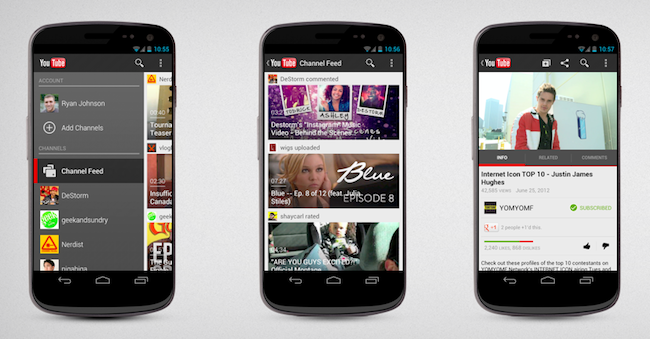
Last year we redesigned YouTube with the goal to make it easy and enjoyable to follow the channels you love. We added a guide to the homepage to quickly access your channel subscriptions and a feed of activity showing you the latest and greatest videos from your favorite YouTube channels. Now in the new YouTube app for Android, we’re bringing that experience to the app, while making YouTube better both on the go and at home.

A guide to all your channels
With less screen space on your phone than your laptop or TV, we want to focus the YouTube app on just the stuff you care about. You now have a guide on the left side of the screen that gives you instant access to your channels, and a feed constantly updating with new videos.


Faster on the go
When you’re watching YouTube on the go, watching a video buffer is as fun as waiting for the bus to show up. To spend more time with your video and less time with the spinning circle of boredom, you can now preload and temporarily cache videos from your subscribed channels on your phone anytime it’s charging and your WiFi is connected. Just enable “Preloading” in the Settings menu. You’ll still need a connection to play the video, but once you do it’s smooth sailing through the latest from your subscribed channels and Watch Later queue.

Watch it on the big screen
Back at home and want to watch that amazing video on your big screen? While the video’s playing on TV, with the new YouTube app or mobile website you’ll be able to use your phone to find the next great video to watch, comment, like or subscribe. We’re working to make this broadly available across connected TVs and living room devices, so stay tuned for updates.

To check out the new app, visit the Google Play Store on your Android phone for the latest version. The new YouTube app features are currently just available on phones with Android 4.0 and above, and you’ll start to see these features appear on other Android versions in coming months. If you’re using m.youtube.com or other versions of the YouTube app, you can still access your subscriptions by signing in and selecting “Subscriptions.”

So whenever or wherever you’re ready for some great channels, trust your YouTube app will have them ready to watch.

Andrey Doronichev, head of YouTube mobile, recently watched “JEFF BRIDGES goes Face to Face with "Weird Al" Yankovic.”

YouTube automatic captions now available in Spanish

Cross posted from the Blog de YouTube en Español

Last year, YouTube had more than 1 trillion views, or about 140 views for every person on earth. As the world tunes in to YouTube, we want everyone, in every language, to have the same opportunity to enjoy YouTube. So today, we’re expanding our language accessibility to add automatic captions in Spanish.

When a video has recognizable speech, you’ll see a “CC” button appear in the bottom of the player, which will instantly add captions of the video in Spanish. Just look for this icon and click “Transcribe Audio.”


The hundreds of millions of Spanish speakers in the world are the latest to see the auto-caption feature, adding to other available languages of English, Japanese and Korean. You’ll find auto-captions available on more than 157 million videos, with videos being added every day. We’ll continue to refine our speech recognition technology, and you can learn more about how it works here. See it in action on this video, by clicking the CC:


If you want to see YouTube videos in even more languages, you can combine auto-captions with our auto-translate feature to generate subtitles in more than 50 languages. For creators, upload a Spanish transcript with your video and we’ll automatically create timecoded captions. You can even download the automatic captions, all from your Video Manager.

We’re launching new countries and languages all the time, as we work to make YouTube accessible and enjoyable to all.

¡Nos vemos en YouTube!

Hoang Nguyen, software engineer, recently watched "Casillas: 'Si la Eurocopa hubiese sido en 2011, habría habido más problemas.'"

Have your own YouTube party in Google+ Hangouts

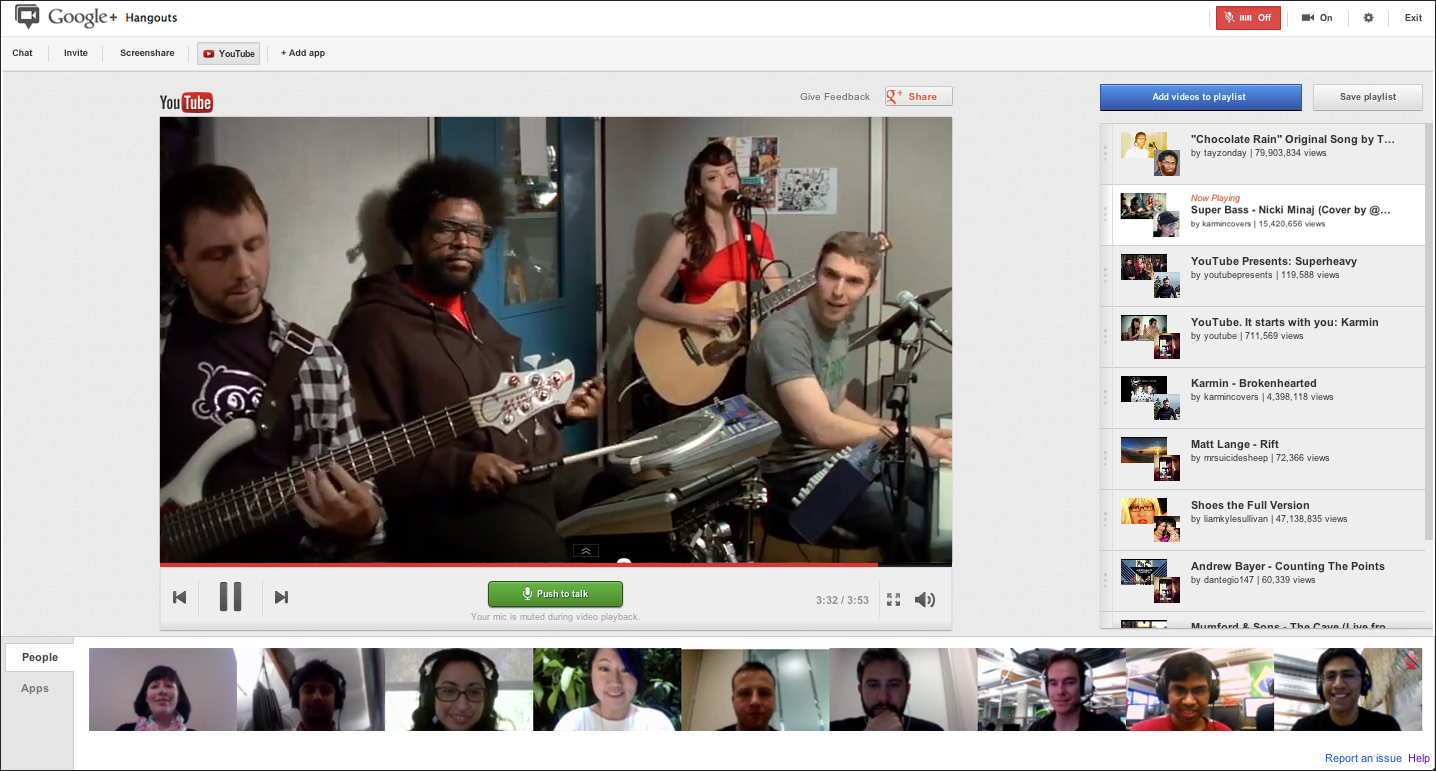
Ever been to a party where you start showing friends your favorite YouTube videos? Compete for the screen to see who knows the latest and greatest hit? Now you can get the same experience even if you’re a world away, with the new YouTube app in Google+ Hangouts.

Create, control, save and even share playlists of videos with your friends—all inside a Hangout. Just start a Hangout, have everyone load the YouTube app at the top of the screen, and start adding videos. It’s like your own VIP table at the world’s coolest YouTube party.


Crowdsourcing awesomeness
Everyone can add videos in the Hangout through a search tool in the app, or remove the videos you don’t like. All your friends in the Hangout can drag and drop videos to sort the order in the playlist, or skip forward or backward to play the next one. Click the “Push to talk” button to chat with the group to give props to the best curator, or to hand out reprimands to the friend who keeps adding the 10-hour Nyan Cat video.

Save and share those precious memories
If you like a video that’s playing, you can share the video with your Google+ circles at any time. Since great playlists are works of art, you can also save the playlist that you and your friends created to your YouTube account as public or private to enjoy later.

So gather the team to watch the last night’s game highlights, hangout with your friends for a haul-a-thon, assemble the audiophiles to review the newest tunes, or come up with a whole new way to enjoy (and let us know!). The new app is available worldwide in 60 languages.

Ullas Gargi, software engineer, recently watched “Ken Block Gymkhana Practice.”

Finding and following new channels you love

If you’re interested in aerial silk or Rubik’s Cubes or anything in between, we want YouTube to have a channel ready and always updating for you.

In our goal to help you find great channels and videos you care about, we created Topics on Search to narrow your search results using commonly-used phrases. We took this a step further by auto-generating whole channels of topics in the ‘Top YouTube Collections’ tab, giving you constantly updated and uniquely-focused channels. Now, you’ll start seeing these channels more broadly available around YouTube, like in ‘Recommended for You’ section of our channels page and on a video watch page.

So if you’re into surfing, you could find the Big wave surfing channel, get introduced and subscribe to the NetworkA channel, and then enjoy this video of Garret McNamara surfing one of Poseidon’s finest. Here’s what the channel looks like:


Lots of complex algorithms are working behind the scenes to give you the channel you’re looking for, for example, being able to tell when the word ‘Chicago’ means the music band and when it means the movie/musical. We’re still tweaking everything to make sure it works just right for you, so let us know what you think of the channels or learn more in our help center.

So when you see a channel “auto generated by YouTube” around the site, give it a browse to find whole collections of channels and videos you might like, updated everyday with the freshest and finest videos you’re sharing on YouTube.

Mur Viswanathan, product manager, recently subscribed to the Parkour channel and Palash Nandy, software engineer, recently subscribed to the Brickfilm channel.

Slice and dice your data using AdWords labels

We are excited to announce the launch of account labels. Starting this week, you can organize your account’s keywords, ads, ad groups and campaigns into custom groupings so you can quickly and easily filter and report on the data that is of most interest to you. To see the opportunities that labels enable, let’s meet Bob.

Bob is an online retailer who sells apparel and accessories for men and women. He has campaigns for shoes, clothes and bags for each of his three major markets (New York, Massachusetts and Pennsylvania) and within the campaigns has separate ad groups for generic and brand keywords. This structure (ex: New York - Shoes - Generic and Massachusetts - Shoes - Generic) means that he has the same ads and keywords spread across different parts of his account. Before today, Bob could not easily sort his account or run a report to see how well sneakers are selling across geographies.

Enter labels.


Now Bob can create the label “sneakers” and apply it to all sneaker-related keywords across his account. He can then filter by this label on the Keywords tab to only see sneaker keywords, or he can run a keyword labels report to aggregate performance by label. These reports allow him to then compare --for example-- how sneakers perform against all other shoes, or other labeled groups.


Labels can be used to organize your campaign elements in any way you choose. Report on brand keyword performance versus all other non-branded keyword performance. Measure how ads that mention “free trial” perform versus ads that mention “free demo”. Or simply label your favorite keywords so you can quickly review them every morning.

Labels will begin rolling out this week to all AdWords accounts. For more information, please visit the AdWords Help Center.

How we’re making even more 3D video available on YouTube

Last year we kicked off a beta feature that let creators convert YouTube videos into 3D with a click, and since then you’ve converted hundreds of thousands of your videos to 3D. Today we’re expanding the beta to all of you by adding automatic 3D conversion for short-form videos uploaded in 1080p. Meaning, you can select 3D viewing in the Quality settings (click on the gear icon) on the YouTube player, then pop on your 3D glasses and see YouTube in another dimension. Here’s one of our favorites:


How it works

To give you more dimension on 3D, here’s some background how the conversion technology works at YouTube. Since last September we’ve been constantly improving the underlying technology, which now uses several techniques:
  • We use a combination of video characteristics such as color, spatial layout and motion to estimate a depth map for each frame of a monoscopic video sequence
  • We use machine learning from the growing number of true 3D videos on YouTube to learn video depth characteristics and apply them in depth estimation
  • The generated depth map and the original monoscopic frame create a stereo 3D left-right pair, that a stereo display system needs to display a video as 3D

With this broader knowledge of 3D conversion, we then apply cloud computing scalability to make conversion possible across even more videos on YouTube. Breaking up a video into tiny chunks of data and processing them in parallel on Google’s cloud infrastructure lets us process these videos, while still producing the quality you expect.


We’d love to hear your feedback and other 3D features you’d like to see. With 4D, 5D and 6D around the corner there’s lots more we can do!

Deb Mukherjee, technical staff, and Chen Wu, software engineer, recently watched "YouTube Rewind 2011" in 3D!

Ads