Using a permanent URL to share Custom Attribution Models & Custom Channel Groupings

The need to customize and fine-tune your marketing measurement solutions becomes a key discriminator in unlocking additional value which might have been missed when applying out-of-the-box views on your data. For this reason, the Multi-Channel Funnel Analysis within Google Analytics Attribution provides the ability to configure content based channel groupings, as well as customized attribution models. This allows you to better reflect how partial credit is assigned to the marketing efforts driving your conversions. Having the ability to develop these customized assets is great, and now you are able to easily share them with your organization, your customers, or your audience. Here is how sharing a custom channel grouping, or custom attribution model works: 

Step 1 - Build a Custom Attribution Model
Building a custom model is easy. Just go to the Model Comparison Tool report in the Attribution Section of Conversions. In the model picker you can select ‘Create new custom model’, which opens the dialog to specify rules which can better reflect the value of marketing serving your specific business model. As an example, we can develop a model to value impressions preceding a site visit higher within a 24 hour time window. We also set the relevant lookback window to 60 days, as we know our most valuable users have longer decision and decide cycles:

Click image for full-sized version
Ensure you opt-in the Impression Integration, enabling Google Display Network Impressions and Rich-Media interactions to be automatically added to your path data through the AdWords linking. Don’t forget to also check out the recorded webinar from Bill Kee, Product Management Lead for Attribution, providing more details on how to create a custom model.

Step 2 - Access the Model in Personal Tools & Assets Section
In the admin section you can now look at your personal tools & assets. The newly created model will show up in the ‘Attribution Models’ section. You can find custom channel groupings you created under Channel Groupings.


The table shows all assets available, and a drop-down allows you to ‘share’ these assets through a link.


Step 3 - Share the Link - Done!
From the drop-down Actions menu select ‘Share’, and a permanent link to the configuration of this object is generated. This link will point to the configuration of the shared asset, allowing anyone with a GA implementation and the link to make a copy of the asset config, and save it into their instance of GA. You maintain complete control over who you share your assets with. 


Include the link to your brand-new attribution model asset in an email, IM message, or even a Blog Post, such as this one.

Happy Customizing!

Posted by Stefan F. Schnabl, Product Manager, Google Analytics

No Code Required: Auto-Event Tracking with Google Tag Manager

We’re excited to announce that Google Tag Manager has publicly launched Auto-Event Tracking, which lets you measure events happening on the page without writing HTML or Javascript. Those of you measuring events in Tag Manager today will already have minds racing with the possibilities - skip ahead to the screenshot. Everyone else, read on.


As sites become more dynamic and want to understand users’ site experiences in more detail, business owners need to know more: how long are visitors staying on a particular page? How are they interacting with interactive elements like image carousels? How many are clicking the Contact Me button? How many are clicking outbound links? Increasingly, site analytics are incomplete without answers to questions like these.

Unfortunately, until now, answering these questions required adding custom Javascript code to your website to tell Google Analytics when the event occurred. Google Tag Manager users also needed to modify the HTML of each page where they wanted to track an event. That means every time you want to track something new, or change the way you track something, you need to modify site code directly (or, in some cases, ask another colleague to do it for you.) And slower deployment of measurement campaigns directly impacts your ROI.

With Google Tag Manager’s launch of Auto-Event Tracking, we’re excited to announce a solution that provides the power of event tracking without needing to write code. By using the new Event Listener tag, you can tell Tag Manager when you want to listen for events, and then write detailed rules for what to do when an event happens. See an example of listening for form submits here:


Once you have your event listener set up, you can have tags fire based on form submits using a rule that looks for the event gtm.formSubmit. (Of course, Tag Manager supports more than form submits: it also includes clicks and timer events.) You can also make sure you’re getting the right form by using our Auto-Event Variable macros that let you narrow things down with attributes like the element ID and the form target.

The end result: you can deploy event tracking to your site and send event tracking data to Google Analytics without adding any code to your site. You can deploy measurement campaigns faster, and not writing custom code makes your solutions more robust.

Of course, it’s easiest to see the whole picture by walking through a full example. Check out the following resources for more:
We’re looking forward to getting your feedback - let us know what you think!

Posted by Lukas Bergstrom, Google Tag Manager PM

Browsing, Sharing and Importing Analytics Insights Now Just A Click Away

Earlier this year, we announced the Google Analytics Solution Gallery with a collection of custom reports, segments and dashboards selected by our team to help new users get started. Today we are excited to open the platform to the public and allow any of our millions of users across the globe to share their favorite insights via the revamped Google Analytics Solutions Gallery


In addition to opening the platform for public submissions, we have also worked to integrate the browse, import and share functionality directly into your account via “Share” and “Import” buttons. So whether you are using your favorite dashboard to get a quick view of your site performance or working to set up a new segment, sharing and importing via the Solutions Gallery is just a click away. 


The gallery currently enables you to browse, share and import Segments, Custom Reports, Dashboards and Bundles of up to 20 perma-linkable templates. More information on how to do so is available in our help center

In the future, we look forward to enabling the seamless sharing and importation of everything from filters to attribution models, to custom channel groupings so keep an eye out for developments in this space and let us know what you think are the most important things to share in the comments!

Posted by Joshua Knox, Google Analytics team

New Acquisitions Reporting & Channels Shows A More Complete Picture Of Your Users & Marketing

Traffic sources in Google Analytics contains some of the most popular reports in our product and are accessed daily by millions of users. That’s why we’ve been thinking about how to evolve these reports to better present your key metrics and give you a broader view of your business. 

We know how important these reports are to you, and so we’re pleased to announce the launch of the new Acquisition reports which provide a window on your users’ Acquisition-Behavior-Conversion (ABC) cycle: how you acquire users, their behavior on your site after acquisition, and their conversion patterns. We conducted robust testing with users and saw that this setup was better for several reasons, including providing a better flow for analysis, more customization and well organized metrics.

The new Acquisitions will replace the ‘Traffic’ Sources’ section on the left hand navigation.

New reporting in acquisitions
As part of the new acquisitions we are also introducing two new reports:
  • Acquisition Overview quick summary view of traffic acquisition
  • Channels Report detailed view on a per channel basis
A more intuitive Overview report
The new overview report in the acquisition section is designed to provide you with a end to end view of how your business is operating giving you insights into how you are acquiring users, how they behave and who converts. By default, the Overview report shows you relative performance broken down by acquisition channels (more on that below). Use this report to get a quick look at:
  • Which channels acquire the most users
  • Which channels acquire users who engage most with your site
  • Which channels acquire users who result in the most conversions
Introducing channels 
Channels allow you to view your traffic acquisition at a higher level of granularity, allowing you to group similar sources using rules into logical buckets we call channels. By default all users will be pre-setup with eight channels; you can choose to customize and add more at anytime.

Channels are now a first class entity in all of analytics and will be made available in custom reports and the API soon. They are also shared across users of the same profile.

Editing the Channels
You can edit the Channels to define new channels, remove existing channels, and change channel definitions. The default Channel Grouping uses system-generated definitions for each channel. For example:
  • System Defined Channel exactly matches Direct
  • System Defined Channel exactly matches Referral
The system definitions are proprietary, and reflect Analytics’ current view of what constitutes each channel. While you cannot edit any of the system definitions, you can configure new rules to define a channel. For example, you can change the definition of the Social channel:

from:
System Defined Channel exactly matches Social
to:
Source contains plus.google.com|twitter.com

The updated reports will be gradually rolling out to all users starting today. We look forward to providing a cleaner, more intuitive experience for you and better analysis of Acquisitions.

We're thrilled with the response from users so far. Here's what Caleb Whitmore, Founder & CEO of Analytics Pros (a Google Analytics Certified Partner) had to say:
"The new Acquisition, Behavior, Conversion approach sharpens the focus for digital analysts on what matters most: how potential customers are acquired, how they behave, what their experience consists of, and last but not least, the outcomes from those behaviors - conversions.  We will benefit from the streamlined architecture and the enhanced focus on data that matters afforded by this addition to Google Analytics."
Posted by Nikhil Roy, Google Analytics Team

See the Full Picture of Your Users in Google Play with Google Analytics for Mobile Apps

We recently re-imagined in-app analytics from the ground up, speaking the language that matters to app developers and marketers. Since launch, the insights provided by Google Analytics for Mobile Apps are already helping hundreds of thousands of app developers and marketers create more successful Android and iOS apps and experiences by measuring metrics at all stages: acquisition, behavior and conversions. 

As a follow-up from this week’s Summit, today we’re excited to announce that the integration between Google Analytics and Google Play, previewed at I/O 2013, is now available to all users! This is especially exciting for app developers and marketers because it’s the first time - and only way - to get a holistic view of the Play acquisition funnel in one easy to understand report.


The data sources you’ll be able to see include:

Google Play traffic sources: discover how marketing campaigns and search are driving installs and new users. The Google Play Referral Flow will help you refine your app marketing mix in order to focus on those campaigns and programs which are working to bring the highest quality traffic. 

Views on Google Play: understand how your app is being viewed on Google Play as the result of campaigns and search. Your description, screenshots and other content are what’s going to drive new users to install.

Installs: installs shows the number of users for each referral who actually clicked the install link for your app on Google Play. Comparing installs to views for each referral shows you if your app description and screenshots are leading to conversions. Highlight through each source further up the funnel and determine which are successful at driving downloads. 

New users: beyond installs, new users shows you how many active users actually launch your application after it’s installed. This is a key metric to see even beyond installs, reported from the Google Analytics Services SDK. Tracing the path up the funnel shows you clearly which sources don’t just account for those installing your app, but which lead to passionate users who spend time with your app leading to in-app conversions

As these reports are using flow visualization, you can also select any path you wish to analyze further which will highlight that path and present useful data points along the funnel such as drop off rate. 

To start using the Google Play Referral Flow Report, you need to simply link your Google Analytics Property to your Android app in Google Play. Linking to your app takes only seconds. 

The collaboration between Google Analytics and Google Play doesn’t end there! By linking your Analytics property to your Android app, key Google Analytics engagement metrics from your default profile will now appear inside the Google Play Developer Console. This two-way integration gives you instant access to the in-store and in-app metrics of record in whichever Google product you use. Read more on the Android Developers Blog.

These powerful new features from Google Analytics and Google Play take mobile app analytics to the next level.   

Happy Analyzing!

Posted by Russell Ketchum, Lead Product Manager, Google Analytics for Mobile Apps

New Features In Google Analytics Content Experiments Platform

Analyzing data to gain insights into your business and marketing efficacy is just step one. Taking action on that data is the all too important next step. The Google Analytics team continues its focus on making analytics actionable with the latest additions to the Content Experiments Platform. Together, these new features make Google Analytics A/B testing engine more powerful than ever!


Google Analytics users who have linked their accounts to AdSense can now select AdSense Revenue as an experiment objective. Once set, Google Analytics Multi Armed Bandit optimization algorithms will shift traffic among the experimental variations to achieve maximum revenue in the shortest amount of time. This feature has been a top request among AdSense publishers and Google Analytics is excited to provide a tool to further empower our publisher ecosystem.  

For our most sophisticated Content Experiments users, we’ve added an advanced option to allow even traffic distribution across all experiment variations. Using this feature bypasses the programmatic optimization that Google Analytics provides so it isn’t right for everyone. If you have an experiment objective that can’t be entirely captured by a Content Experiment objective, then this new feature might be right for you.

Learn more about the Content Experiments Platform and the Content Experiments API.

Posted by Russell Ketchum, Google Analytics Product Manager

Updates on Analytics Access Controls

We want to share an exciting update to the earlier post about the new Analytics access controls. 

As we mentioned in that earlier post, we have built a more powerful access-control system to help you better manage who on your team can access what entities in your Analytics accounts. These access controls are now enabled on all Analytics accounts.

The feedback from our early users highlighted a clear need to let report viewers collaborate with teammates, and in response we created the new Collaborate permission that lets users not only create but also edit shared assets like dashboards and annotations.

Open the Admin page for your Analytics account, and click User Management.


You can see the new Collaborate permission listed along with the others.


Learn more about our new access-control system, and gain more precise control over your Analytics accounts.

Posted By Tim Thelin and Matt Matyas, Google Analytics Team

Bid Adjustment Reporting in Google Analytics

Our constantly connected world presents a great opportunity for marketers to be more effective and relevant to customers by optimizing for context -- device, location and time. Earlier this year, we launched enhanced campaigns to help advertisers take advantage of these new opportunities and manage their ad campaigns more effectively. Bid adjustments make it easy to raise or lower your bids based on user context.

To help you optimize your bid adjustments, we're introducing bid adjustment reporting in Google Analytics, allowing you to analyze performance for each of your bid adjustments across devices, locations, and time of day. You can access the new report by going to Traffic Sources > Advertising >AdWords and clicking the Bid Adjustments link.


With the new Bid Adjustments report, you can take advantage of the full range of visitor metrics available in Google Analytics to optimize your bid adjustments. This provides a window into your users’ behavior, allowing you to optimize bid adjustments based on behavior & goal conversion data like bounce rate and time-on-site.

In addition, with Ecommerce tracking enabled in GA, you can now use this data to fine-tune your bid adjustments in AdWords based on the actual revenue generated, instead of conversions. This means you can optimize for ROI instead of CPA goals.

A quick example illustrates this (illustrated in the above screenshot). Imagine a hotel chain has set Time bid adjustments of +20% on Saturday and Sunday after observing a better ROI on those days. Using this new report in GA, the hotel chain now observes that their ROI on Sundays is actually higher than on other days of the week. The hotel chain's analyst finds that customers book more expensive rooms and longer stays on Sundays. Using this information, the hotel chain increases its existing Time bid adjustment for Sundays.

This new bid adjustment report is available in all Analytics accounts that are linked to AdWords. We recently made it much easier to link your accounts, so now is a great time to do so if you haven’t already. 

Posted by Nikhil Roy, Product Manager, Google Analytics Team

Re-imagining Segmentation In Analytics To Help You Make Better Decisions, Faster

One of the most popular and powerful features in Google Analytics is Advanced Segmentation. It lets you isolate and analyze subsets of your traffic. You can select from predefined segments such as "Paid Traffic" and "Visits with Conversions" or create your own segments with a flexible, easy-to-use segment builder. Then, you can apply one or more of these segments to current or historical data, and even compare segment performance side by side in reports. 

We’ve recently re-imagined segmentation to make it even easier for new Analytics users, yet also more powerful for seasoned analysts and marketers.

Some of the key updated features include: 

User segmentation
Previously, advanced segments were based on visits. With the new segment, a new option is provided to create user segment. In a user segment, all visits of the users who fit the segment criterias will be selected (such as specific demographics or behaviors). It will be a useful technique when you need to perform user level analysis. 

When you are using a segment template, the text below the template name tells you which kind of segment you are building. When you are creating a segment from advanced ‘conditions’ and ‘sequences’, you can choose to create visits or user segments or even a combination of both. 

Cohort analysis
Measuring users in cohorts provides benefits in the consistency of analysis, and is a technique well applied in the offline world. It helps analyze the long-term benefit of specific groups of customers (for example, customers who first visited within a specified timeframe).


Sequence segment
Sequence segments provide an easy way to segment users based on a series of on site behaviors. For example, customers who started on a specific landing page, visited some particular pages and ended up converting.  User sequences now provide you with capability to define a sequence across multiple visits.

Segment templates
You can always build your segments from scratch, but for most common use cases, building segments from templates will be an easier choice. We have provided 6 templates as ‘Demographics’, ‘Technology’, ‘Behavior’, ‘Data of First Visit’, ‘Traffic Sources’ and ‘E-commerce’ for you to start with. You can combine the configuration in multiple templates to build a segment. 

Fully refreshed new UI
As seen above, the newly refreshed UI makes segmentation simple and makes this powerful feature even more useful. The new segment card design promotes segmentation as a critical analytics technique with better visibility and readability. For users maintaining a fair number of segments, new features are provided to filter, sort and search your segments in both grid view and list view.


The new segmentation version will be rolling out to all users over the next couple of months. View our help center article for more details on how to get started and check out our Analytics Evangelist Justin Cutroni’s blog for a post sharing more reasons to get excited about the new segmentation.

Additionally, the below video provides a quick overview:


Posted by Wayne Xu, Google Analytics team

Improving Analytics & AdWords Account Linking

Many businesses advertise to find new customers, and optimizing advertising campaigns to reach the right people will increase marketing effectiveness and ROI. Google Analytics helps marketers achieve this by offering insights into customer behavior on an advertiser’s websites, apps, and other properties. By linking AdWords and Analytics accounts together, these rich insights from Analytics can flow into AdWords.

Today, we’re happy to announce some useful improvements making it easier for Google Analytics and AdWords account owners to link their accounts.


Here are a few specific benefits of combining AdWords and Analytics data:
All of these features depend on linking AdWords and Analytics accounts, and this process is now easier than ever before. Previously, linking accounts involved multiple steps on many pages spread out between two products, and this process has now been consolidated into just a couple steps all in one linking wizard.


Once the new linking process launches to all Analytics accounts in the coming weeks, you’ll be able to create additional links from the Admin section of your Analytics account. (If you’re logged in to your AdWords account, you can also link accounts by going to Tools and Analysis > Google Analytics and following these same instructions.)  Just click AdWords Linking in the Account column, and then click the New link button to start the linking wizard.

To take advantage of simplified account linking, benefit from combining data in both products, and get more out of your marketing campaigns, follow the steps above to link your accounts or learn more in our help center.

Posted by Chris Morgan and Matt Matyas, Google Analytics Team

Evaluate Marketing Spend Efficiency with our Conversion and Attribution Tools

You invest a lot to create your marketing campaigns, and it’s important to see how your spend impacts results. In addition to comparing the conversion performance of your marketing activities, you can now view your imported AdWords cost data directly in the Google Analytics Attribution Model Comparison Tool. By evaluating your AdWords cost data under various lenses offered through Attribution, you’ll get further insight into the effectiveness of your marketing spend. We will gradually roll out this feature out to all of Google Analytics.

Extended Set of conversion data
As previously announced, to make the analysis of your conversion path data even more meaningful, we extended the lookback window within Multi-Channel Funnels to 90 days. This functionality is now available through the standard lookback window selector. Please see our help center for more details.

Explore different attribution models to see revised performance figures
Cost Per Acquisition (CPA) is one of the strongest indicators for marketers. Our Model Comparison Tool now makes this important metric available to advertisers in Google Analytics. In addition to CPA, we also allow users to look at the Return On Ad Spend (ROAS) figure, which compares the value or revenue driven by conversions under different attribution models.

As described in the Customer Journey to Online Purchase, marketing channels influence the customer at multiple touchpoints on the path to conversion. Display touchpoints, in aggregate, appear 3.1 times more often in the upper funnel (awareness, consideration, intent phase) than in the lower part of the funnel (decision phase).*


Selecting Conversion Value & ROAS from the selector in the Attribution Model Comparison Tool allows you to contrast the value driven by your spend. Comparing the performance of a channel by looking at two different attribution models can uncover hidden performance of this channel. In the above example, the Display channel drives 20% more value under a First Interaction model.

Interpret your analysis
The direction of the arrow in the % change column indicates the orientation of the shift. Please note that it matters which model is the reference model, and which model is the comparison model. A positive shift away from the valuation of the reference model will be visualized with an upwards arrow, a negative shift with a downwards arrow. The color of the arrows is used to indicate whether the alternative valuation of the comparison model has caused a favorable shift. Green indicates a significant shift in favor of the comparison model, and red indicates a significant shift in favor of the reference model. A gray dot symbol indicates that there is no relevant change between the reference and comparison model.


Get started today by linking your account to an AdWords cost data source. The more complete your cost data is for a given profile, the more stable and accurate are the insights you can gain from the analysis. Consider using the Cost Data Import service provided through the GA API to add cost data beyond AdWords.

*Source: Google Analytics, Q4 2012. N = US: 130M conversions (12K profiles)

Full Credit Measurement: Attribution with Google Analytics

As we’ve discussed in many previous posts, the customer journey is evolving — most consumers will interact with many different marketing channels before a sale or conversion. And marketers are recognizing this shift in consumer behavior. Instead of “last click” measurement, a strategy that only gives credit to the final interaction, they’re turning to full credit measurement. To help you make sense of the full customer journey, we’ve been focused on bringing you the very best full credit measurement tools in Google Analytics.

Nearly two years ago, we announced our first Google Analytics attribution product, Multi-Channel Funnels. With its ability to measure customers’ different paths to conversion, it quickly became one of our most popular reports for advertisers and publishers alike. We’ve seen great results from our users, including online travel agency On the Beach, who used data from the Multi-Channel Funnels reports and AdWords Search Funnels to explore and adjust their strategy for generic keywords. These attribution adjustments helped On the Beach to drive a 25% uplift in ROI — see the full case study here.

Beyond Multi-Channel Funnels, we also wanted to provide our users with an advanced platform for testing entirely new, more robust attribution strategies, including the ability to test alternative models or understand how metrics, such as site engagement, could impact their existing investments. So last year we released our Attribution Modeling feature — the Model Comparison Tool.

After several months of testing on a public whitelist, we're now in the process of rolling out the Attribution Model Comparison Tool to make it generally available to Google Analytics users without whitelist.  To reflect the importance of attribution, we also created a new “Attribution” section under the “Conversions” reports, so the tool will be found there.

Be sure to check out a previously recorded webinar with Product Manager Bill Kee for a complete walkthrough of the Attribution Model Comparison Tool, or view our multi-part attribution webinar series covering our entire selection of full-credit measurement tools.

See the full Impact of Unclicked Display and Video Ad Impressions using Google Analytics

Every customer journey is different — a customer may see your display or video ads, receive an email, and then click through to your site from a search ad or organic search listing. Often, viewing display ads can attract your clients’ interest in your product and brand even if no click occurs. Traditionally, measurement technology separated out impressions or “view throughs” from clicks, but this separation missed out on valuable data on the impact of display advertising.

Thanks to our integration with the Google Display Network (GDN), Google Analytics can now break down the separation between clicks and impressions and give a more complete view of the customer journey. When a user views display ads on the GDN, or video ads on YouTube, and later visits your website and converts, these interactions with your brand can now be captured in Google Analytics Multi-Channel Funnels reporting.

GDN Impression Reporting is now available through limited whitelist. You can sign-up through this form to participate. Please note that we cannot guarantee access, but we will do our best to provide this feature to as many users as possible. Please also note that this data will only surface in the Multi-channel Funnels reports in Google Analytics. For more information on how to enable the feature in GA please see our help center article.

Read on below for more tips on how to make the most of this new feature.

How does Display fit on the conversion path?
By enabling GDN Impression Reporting in Google Analytics, you can learn how your display impressions assist your conversions.


In the Multi-Channel Funnels Overview Report you will see two additional conversion metrics. Impression Assisted Conversions shows how many of your conversion paths were touched by a display impression. Rich Media Assisted Conversions shows how many of your conversions had a rich media interaction on the path to conversion. Rich media interactions are user interaction with YouTube or rich media ad formats, such as ad expansion, video control (such as play, pause, and resume), or switching a video ad to full screen.

With the new Interaction Type selector you can now immediately filter your reports based how your users interacted with your marketing.

  • Select Impression to see conversion paths from customers who saw your GDN display ads but did not click on them.
  • Add Direct to the mix, to see who saw an ad and then visited your site directly to convert on a relevant transaction or Goal.
  • If you want to focus on Rich Media interactions, you can select this interaction type to see how your users convert after interacting with your rich media and YouTube ads.

How do I quantify the impact of display on the conversion path?
In the Multi-Channel Funnels Top Conversion Path report you can see two new path elements, which indicate the presence of a display interaction. The “eye” symbol indicates a pure display impression from a non-interactive display image. This means a user has been exposed to your display ad on the journey to conversion, without clicking on it. The “movie” symbol indicates a user has interacted with one of your Rich Media ads, such as a YouTube video ad.

Now you can see how many conversion paths, and how much associated value, has been driven through paths which benefited from a display impression or rich media interactions. To better quantify your brand targeted display efforts, consider breaking out these campaigns using custom channel grouping.


Assigning partial credit to valuable display interaction touchpoints
You can use the custom model builder from the Attribution Modeling tool to assign partial credit to these display events. Consider giving these events on the user’s conversion path more credit, and compare this against your baseline model.

We also added a new set of dimensions to help you define valuable custom segments for your analysis. Want to see how many users are watching your TrueView video ads fully? Just create a custom segment using one of our new dimensions, TrueView. The full list of new dimensions is:
  • Above the Fold: This dimension uses the Google Above the Fold measurement solution. The value is “Yes” if the ad was in the visible area of the screen when the page was loaded.
  • Video Played Percent: The value can be “>=25%”, “>=50%”, “>=75%”, and “100%”, allowing you to see how much of a video ad was watched.
  • TrueView: If a user has watched more than 30 seconds of an ad, or watched the ad completely, this will have a value of “Yes.” This is a payable event.
Enabling GDN Impression Reporting in Google Analytics
Once we have whitelisted your account, please ensure you have successfully linked your AdWords account to your Google Analytics account. Linking accounts takes just a few moments. Under ‘Data Sources’ > ‘AdWords’ you can then see an entry for each linked AdWords account. In the row there is a toggle switch named ‘GDN Impression Reports’, which turns the display impression data from the Google Display Network On and Off. Data is recorded from the time the switch is turned On.


We hope these new tools will help you understand the full impact of your display campaigns through Multi-Channel Funnels and Attribution. Sign up today for GDN Impression Reporting in Google Analytics.

Streamlining Google Analytics Administration Experience

We’re proud to announce the launch of a dramatically streamlined user experience for managing Google Analytics administrative settings! When visiting the Analytics Admin tab, you will now find all major settings readily accessible from this new landing page. As we launch over the coming weeks, here’s what you’ll see:
Google Store admin shown as a sample (click above image for full-size)
Settings are organized into columns corresponding to the most prominent objects in Analytics: accounts, properties, and views (formerly called profiles). A single account, property, and view will be selected, and you may change these via the drop downs atop each column. We are also renaming profiles to views to most closely match the present and future meaning of what this object represents: a view of the data Analytics collected for your property.

We’ve made a number of additional enhancements. To create a new account, property, or view, click the appropriate menu in the column heading and you’ll see an option to create a new object. You can load any settings page by clicking the appropriate name or icon. You'll notice animations that simplify the display of information, and you'll see new headers along with new navigational links on the left.


Help content has moved to the “Help” tab near the top right corner of the page. We’ve also refreshed the help content to make account administration easy to understand.

This is a large change over the old administrative user experience. For example, getting to property settings now takes just one click but used to take three. Simply compare the new look and feel above to the old:


Experience simplified navigation, faster account configuration, and the power of having all settings at your fingertips.

Posted by Scott Bailey and Matt Matyas, Google Analytics Team

Improving Google Analytics Dashboard Sharing

We’re happy to announce you can soon share and collaborate on Google Analytics dashboards!


Dashboards give an overview on how your properties are performing, and are even more powerful as you can create dashboards that you and your teammates can see and edit. Dashboard sharing is a nice complement to dashboard template creation: templates enable creating copies of dashboard configurations, and dashboard sharing enables you to collaborate with your team on a single shared dashboard.

You’ll be able to use this new feature as we roll this out in the coming weeks. At that time, start by creating a dashboard or viewing an existing one and then clicking on the “Share” menu. Look for the new “Share Dashboard” option:

This will make a copy of your dashboard that is available to everyone on the profile.  Private dashboards will be grouped together, and shared dashboards will be as can be seen in the report navigation on the left side of Google Analytics: 


Learn more about dashboard sharing.

Asset Sharing
This marks another enhancement in Google Analytics asset sharing, complementing the sharing capabilities of assets like annotations, advanced segments and custom reports. Google Analytics offers two forms of asset sharing today: creating asset templates, and collaborating on a single asset like we’re launching soon with dashboards. We are listening closely to user feedback on sharing, and planning more sharing features that you will see in the future.

Use dashboard sharing today to work more effectively with your team, and to enable richer reporting and data analysis.

Posted by Shailen Pandya and Matt Matyas, Google Analytics Team

Making it easier to measure your Goals

Just as physical stores need to keep track of their sales and in-store visits, businesses with an online presence need to understand how visitors are interacting with their site. Google Analytics provides tools to help understand and evaluate these interactions. For example, if purchases are your key objective, Ecommerce tracking allows you to measure sales performance. Yet sales are just one possible goal—there are many other important interactions that may be valuable to your business, such as media plays, social connections, newsletter sign-ups, a minimum purchase value, or the amount of time spent on a screen. Using Goals, you can measure these types of engagement activities and track how these interactions help you to meet your larger business objectives.

Today, we’re announcing several updates to Goals in Google Analytics—including a new set-up flow, new templates, and new verification capabilities—to make it easier for you to measure customer behavior and evaluate your performance. These updates are now live in Google Analytics.*

How to get started with Goals
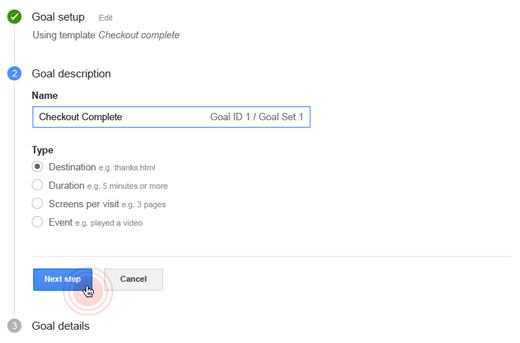
Goals are set at the profile level. To find a profile in your Google Analytics account, click the Admin tab, then navigate to the account, property, and profile you want. Click Goals, then Create a Goal. Follow the flow to set up and start measuring your Goals. For guidance as you set up Goals, visit our help center.


Introducing templates: An easier way to set up Goals
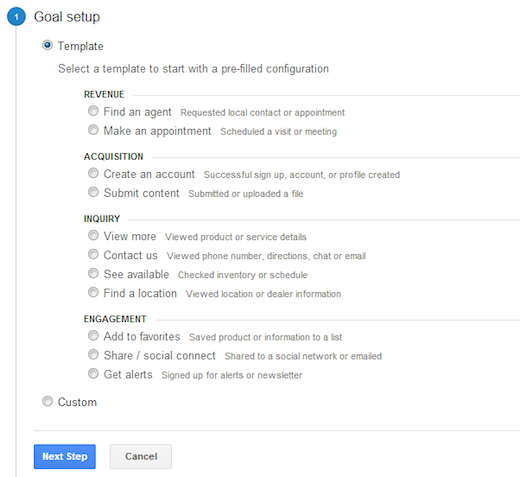
We’ve redesigned and added new templates to the Goals set-up flow so you can add meaningful and actionable Goals to your Analytics account quickly.

When you use a template, the Goal setup flow is prefilled with suggested values (based on your industry) that you can either keep or change as you walk through the process. The templates are organized into four business objectives (Revenue, Acquisition, Inquiry, Engagement) to help you think about the purpose of each Goal, plus you can still create custom goals. Note that “revenue” goals don’t necessarily imply a direct sale -- these goals are user activities which have a strong impact on your desired business outcomes. Depending on your business model, a Revenue Goal could be a purchase, such as a completed checkout; or it could also be a successful lead submission, such as a scheduled appointment. Some Revenue Goals might lend themselves to Ecommerce tracking as well.


The templates you see are based on the Industry Category selected in your property settings, so you only see templates that are relevant to your business. We also added a set of 20 new industry categories to Google Analytics. This classification is now aligned with Google’s web standard for industry vertical classification. Please edit your property settings to make sure you’re using the one that best describes your business.

Verify each Goal before you save
In addition to the templates, we’ve added a way for you to check your setup before you save. You’ll find a verify option at the end of the setup flow that lets you see what the conversion rate would have been for the past seven days had this Goal been setup. Using the verify option gives you immediate feedback, so you can decide to save or modify the Goal configuration you’re working on.


Analyze how different Goals perform and relate to each other
Use the Goals Overview report under the Conversions section to see how your goal completions happen over time. Develop a sense how often a Goal conversion happens, and look to identify relationships between different Goals.

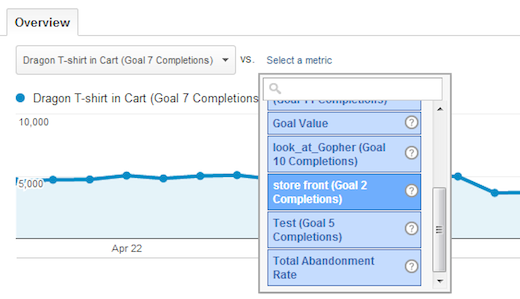
In the Goals Overview report you can use the metric selector to choose the relevant metric.


Example: Goal performance over time
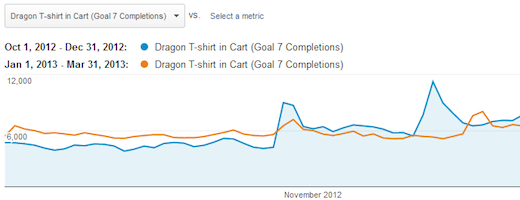
Select a single Goal and observe the performance over time. Use the date range selector and compare the Goal performance month on month, or quarter on quarter. This way you can compare seasonal trends, and the growth rate of your goal over time.


Example: Discover relationships between goals
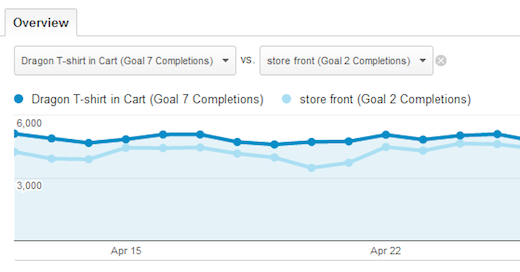
Selecting two Goal completion metrics next to each other will allow you to see correlational effects over time. A Goal measuring site engagement, like a media interaction, or a social share, could be indicative of a rise in sales.

Ultimately, understanding how your users interact with your site allows you to make important decisions about site content and effective use of your marketing and advertising resources. In addition to the Goals overview report, you can look at the reports in Multi-Channel Funnels. These reports focus on your visitors’ entire path to conversion — including the different off-site interactions they had before making a purchase or completing a goal. See if you can discover new insights and additional opportunity through Goals.


New Google Analytics Filter Fields

One powerful feature of Google Analytics is the ability to create filters to limit and modify the traffic data that is included in a profile. Custom filters can be made on specific fields of data; our users have long been asking for more data to filter, especially for mobile and social. We have listened, and are glad to announce an expanded fields list. Full descriptions of the new fields and values are documented here, and following is a summary:

Mobile
  • Is a mobile device
  • Is a tablet
  • Mobile brand name
  • Mobile model name
  • Mobile marketing name
  • Mobile pointing method
  • Mobile has QWERTY keyboard?
  • Mobile is NFC supported?
  • Mobile has cellular radio?
  • Mobile has wifi?
Social 
  • Social network
  • Social action
  • Social action target
Content & Traffic
  • Hit type: (page, social, transaction, etc.)
  • Internal search term
  • Internal search type
Audience / Users
  • Browser size
  • IP version
E-commerce
  • Local currency code
Use these new filter fields for improved data analysis and for more refined and targeted reporting views.

Posted by Matt Matyas, Google Analytics Team

See Your Conversions In Real-Time

Over the past year, we’ve been making continued improvements to the Real-Time reports in Google Analytics. Significant updates include real-time now supporting profiles, 4 key analysis improvements as well real-time widgets available for dashboards.

But have you ever looked at your real time report and thought, “wow check out how many visitors I have today, I wonder if any of them are converting?” We had that same question and so we are happy to announce the beta launch of our new real-time goals report! Now you can monitor in real-time how many of your website visitors are converting and against what goals. 


Use this feature to track the live results of how your new email newsletter, ad campaign or TV commercial is performing. An important note, with this first launch we’re introducing URL based goals only. So computed goals such as Time on Site or Pages / Visit are not included yet. For ease of use, you will see all goals that are being tracked in the UI regardless of whether there have been any completions in the past 30 minutes.

As with the rest of the real time reports, clicking a specific goal will automatically segment that report. Basic filters also apply to goals so you can analyze goal completions from a specific location or other dimensions you care about.


So now, the next time content on your site goes viral, you get a hot mention in the media, or large social traffic spike be sure to check out your real-time goals report to see in real-time the bottom line impact.

Happy Analyzing,

Posted by Linus Chou, Product Manager, Google Analytics

Real-Time Widgets Now Available in Dashboards

The Dashboards feature in Google-Analytics is a great way to arrange a set of related custom widgets into a report you look at frequently (for example, see dashboards for a variety of use cases in our Solutions Gallery). Today we’re expanding dashboards’ functionality with four new real-time widgets that you can and plug into any dashboard (new or existing) of your choosing!
1) Setting up a real-time widget
If you have set up a dashboard widget before, then this will be very familiar to you. Create a new dashboard or click on the +Add Widget menu option of an existing dashboard.


Pick any of the four widgets available in the Real-time: section and customize the widget. Below I have created a widget that shows me active visitors from Canada but split up by Traffic-Type:


Here is how I set up this widget:


I chose the ‘Counter’ real-time widget and gave it a custom name (“Canada Active Visitors”), then set up a ‘Group by’ on ‘Traffic type’. This is how I see the split between referral and organic in the widget. Finally, I set up a filter to only show visitors from Canada.

2. Combining with other dashboard widgets
By creating and combining widgets, you can perform many types of analysis at a glance.

Using filters you can compare different segments of your real-time traffic. For example you can create two separate widgets that have different filters for the Country dimension (say Country==USA for one and Country==Canada for another) and you can compare real-time USA traffic versus India traffic, side by side.

You can go further and set up real-time and non real-time widgets on the same dashboard. 
Here is how one of my dashboards looks like (I use it to monitor and understand how traffic from Canada behaves after a blog post):


I have 5 widgets and widget #4 is a non real-time widget that gives me context on where I get visits from across the globe over the last month.

We hope you will enjoy creating new dashboards with these widgets and sparkling some real-time magic on existing dashboards!

Ads