No Code Required: Auto-Event Tracking with Google Tag Manager

We’re excited to announce that Google Tag Manager has publicly launched Auto-Event Tracking, which lets you measure events happening on the page without writing HTML or Javascript. Those of you measuring events in Tag Manager today will already have minds racing with the possibilities - skip ahead to the screenshot. Everyone else, read on.


As sites become more dynamic and want to understand users’ site experiences in more detail, business owners need to know more: how long are visitors staying on a particular page? How are they interacting with interactive elements like image carousels? How many are clicking the Contact Me button? How many are clicking outbound links? Increasingly, site analytics are incomplete without answers to questions like these.

Unfortunately, until now, answering these questions required adding custom Javascript code to your website to tell Google Analytics when the event occurred. Google Tag Manager users also needed to modify the HTML of each page where they wanted to track an event. That means every time you want to track something new, or change the way you track something, you need to modify site code directly (or, in some cases, ask another colleague to do it for you.) And slower deployment of measurement campaigns directly impacts your ROI.

With Google Tag Manager’s launch of Auto-Event Tracking, we’re excited to announce a solution that provides the power of event tracking without needing to write code. By using the new Event Listener tag, you can tell Tag Manager when you want to listen for events, and then write detailed rules for what to do when an event happens. See an example of listening for form submits here:


Once you have your event listener set up, you can have tags fire based on form submits using a rule that looks for the event gtm.formSubmit. (Of course, Tag Manager supports more than form submits: it also includes clicks and timer events.) You can also make sure you’re getting the right form by using our Auto-Event Variable macros that let you narrow things down with attributes like the element ID and the form target.

The end result: you can deploy event tracking to your site and send event tracking data to Google Analytics without adding any code to your site. You can deploy measurement campaigns faster, and not writing custom code makes your solutions more robust.

Of course, it’s easiest to see the whole picture by walking through a full example. Check out the following resources for more:
We’re looking forward to getting your feedback - let us know what you think!

Posted by Lukas Bergstrom, Google Tag Manager PM

Browsing, Sharing and Importing Analytics Insights Now Just A Click Away

Earlier this year, we announced the Google Analytics Solution Gallery with a collection of custom reports, segments and dashboards selected by our team to help new users get started. Today we are excited to open the platform to the public and allow any of our millions of users across the globe to share their favorite insights via the revamped Google Analytics Solutions Gallery


In addition to opening the platform for public submissions, we have also worked to integrate the browse, import and share functionality directly into your account via “Share” and “Import” buttons. So whether you are using your favorite dashboard to get a quick view of your site performance or working to set up a new segment, sharing and importing via the Solutions Gallery is just a click away. 


The gallery currently enables you to browse, share and import Segments, Custom Reports, Dashboards and Bundles of up to 20 perma-linkable templates. More information on how to do so is available in our help center

In the future, we look forward to enabling the seamless sharing and importation of everything from filters to attribution models, to custom channel groupings so keep an eye out for developments in this space and let us know what you think are the most important things to share in the comments!

Posted by Joshua Knox, Google Analytics team

Is the web getting faster?

At Google, we are passionate about speed and making the web faster. A faster web is better for both users and businesses - faster pages lead to better user experience and improved conversions.

The Site Speed reports in Google Analytics give every website owner detailed data on the speed of their web pages, as experienced by real users.

Last year, we published a study on the speed of websites around the world based on one week of aggregated Site Speed data from opted-in web publishers.

Over the last year, we have seen significant improvements in the core infrastructure that powers the Internet: the web browsers have gotten faster; there have been quite a few LTE/4G deployments making mobile networks a lot faster; and processing power on mobile devices continues to increase at a rapid pace.

To determine whether these improvements in technology are making the web faster, we present recent Site Speed data and compare it with the data from last year.

Here are the results.


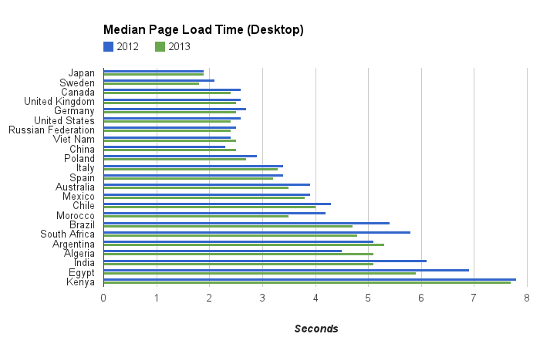
While access from desktop is only a bit faster, it is still impressive given that the size of the web pages have increased by over 56% during this period. It’s great to see access from mobile is around 30% faster compared to last year. This is evident from the histograms below as well. For desktop, there is not a significant change in the bucket distributions, but for mobile we see a shift from slower buckets (i.e. higher page load time) to faster buckets.


Taking a look at change in the speed of web pages for a few specific countries, for most of them, there is a slight improvement in page load times on the desktop.


However, there is a significant improvement in page load times on mobile.


The following interactive world map compares the relative improvement in median page load times for desktop over the last year.


This map shows the same data for mobile (Countries without enough data for accurate measurement either this year or last year are shown as having 0% improvement). Speed improvements are greater for mobile in most of the world.


If you are a web site owner, you can analyze and speed up your web site using the PageSpeed products, and check the resulting improvements in Site Speed reports.


Verify Your Measurement Setup With Tag Assistant

Google Analytics is, at its core, a simple and powerful tool. But once you start to customize the code to take advantage of all the flexibility available you may find yourself needing some help troubleshooting a nagging issue. 

A new Chrome Extension created by engineers here at Google hopes to make troubleshooting tag installs much easier. Tag Assistant aims to highlight errors, warnings, and provide useful suggestions for Google's most widely adopted tags including Google Analytics, Google Tag Manager, Adwords Conversion Tracking, the new Remarketing Tag, Trusted Stores and Floodlight. 

After installing the extension, Tag Assistant will alert you if tags are found on any page you are currently browsing. For each tag we will tell you if it appears to be working or if we notice any problems with your implementation. Tag Assistant will even make recommendations on how to improve your installation if we notice any optimizations. For example, if you have 2 or more tags implemented separately we might suggest that you migrate to use Google Tag Manager instead. 


How does it work? Tag Assistant looks for errors in two different ways. First, we check the source code to look for common errors like forgetting to include a closing </script> tag. We also review the HTTP headers to ensure that we are getting expected responses. 

Since launching in October of 2012 we have collected a lot of your feedback and have added dozens of new checks. Over the course of the year we will be adding more checks that will make the Tag Assistant more accurate and helpful. 

We encourage you to try it out for yourself by installing it via the Chrome Web Store. If you have feedback on new checks to add or if you have questions about the tool, join our Google+ community where our team and users can help you out.

Posted by Geoff Pitchford, Google Tag Assistant PM

5 Ways To Ensure Google Analytics Is Running Perfectly

The following is a guest post contributed by Daniel Waisberg, Owner of Conversion Journey, a Google Analytics Certified Partner, and Founder of Online Behavior, a Marketing Measurement and Optimization portal.

Abraham Lincoln once said: "If I had eight hours to chop down a tree, I'd spend six hours sharpening my axe." The same is true for measurement: it is of extreme importance to spend the necessary time thinking through which data should be collected and whether the collection works as planned (once implemented). Very often, the implementation model and quality assurance do not receive the proper attention.

I recently wrote a short eBook named Google Analytics Implementation Best Practices that covers some of the most important configurations you should setup. But in this post I will go through some techniques that will help you to make sure your Google Analytics implementation is working as you expect.

1. Create a "Raw Data" profile

The best way to check configuration errors is to have a profile that does not use any filters, this way you will be able to quickly learn if you have a misplaced or problematic filter. Here is a quick guide explaining how to create profiles.
Once you create this profile, I do recommend you create the same goals you have in your main profile, this will make the data more relevant in case you need to use it. For example, if you find out that your main profile have a filter that affected your past data, you might want to use the Raw Data profile for a while. To copy and paste a goal between profiles you can use the Chrome extension GA Copy and Paste.

2. Use Real Time Reports

In October 2012 Real Time reports started supporting profile filters. This means that "the data you see in real time is profile specific and obeys the filtering you set up for that profile. And this means any user with access to a profile can view the associated real time reports." This enables many interesting analysis opportunities like seeing real traffic for only small pre-defined segments.

In order to use Real Time to check your Google Analytics implementation, you should first create a new profile (see link above). Then, add a filter that includes the IP address of your company; learn how to do it in this help article, but make sure to change the filter from "exclude" to "include". Now you will be able to look at the Real Time reports of this profile and see what you are doing in real time, which makes code checks much easier and faster.

3. Keep Track Of Configuration Changes

One of the common configuration problems is a lack of communication, especially for large companies. From a few people to a few dozen people will have Admin access to Google Analytics, which means they can change the settings of any profile. This can lead to unwanted or misunderstood changes in the account.
By "changes" I mean goal refinements, filter improvements, new features, and so forth. Every change may impact data in several ways, and for this reason it is essential to have a system in place to keep track of code and profile changes. In order to facilitate/centralize the collection and sharing of the changes made to a Google Analytics account, I propose two different methods: using a Google Docs form & taking advantage of the Annotations feature. Please note that each company should find the optimal mix between these methods.
Using a Google Docs Form
The big advantage of Google Docs is that it can be shared with as many people as needed and everyone has access to the most updated version of the document. I recommend creating a Google Form (learn how) that will output its data into a spreadsheet. The form should be created so that all interested parties can be aware of all changes. These will then be aggregated for historical knowledge that can be used by the whole team (and future teams members). See one sample form that can be used by Analytics teams in this article.
Google Analytics Annotations
This feature allows website managers, marketers and developers to provide context directly from inside the graphs on the interface, allowing for richer analyses. Here are some important occasions when you should use this feature:
  • Offline marketing campaigns (e.g. radio, TV, billboards.)
  • Major changes to the website (e.g. design, structure, content.)
  • Changes to tracking (e.g. changing the tracking code, adding events.)
  • Changes to goals or filters.
While annotations can (and should) be used for technical changes in the website, it is important to keep them at a high level. You shouldn't add detailed information about your changes or annotate relatively minor changes; otherwise the annotations will become too crowded to convey meaningful information to readers.

4. Know What Your Site Sends To Google Analytics

The Google Analytics team built a Chrome extension that is intended to help you debug your implementation. Here is what you will be able to do using the extension and a screenshot of how you will see the data:
This extension loads the debug version of the Google Analytics Javascript for all sites you browse using Google Chrome. It prints useful information to the Javascript console. These messages include error messages and warnings which can tell you when your analytics tracking code is set up incorrectly. In addition, it provides a detailed breakdown of each tracking beacon sent to Google Analytics.


Important tip: this extension can also be used for competitive analysis. If you use it while browsing your competitors' websites you will learn how they are tracking their customers.

5. [E-commerce sites] Compare Google Analytics to Database

The most important feature on Google Analytics for Ecommerce websites is the Ecommerce Tracking. It allows the marketer and website owner to understand what and who is driving online sales. But it is essential that the numbers on Google Analytics approximately match the database of the company, otherwise they won't be trusted.
In order to make sure the numbers match, ask from your Database administrator to retrieve the daily Ecommerce revenue for a month, and extract the same information from Google Analytics. Plot the numbers on your preferred spreadsheet tool and check if the numbers and the trends match. If they do not match, here is a quick list of things to check:
  • When 2 or more of the same item are purchased, does Google Analytics trigger _addItem more than once? (it should)
  • How does Google Analytics record transactions that use promotional coupons and how the database reports it?
  • Be careful with apostrophes! If you use apostrophes in your product names you should be careful not to pass them to Google Analytics on the _addItem, they can break your code.
Closing Thoughts
As we saw above, there are several tools that can help you understand why the data you are getting might not be what you expected. But if you still can't find a solution to your issue, try asking a question at the User Forum. I also highly recommend you read this code website article: Troubleshooting the Tracking Code.
Happy analyzing!
Posted by Daniel Waisberg 

Building A Centralized Digital Marketing Platform With Google Analytics

The following is a guest post contributed by Google Analytics Certified Partner Daniel Waisberg.

Think about your business as a train. It has a locomotive and several wagons, each with its own function and importance (e.g., a restaurant wagon, a restroom wagon, and a luggage wagon). Now, let's say Google Analytics is the locomotive of the train, it is used to drive the business forward in a data-driven way. Together with it we find several important wagons: AdWords, AdSense, Webmaster Tools and others. How would you like those wagons to be tightly integrated?

This is the idea behind Google Analytics Integrations, an eBook that describes the official integrations available on Google Analytics. Currently it is possible to integrate the data from several Google tools into Google Analytics such as AdWords, AdSense, Webmaster Tools and YouTube. This enables marketers and analysts to import a wealth of information into Google Analytics, presenting a broad picture of their digital marketing efforts. 

In the eBook you will find a step-by-step guide to linking those tools as well as an explanation of what you can do with the resulting data. Let's suppose you are a new advertiser using both Google Analytics and AdWords, but the accounts are currently not linked. While you can use AdWords reports to analyze effectiveness of your campaigns, by linking the accounts you will be able to understand the bigger picture of website behavior in comparison to your AdWords campaigns. This information can help improving campaign performance by shedding light on which campaigns are failing as a result of suboptimal targeting, poorly designed landing pages, or poor ads; and which campaigns are succeeding. 

For example, let's look at the "Day Parts" report on Google Analytics (if your accounts are already linked here is a direct link to the report). 

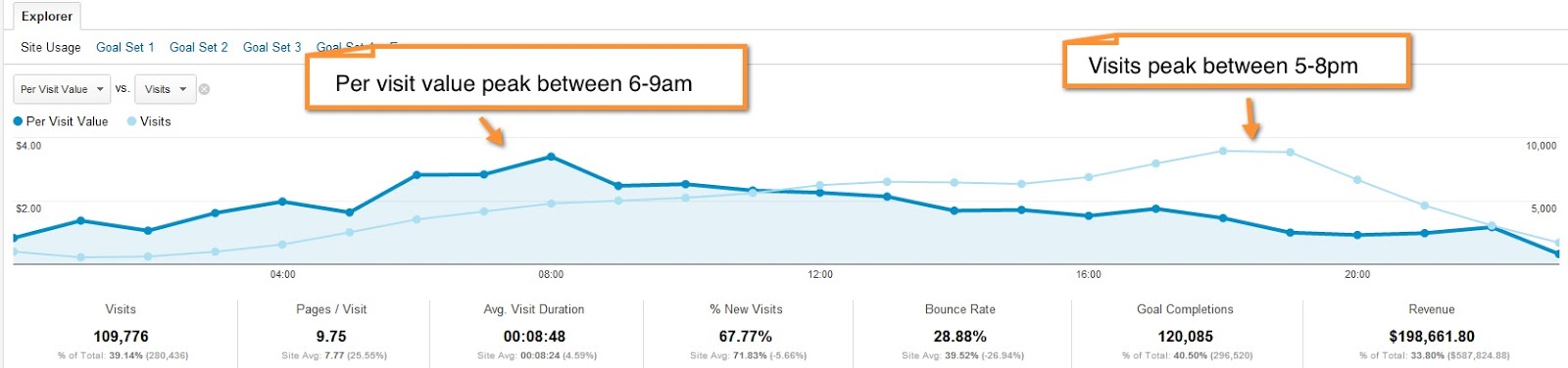
The Day Parts report is for exploring hour-of-day and day-of-week dimensions. This report is useful for gaining insights into optimizing ad scheduling in campaign settings within AdWords.  

Click image for full-size

In the figure above, we see that this advertiser sees its traffic peak between 5 and-8 P.M. When adding a secondary dimension of per visit value, however, we see that the per visit value of visitors is highest during the morning hours of 6-9A.M: 

Click image for full-size
If this was your report, the practical next step you would take would be to adjust the ad scheduling settings in your campaigns to drive more traffic to the site during those morning hours, as that traffic is more valuable. Here is how to do it:
  1. Navigate to a specific campaign in the AdWords interface.
  2. Choose the Campaign Settings tab.
  3. Under Advanced Settings, click the plus (+) box next to Schedule: Start Date, End Date, Ad Scheduling.
  4. Next to Ad Scheduling, choose Edit.
  5. Change mode from Basic to Bid Adjustment.
  6. Under Time Period (next to day of week), click to reveal an overlay.
  7. Adjust the bid settings (by a percent multiplier to increase or decrease bids). There is a button to copy to other days to speed up making these changes.
  8. Click OK and then save.
If you are interesting only in the AdWords integration, check the Google Analytics For PPC eBook, which includes only information about integrating and analyzing AdWords using Google Analytics. This eBook had an important contribution from Yehoshua Coren

Daniel Waisberg is author of Google Analytics Integrations and Founder of Online Behavior, a Marketing Measurement and Optimization portal.

Tracking Adjusted Bounce Rate In Google Analytics

Have you ever wondered how many visitors really pay attention to your website before exiting the page? Have you wondered how many of those “bounced” visitors will remember where they’ve been in future? How many of them are totally useless, how many are not?

There is a way to track this!

Bounce rate” in Google Analytics is one of the key metrics that helps to evaluate the quality of your traffic. “Bounce” happens when the visitor exited the website right from the landing page, without going to any other page. This is a great indication on how relevant the content was for the user and how engaged they were with your website.

While working perfect for most websites, there are categories of sites where this metric is not enough. 

Imagine you’re promoting a blog post that describes all the benefits of your company. The visitor might read the whole post and remember your company and products really well - they might even go to search for your product on one of the search engines straight away. However, since the visitor only looked at 1 page (exactly where the blog post is) they will be recorded as bounced visitor.

Another example if you have a description of the product right on the landing page, and your phone number on the same page. The visitor might study the description and call straight away - again, they will be recorded as a bounced visitor, as only 1 page was viewed. There are many more examples, and even traditional websites may benefit from the method described below as opposed to the standard bounce rate.

There is a solution to this - something that we call “Adjusted bounce rate”. You implement a small tweak to your Google Analytics code, which executes an event when a user has spent over a certain amount of time on the webpage. Depending on the website, the time can range from 10 seconds to few minutes - you should decide for yourself the amount of time you consider the user to be sufficiently engaged with your website or product.

Once the event is executed, the visitor is no longer counted as “bounce,” even though no additional pageview is recorded. This will mean your bounce rate will show users who have not spent a required “minimal time” on your website - the ones who have really bounced. Here is a modification to the Google Analytics code that you need to make (on the example of the latest, asynchronous code):

<script type="text/javascript">

  var _gaq = _gaq || [];
  _gaq.push(['_setAccount', 'UA-XXXXXXX-1']);
  _gaq.push(['_trackPageview']);
  setTimeout("_gaq.push(['_trackEvent', '15_seconds', 'read'])",15000);

  (function() {
    var ga = document.createElement('script'); ga.type = 'text/javascript'; ga.async = true;
    ga.src = ('https:' == document.location.protocol ? 'https://ssl' : 'http://www') + '.google-analytics.com/ga.js';
    var s = document.getElementsByTagName('script')[0]; s.parentNode.insertBefore(ga, s);
  })();

</script>

The setTimeout function is the one that does the trick here, and you can set it up to whatever delay you wish (in this case, it is 15 seconds).

Moreover, since the event is created once 15 seconds lapse, you can define this event as a goal in Google Analytics, and even import this goal as a conversion to AdWords, provided the conditions are met.


We hope this small fix will allow you to track and understand the users’ behavior and quality of the traffic coming to your website more accurately, and make more informed decisions. One thing website owners should be vary of, though, that not only the function may slow down the users' experience, even insignificantly, but will also increase the volume of hits your site sends to Google Analytics, which might bring your usage over the limit (currently set at 10 mln hits per month). As such, this fix should only be applied when necessary and justified by the concept of the website and the landing pages.

Posted by Alexey Petrov, Google Analytics Insights Team

Google Analytics Enhancements for Mobile Apps

November was a busy time in Google Analytics. In particular, the Mobile App Tracking Team has a few things to announce.

  • EasyTracking Library - automatic session management, better integration with Google Analytics SDK
  • Updated Google Analytics SDK - More reliable method for sending hits, Android Market referral issue fixed, available via the Android SDK manager
  • More samples - new open source application aimed to help reduce the ramp up time for new developers who want to track their apps

EasyTracker Library
We’ve created EasyTracker libraries for both iOS and Android.  The EasyTracker library will enable tracking of your application down to the Activity (or UIViewController for iOS) level with almost no coding required on your part.  See the ReadMe file and source code for details. These Libraries are intended for use with the standard Google Analytics SDKs and should make it very easy to add standard tracking to your applications.

Another advantage to using the EasyTracker library is session management.  As many developers know, it’s not always easy to determine whether your application is active and when to start a new session.  The EasyTracker library handles this for you.  It will determine when your application has been put into the background and will start a new session automatically.

The Android version of the Library not only provides for easy tracking, but also ensures that all calls to GoogleAnalyticsTracker are done off the main UI Thread.  Using this library should address responsiveness issues some Android developers have seen using the Google Analytics SDK.

We’ve adapted the Android Notepad sample application to use the EasyTracker library, just to show you how easy it can be.

You can find the libraries and sample applications at
http://code.google.com/p/analytics-api-samples/.  Check the downloads section for the libraries.  The source for the libraries is available in subversion as well.  Drill down into trunk/src/tracking/mobile/android/EasyTracker for Android and trunk/src/tracking/mobile/ios/EasyTracker for iOS.  The Notepad sample application is there as well.  We’ve released them as open source and contributions to making them better are welcome.

Check the ReadMe files in the libraries themselves for more information on how to use them.

New Versions of Google Analytics SDK for Android and iOS
We’ve released version 1.4 for iOS and version 1.4.2 for Android.  The iOS version of the SDK has one new feature.  Both versions contain several bug fixes as well.  Read on for details.

iOS
We’ve added a new method, dispatchSynchronously, that blocks while it dispatches hits.  It won’t return until the hits sent have either been acknowledged by the Google Analytics servers or the specified timeout period has elapsed.  This provides a more reliable method for sending hits before your application terminates or goes into the background.

We’ve also addressed several memory leaks and crashes reported against the SDK.

More details on the new version of the SDK can be found at http://code.google.com/apis/analytics/docs/mobile/ios.html.

Android
The Android SDK will now handle referrals from the Android Market properly.  This applies to autotagging as well.

We’ve fixed several other bugs in the Android SDK.  Check out the details at http://code.google.com/apis/analytics/docs/mobile/android.html.

Google Analytics SDK now available via the Android SDK Manager
We’ve added the Google Analytics SDK to the Android SDK Manager.  You can download the latest versions using the Android SDK Manager instead of checking the website for updates.

Of course, this only applies to the Android version of the SDK.

MobilePlayground
We’ve released an open source application for both iOS and Android that exercises all the APIs for Google Analytics that are available to Mobile Application developers.  You can find them at trunk/src/tracking/mobile.

New Home for the Mobile Tracking Documentation
The Mobile Tracking documentation has moved.  It now resides with the rest of the Google Analytics tracking documentation.  Check it out at http://code.google.com/apis/analytics/docs/mobile/overview.html.

Reporting Problems and Feature Requests
We really value your feedback. If you are having problems with the SDKs, let us know by posting them on the Google Analytics issues website at http://code.google.com/p/analytics-issues/issues/list.  Use the component MobileTracking when entering an issue or looking through the list for issues already reported against the Mobile App SDKs.

Please stay tuned for more exciting news regarding Mobile Application Tracking with Google Analytics.

Jim Cotugno, Mobile Application Tracking Rockstar

Introducing the Google Analytics Core Reporting API

Today we are announcing the new Google Analytics Core Reporting API as a replacement for the Data Export API. This is the second phase in a larger project we started a couple months back to upgrade our APIs to new infrastructure.

The Core Reporting API has two versions.

Version 3.0 is a brand new API, with a 10x reduction in output size and support for many new client libraries, like PHP, Ruby, Python, JavaScript and Java. All new features will only be added to this version.

Version 2.4 is backward compatible with the legacy Data Export Version 2.3.

If you are building a new application or maintaining an existing one, we highly recommend migrating to version 3.0.

One of the biggest changes in switching to the Core Reporting API is that you now need to register your applications via the Google APIs Console and use a project ID to access the API.

With this change, we are also announcing the deprecation of the Data Export API version 2.3. This API will continue to work for 6 months, after which all v2.3 XML requests will return a v2.4 response. Also, we plan to terminate the Data Export API Account Feed. All configuration data should be retrieved through the Google Analytics Management API.

See our Data Export API changelog for all the details of the change and read our developer documentation for more details about each API.

If you have any questions feel free to reach out in our Data Export API Google group.

Thanks,
Jeetendra Soneja and Nick Mihailovski, Google Analytics API Team

Optimize Engagement using AddThis and ShareThis with Analytics

Increasingly users are discovering great content, products and links through social referrals such as +1 button endorsements, comments, likes, and shares. Earlier this year we introduced Social Plugin Analytics to help you analyze how users engage with any social plugin installed on your site - after all, what can be measured can also be improved and optimized!

MilkADeal started using Google Analytics earlier this year. It is a company in Malaysia that has benefited greatly from using Social Plugin Analytics. By using these new reports, they are able to uncover insights and create significant business process improvements. As reported in the New Straits Times, "In particular, the newly introduced social interaction tracking tool...We've been using it only in the last couple of weeks but we have seen an increase of almost 60% in social interaction visitors to our site," said Wilson Quah, founder of MilkADeal."

By optimizing the instrumentation of a few buttons on their site, MilkADeal is able to achieve better engagement, a big boost in number of high quality referrals, and better outcomes! Today, we are happy to announce that our partners, AddThis and ShareThis, are making this social plugin analysis even easier. Just as the +1 button is automatically instrumented for you by the Google+ team, publishers using AddThis and ShareThis will now have first class integrations with Social Plugin Analytics!

“Providing real-time analytics to 10 million domains each month, we see what big data can do every day. Integrating AddThis social signals into Google Analytics is a big win for publishers. We’re excited to contribute social sharing insight where it can be viewed in context of the GA interface.”

Will Meyer, VP of Publisher Products, Clearspring

“At ShareThis, we work to provide our publisher network of one million+ websites with actionable analytics on their social activity. It's great to see Google paving the way for the entire industry to derive meaningful insights from the social Web and we're incredibly pleased to be a launch partner."

Kurt Abrahamson, CEO, ShareThis

To enable the integration for all of your AddThis buttons, you are now just one line of code away, and ShareThis users don’t have to do a thing. If you have Google Analytics installed, and you are using a ShareThis widget, simply login into Google Analytics and check out your new social reports!


It’s now easier to set up Google Analytics Site Search tracking for your Custom Search Engine

Cross-posted from the Google Custom Search blog

Google Analytics Site Search reports provide extensive data on how people search your site once they are already on it.  You can see initial searches, refinements, search trends, which pages they searched from, where they ended up, and conversion correlation.  In the past we admit that setup was a little challenging, but we’re happy to announce that now we’ve made it easy to setup Site Search tracking directly from your Custom Search Engine.

If you are already a Google Analytics user (and your site has the Google Analytics tracking code on its pages), go to the Custom Search Engine management page, select your CSE’s control panel and click on Google Analytics from the left-hand menu. We’ll display a list of your Google Analytics web properties so you can select one and tell us the query and category parameters that you want to track.

Once you save your changes, we’ll generate a new code snippet.  Copy it from the Get Code page, paste it into your site and setup is complete!

You can then access Site Search reports from the Content section of Google Analytics.

Happy analyzing!  If needed, you can find help with setup here and an explanation of the differences between Google Analytics and Custom Search statistics here. Let us know what you think in our discussion forum.

Posted by Zhong Wang, Software Engineer

Measuring and optimising Fairmont's social media efforts with Google Analytics

Social media is a great way for marketers to spread awareness about their products, stay in touch with and interact with their loyal customers. Barbara Pezzi, Director of Web Analytics and Search Optimization, Fairmont Raffles Hotels International, is back to share with us how Fairmont measure and analyse their social media efforts with Google Analytics. By using a combination of campaign tracking parameters and advanced segments (which can be used in combinations with social plugin analytics), Barbara is able to assess which social media campaigns work the best for generating bookings.

Update to Sessions in Google Analytics

Updated: 8/17/11 at 2:10 PM PST
Beginning today, there will be a small change in how sessions are calculated in Google Analytics. We think this update will lead to a clearer understanding of website interactions. We also want to explain how these changes might impact your reports.


What’s changing?
Currently, Google Analytics ends a session when:
  • More than 30 minutes have elapsed between pageviews for a single visitor.
  • At the end of a day.
  • When a visitor closes their browser.
If any of these events occur, then the next pageview from the visitor will start a new session.


In the new model, Google Analytics will end a session when:
  • More than 30 minutes have elapsed between pageviews for a single visitor.
  • At the end of a day.
  • When any traffic source value for the user changes. Traffic source information includes: utm_source, utm_medium, utm_term, utm_content, utm_id, utm_campaign, and gclid.
As before, if any of these events occur, then the next pageview from the user will be the start of a new session.


How will this affect my Google Analytics data?
This change only applies for visits going forward from today, and your historical data will not change. We’re bringing the definition of session in line with the common definition of a visit. If a visitor leaves your site and returns soon after with a different traffic source value, each visit will be measured with its own session.


Since Google Analytics will start new sessions for all new campaign information, sessions will now have the more accurate attribution information. This will be especially helpful if you use Multi-Channel Funnels. Additionally, by continuing a session when the user closes their browser for only a very short time, sessions will more accurately model a user’s engagement with the website. Overall, this change may slightly increase the number of visits. Based on our research, most users will see less than a 1% change.


We are excited about this update, and look forward to providing you with a better understanding of your website activity. Please leave any question about the change in the comments.


Update 8/17/2011 2:10 PM PST:
We identified an issue responsible for unexpected traffic changes following our recent update to how sessions are defined in Google Analytics. A fix was released at 2pm PST Tuesday August 16th.


The issue affected some sites using the following configurations:


1. If a user comes to a customer’s site with a space in some part of their traffic source data, then revisit the same landing page during that session by refreshing the page or later pressing the back button, a new session will be created for every hit to that page. (Clicking a link elsewhere on the site that leads back to the page should not matter.)


2. Google Analytics implementations using multiple trackers (an unsupported configuration) are also affected when a space is included in the traffic source data. These sites will see fewer visits from new visitors, and more visits from returning visitors (with some variation due to different implementations).


Again, a fix for this issue was released yesterday. Please let us know if you continue to see unexpected traffic changes. We apologize for the inconvenience and thank you for your patience and continued support.


Custom Variables: Fairmont and Swissotel use-cases

The introduction of custom variables to Google Analytics opened up many possibilities in measurement for site owners. It allows you to extend the dimensions tracked by Google Analytics to include facets that are meaningful to your business. For example, wouldn’t you like to know how your logged in members behaved differently than your casual visitors? Or which categories of content your visitors are consuming?

Barbara Pezzi, Director of Analytics and Search Optimisation, Fairmont Raffles Hotels International, has been kind enough to share her use-cases for the different types of custom variables. Head on over to the APAC Conversion Room blog to find out more about:
  • Visitor-level custom variables: Swissotel were able to segment their visitors based on membership levels, understand their preferences, and then target their marketing efforts accordingly.
  • Session-level custom variables: Fairmont measured which booking method (i.e. single vs multiple) was more popular on their booking engine; and were able to understand which method appealed to which types of customers.
  • Page-level custom variables: Swissotel used page-level custom variables to group pages according to the language of the content. With these groupings they were able to conveniently analyse the behaviour patterns and preferences of visitors according to the language of content consumed.
We would also love to hear how you use custom variables. If you have any tips or suggestions, please leave them in the comments of Barbara’s articles.

New Tools to Debug Your Tracking Code

Raise your hand if any of this sounds familiar to you:
  • You just set up your tracking code and you're wondering if it's correct--and you want to know right now.
  • You have decided to migrate your tracking to the new asynchronous syntax--but you want to know if your syntax has any errors.
  • You finally decided to customize the tracking code for cross-domain tracking--but you're worried that you might break your tracking.
  • You want to make sure that your campaign is set up to the correct goal.
Enter: The Google Analytics Tracking Code Debugger and a new debug version of our JavaScript code.

The Google Analytics team has launched a debugging version of the Analytics Tracking code called ga_debug.js to verify your tracking code setup. To make it even simpler, we also created a Chrome extension which uses the ga_debug.js script, which allows you to use the new ga_debug.js without re-tagagging any of your content. You can also use this extension to verify what information is sent to Analytics with each page.

How does it work? First, the ga_debug.js script provides a testing version of the tracking code which will print common syntax errors and tracking analysis messages to the browser’s JavaScript console. Secondly, the Chrome extension which automatically enables your page to use the debug version of the JavaScript without any need for you to retag or recode your pages.

How do you use it? The most simple thing to do is to download the Tracking Code Debugger extension for your Chrome browser. Next, turn on the extension by clicking on the icon to the right of the address bar on Chrome.

Finally, visit a page that contains the tracking code you want to test and open up the Chrome JavaScript console to see the messages (detailed instructions). That's it!

If you want to go use ga_debug.js without the Chrome extension, read all about how to do this in our newly revised Troubleshooting Guide on Google Code. You can use the script on your testing environment to verify extensive tracking code changes. Make sure, however, that you don't use this version of the tracking code on your production website--the script is meant for debugging and analysis, not speed, so you should always use this as a testing mechanism only. If you want to learn more about the kinds of errors this script can help you find, see Common Tracking Code Errors/Typos in our Troubleshooting Guide. While the ga_debug.js script doesn’t catch all possible errors yet, we think it’s off to a great start and will get even better over time.

Happy testing!

Brian Kuhn on behalf of the Analytics Team

Making the Web Faster

Today, our web search team announced how Google search now uses site speed as a factor in ranking. All things being equal, a faster loading site is better than a slower site.

With this announcement, we wanted to remind you about Google Analytics asynchronous tracking. The asynchronous tracking code has a faster load time and can improve site speed, especially on rich-media or script-heavy pages.

We encourage users to update to the asynchronous snippet to help make your site and the web faster. You can read up on how to implement the asynchronous snippet on our Google Code site. We also have a comprehensive list of migration examples to help you make the switch.

Google Analytics launches asynchronous tracking

Google Analytics now provides a new Asynchronous Tracking Code snippet as an alternate way to track your website!

Think of the asynchronous tracking code snippet as a script that uses a "separate lane" to handle part of the processing of your webpage. As the number of cars (or in this case, scripts on your webpage) increases, the asynchronous tracker uses this lane to reduce webpage load time. Websites that use many scripts or rely on rich media content will especially benefit from this new method, but even lightweight sites will see improvements.

The new tracking snippet offers the following benefits:
  • Faster tracking code load times for your web pages due to improved browser execution
  • Enhanced data collection and accuracy
  • Elimination of tracking errors from dependencies when the JavaScript hasn't fully loaded
The asynchronous tracking code is now in Beta and available to all Google Analytics users. Using the new tracking code is optional: your existing Google Analytics code will continue to work as-is. But if you want to improve your webpage load times and fine-tune the accuracy of your Analytics data, then we think you'll love this new option.

Learn more about this new tracking code on our Analytics Help Center and get started on Google Code.

Posted by Jesse Savage, Google Analytics Team

Segment your Traffic with the User Defined Report

Have you ever been in the Visitors section of your favorite Google Analytics profile and wondered what the heck “User-Defined” was? Well today it's time to find out.

So, what is “User-Defined?"

The user defined variable allows you to "label" a visitor if they complete a certain action on your site, such as making a purchase or visiting a key page. These labels are useful because they last across multiple visits to your site.

These labels are often called Custom Segments (or Custom Segmentation). You can see the data from these Custom Segments in the User Defined report, which is the last report of the Visitors section in Google Analytics.

How do I add these “labels” to my website visitors?

Making use of the User-Defined report in Google Analytics requires a bit of extra coding help from your IT department or webmaster, but it’s often well worth the effort.

For example, let’s say that I want to add a label of “customers” to any visitor who reaches my shopping cart’s receipt page. In order to do this, I would add an additional line of code to the Google Analytics Tracking Code (GATC) on my receipt page. It would then look something like this:

<script type="text/javascript"> var gaJsHost = (("https:" == document.location.protocol) ? "https://ssl." : "http://www."); document.write(unescape("%3Cscript src='" + gaJsHost + "google-analytics.com/ga.js' type='text/javascript'%3E%3C/script%3E")); </script> <script type="text/javascript"> try { var pageTracker = _gat._getTracker("UA-XXXXXXX-1"); pageTracker._trackPageview(); pageTracker._setVar(”customers”); } catch(err) {}</script>

Notice the line in bold that includes _setVar. When this is present on a page within the Google Analytics Tracking Code, an additional cookie (called the __utmv cookie) gets set on a visitor’s computer, with its sole purpose being to identify the visitor by the label (or value) that you used in the code. If you take a look at the code example above, you will see that I used the termcustomers,“ the label that I want to appear in the User Defined report.

Now, on their next visit to the site, they will be identified as a part of the “customers” segment in the User Defined report, allowing you to perform analysis on all visitors who have purchased something from your online store. Neat, huh?

Can I use _setVar when someone clicks on a link instead of visiting a page?

Yes - you can also use the pageTracker._setVar function when someone clicks on an important link on your site, or makes a key selection on an important form that you want visitors to fill out. For example, if you wanted to add a custom label to any visitor who clicks on your “Live Help” applet, you can ask your IT department or webmaster to add an “onClick” event, and give them the following line of code:

onClick="pageTracker._setVar('Needs Help');"

What will this look like in the end?

When all of your coding is complete, check the User Defined report after about a day or so and you should see something like this:

After the data has been collected by Google Analytics, you can interact with it just like you would with any other report. Click on the “Goal Conversion” tab directly above the table to see how many customers have reached key pages of your site, or use the dimensioning feature to see what sources of traffic were responsible for bringing these special visitors to your website!

Are there any other ways to use _setVar?

One neat usage of the _setVar function is to use it to exclude your own traffic from reports when using a dynamic IP address. For example, let’s say that you wanted to exclude your entire company’s traffic from appearing in reports, and your company uses dynamic IP addresses.

Because it would be nearly impossible to write a filter to exclude traffic from a dynamic IP address, you can create an HTML page that is not a part of your website and add Google Analytics Tracking Code with the call to _setVar and a label of “employees” (or something similar).

Next, you can ask each employee to visit that page from their browser of choice – this will drop a cookie on their computer, identifying them as “employees.” Finally, you can then apply a filter with the following specifications to your profile, and your internal traffic will be excluded:

  • Filter Type: Custom Filter >> Exclude
  • Filter Field: User Defined
  • Filter Pattern: employees
  • Case Sensitive: No

Some technical notes about Custom Segmentation:

  1. As we just talked about, when a person visits a page calling the _setVar function, the __utmv cookie is set on their computer. This is a persistent, first-party cookie that has a lifetime of two years. This means that every time a user with a __utmv cookie returns to your site, the label assigned to the user will continue to identify them as such until they either delete the cookie or visit another page with another call to _setVar with a different label.

  2. The purpose behind something like a User-Defined report - and Custom Segmentation in general - is that it is not designed to be updated very often. This label, for the most part, should be a permanent one for a visitor. You should only use _setVar on pages like a receipt page of a shopping cart, or an account registration “success” page for a visitor who becomes a member of your site. You shouldn’t use _setVar on your homepage, or use several different _setVar’s with different labels scattered across many pages of your website.

  3. Google Analytics - at this time - only has the capacity to store one custom segment at any one time for one website. So if you are using multiple calls to _setVar on your site, Google Analytics can only store the latest value that a visitor runs into in the __utmv cookie. John Henson at LunaMetrics – a fellow Google Analytics Authorized Consultant - has created a custom version of the Google Analytics Tracking Code that can support multiple custom segment labels at any one time.

  4. On the other hand, Google Analytics uses what they call the “first association” of the session for visitor session calculations. If you are using multiple calls to _setVar on your site, be aware that if a user runs into the first one, and then runs into the second one in the same visit, their Goal Conversion and Pages per Visit metrics would be attributed to the label of the first encounter with _setVar.

  5. For page view calculations, Google Analytics uses the most recently defined value. So if a person runs into the second instance of _setVar on your site, all of their pageviews afterwards - including the current pageview - will be attributed to the second _setVar’s label, even though as we just learned in #4 above, visitor session information is attributed to the first encounter of _setVar.

A full, technical explanation of _setVar and the User-Defined Report can be found here.

Summary

The User Defined report in Google Analytics is a great place to start segmenting your traffic. With a little bit of help from your IT department, you can not only begin to collect awesome data, but you can also begin to gain advanced knowledge about what makes your VIP website visitors register, sign-up for your newsletter, or purchase something from your online store. This will definitely help you become that Analysis Ninja that Avinash Kaushik loves to talk about!

Written by Joe Teixeira of MoreVisibility, a Google Analytics Authorized Consultant.

Ads